Showing posts with label differentiation. Show all posts

Thursday, May 4, 2017

Flipgrid is Flipping Awesome!

Sometimes a technology tool comes along that you know will drastically change the way kids collaborate, create, and communicate! I feel this way about Google Classroom (well all the Google Apps for Education, actually) and Seesaw, and now I am adding Flipgrid to that prestigious list.

“Flipgrid is a video discussion community for your classroom that supercharges your students’ voices. You add the topics, your students respond with short videos, and everyone engages!” (Flipgrid website)

flipgrid.PNG

Like Seesaw, Flipgrid is extremely user-friendly for both the teacher and the students. Because the video responses are limited to a minute and a half, students are able to practice being concise and articulate, while teachers don’t feel overwhelmed viewing the responses from an entire class. Flipgrid allows all students, especially those who struggle with expressing themselves via written language, the opportunity to share ideas, thoughts, and newly gained knowledge. Also, Flipgrid is able to be used on all modern browsers, desktop, Chromebook, iPhone, iPad, and Android devices.

How many times have you spent hours leaving penned comments and suggestions on students’ written work only to have them immediately shove the paper into their desks or backpacks (or better yet, the trash can)! Today’s students rely on visual and auditory messages to gain meaning in their lives. Think about Snapchat, Instagram, and the other social networking platforms that they use profusely throughout the day. As a teacher, Flipgrid can be used as a powerful formative assessment tool, allowing you to provide meaningful feedback using a modality today’s students desire.

Because students are able to view each other’s responses, Flipgrid is also a great way for our kids to practice digital citizenship, critical thinking, and gain new insight, understanding, and perspective (something sorely needed these days). In the teacher dashboard you have the ability to allow students to comment on each other’s responses or just allow viewing. Flipgrid also makes it easy to help our students become global learners through their global connection portal!

global.PNG

Flipgrid is an awesome tool for all grade levels and all subject areas. Math teachers are using it to have students explain their problem solving, ELA teachers are using it for global book discussions, science teachers are having students describe their lab findings, music teachers are having students share short performances, the possibilities are endless! This week at Southern Pines Elementary, several 3rd grade teachers used Nearpod lessons to teach students about the differences between saltwater and freshwater ecosystems. Then they had their students choose three things they wanted to share from their notes (Venn Diagrams) using Flipgrid.

IMG_4175.JPGIMG_4174.JPG

The students used their Chromebooks and the entire class was finished recording within five or six minutes. The teachers now have rich formative information they can use to plan tomorrow’s follow up lesson, the class has a collection of interesting facts, and the students enjoyed quickly sharing what they had learned. You can visit the grid HERE.

kohut flipgrid.PNG

I encourage you to give Flipgrid a try! If you are on Twitter @flipgrid is developing an enormous, energetic following. Make sure you check out the #flipgridfever hashtag to get amazing ideas on how other teachers are using this awesome tool! You can also check out a new grid HERE they’ve created where teachers (even you!) can add new ideas throughout the month of May!

Your DIF will be happy to get you started or model a lesson using Flipgrid, just ask!

Here’s to trying new things to empower our kids!

Kim

Tuesday, March 31, 2015

Student Highlight - Chromebooks - Student Perspective

Meet Ava F.  and Elisa R, New Century Middle 6th graders!


"Chromebooks are such a part of our daily routine, that we hardly ever think about having to do things on the computer, we just do it!" "They make most things simpler." Chromebook are our life!


Recently I sat down with these two 6th graders to talk about how the Chromebook has changed their learning environment. "I really like it better than doing classwork with a notebook and pencil. The computer makes it easier and more fun. I like using the Chromebook except for taking a test. This is not just because it's a test, it is hard for me to read the test on-line and make a choice."

Elise shared that in one of her Flex classes, she had to make a commercial. It was actually aired on the school news show. "That was fun. I learned how to use the green screen to record the commercial. I had never done that before and it was really fun. I had never made a webpage before, and I made one of those too. We worked as a group and designed a company and items to sell. Our webpage was about our mouse accessory company, MEMLA."

"We use our computers in class everyday. I have a Moodle account, an Edmodo account and we use Discovery Ed in Social studies every day! We don't use the computer all day long, I think it's a healthy balance. We usually use them more on Thursday's and Friday's because of tests.We use the computer in Social Studies every day because Discovery Ed is our Tech Book - we don't have an actual text book anymore."

Ava has Art for Flex. She uses the computer for research in Art. "For instance, we had to choose a college basketball team and then research that team. We wrote a report which included information about the college and the basketball team. We teamed up with the AIG class for this project. The culminating project was to create a poster highlighting the team (this was not done on the computer). I think it would have been really hard to make the poster on the computer and I don't think people would have shown as much effort. It would have been easier for the teacher to grade it if we had used the computer!  The posters are up on the wall and receive an large red X when the team loses. It's the big basketball tournament, you know." 

When I asked them how their responsibilities have changed since getting the Chromebooks, they said they had a lot of new responsibilities! First, we have to remember to bring it to school each day and to have it charged. We have to make sure we know where it is at all times, and we are responsible for them all day long. If something happens to it, our parents will have to pay for the Chromebook; that would not be good. I have always had a digital device such as a phone or an iPad so that part is not new. We also have e-mail accounts now and that is very helpful because we can communicate with our friends, e-mail the teacher if we have a problem or to ask about a project. We can't e-mail people outside of Moore County, so that makes it difficult when working on a project. We know that everything is being monitored, so we just do what is right. That doesn't bother either of us! 


Their words of advice were, "You know what is right, so just do that!"


New Century Middle School


Tuesday, January 6, 2015

Rachel Davis - Discovery Education Tech Book

Discovery Ed - Tech Book

Ms. Rachel Davis


As eighth graders enter Ms. Davis' Social Studies class at New Century Middle School, they know they are in for an engaging experience. As class begins, students open their Chromebooks and log in to Discovery Education. 

Discovery Education has a Social Studies Techbook which is phenomenal. The digital Techbook, aligned to the North Carolina Essential Standards and Common Core, allows teachers to transition to a digital classroom while actively engaging students to read, write and think critically. It reaches all learning modalities as it incorporates text, audio, video, images and digital investigations. 

In addition to the Techbook, students use a variety of other tech tools including Edmodo, Moodle, Schoolnet and Google apps. Students use Kahoot to create their own review questions to quiz their classmates. They have also used Movenote and PowToon to create informative presentations.

As I watched the students interact in the discussion, some were taking notes "the old-fashioned way -- with paper and pencil while others were carefully color-coding the notes they were typing in a Google Doc/Slide. This form of differentiation was powerful for the students. What was powerful for me was that EVERYONE was taking notes and remember, these are 8th graders!


"The Techbook is easy to use and we use it as we take notes or create quizzes for each other," Blake explained.

"I have been using the Techbook for two full years in all three grade levels, 6, 7th and 8th. It definitely  has streamlined my research for lessons and resources. One thing that I like is that students have the ability to change the reading level which allows for differentiation and greater student success. The translation feature allows non-English speaking parents to assist their students with homework assignments. The exposure to primary source documents deepens the knowledge and understanding of many historical concepts. When it is time to assess, the Techbook offers constructed response and higher level thinking questions that I can amend and incorporate into my test."


The closing activity was Six Square Review. Students "danced" around the room until the music stopped and then collaboratively shared answers.

Ms. Davis is an 8th Grade teacher at New Century Middle School. She has been teaching in Moore County for four years. New Century has had their Chromebooks for about seven months. 


*The Social Studies Techbook is a paid-subscription. All Moore County School teachers have access to Discovery Education! Be sure to explore for ideas for your own classroom!

Discovery Education

Edmodo

Kahoot - Getting Started

Movenote

Powtoon

Student Samples:


Wednesday, December 10, 2014

Make Beliefs Comix


Are you looking for an innovative way for students to summarize information, practice new vocabulary, work on conversation skills or collaboration skills? Make Beliefs Comix may be the tool you are looking for!


Make Beliefs Comix is easy to use and engaging for students. After you choose the number of panels you want to create, you can begin adding your content. Start with a background or background color. Then add characters, speech bubbles, thought bubbles, objects and panel prompts. Add your name and a title before you share it. Your students will amaze you with their creativity!


– School Library Journal (January 9, 2013): "One of the true pioneers in the field, Bill Zimmerman launched MakeBeliefsComix.com only a few years ago, and now it's in use in countless classrooms, libraries, and technology labs throughout the world. Not content simply to provide one of the premier 'comics generators' available, Zimmerman and Make Beliefs are constantly coming out with new, highly topical templates as well as free printables (now numbering 350!) that allow educators to help kids write comics without a computer in sight."

 -- Connect the Pop Blog by Peter Gutierrez, School Library Journal (January 9, 2013)

"This website is great! My students have had fun using it. We used it to summarize the different types of waves associated with an earthquake."


Student Work


21 Ways to use MakeBeliefsComix.com


5 Steps To Get Started

Open the website: Make Beliefs Comix


1. Choose the number of panels for your story.


2. Highlight a panel. 
      *Choose a character - be sure to check out all the options for that character 
      *Press enter to add the character to your panel. (You can add more than one character per panel.


3.  What is your character thinking or saying? Add a thought or speech bubble.


4. It's never too late for a background or some objects. 


5. Proof and add your e-mail information. 


FEATURES

You can change the number of panels at any time.
Items can be scaled, moved, flipped, and layered/ordered
Can edit before finalizing
Option to print
You can send the file to more than one person 


The only drawback that I can see with this tool is the inability to save partially finished work. I have used this with 6 - 8th graders. They love the tool and have worked diligently to complete all assignments. 


Wednesday, November 26, 2014

Flippity.net

Flippity.net is a website that you and/or your students can use to create their own flash cards. 

What makes this website different from other websites like Quizlet.com? First of all, it works really well with Google Drive. All you have to do is visit the flippity.net website and make a copy of the template. Use the template to create your cards. Cards can be created quickly because the template is in a spreadsheet format. Secondly, your cards can contain video. This is a great feature. Once you finish creating your cards, just publish the spreadsheet and copy and paste the link in the template. It is very easy and quick. Visit the website because it walks you through step-by-step directions. 

Once you get your link for your cards, you can also print off a paper version of a quiz. Students can also view all cards at once on the screen. There is even a template that works the same way for a jeopardy game. Check it out. I really believe you will like this website. 


Thursday, June 19, 2014

Zaption - Make Educational Videos Interactive


Have you ever had that moment in your classroom when you're showing an educational video with your students and you have a few friends who are tuned out and missing out? As I was browsing my usual online PD spots I stumbled upon a new tool that has a lot of promise. Zaption is a free resource to create and share interactive videos with your students. 


Zaption lends itself perfectly to those teachers who want to flip their classroom or create a more blended learning environment. Using this tool, teachers can use videos from YouTube, Vimeo, PBS, National Geographic or upload your own from your computer or webcam. Zaption then allows its users to add images, text, drawings, open ended and multiple choice questions, as well as check boxes to specific points to your selected video. Once you've made the videos more engaging for your students, you then publish them and retrieve the link to share with your students. 

After your students complete the video "tour" you will be able to retrieve the data from their responses to deliver more individualized instruction based on their results. Zaption is a great tool for differentiating your lessons by creating "tours" that are designed to meet the needs of your learners.  Zaption also offers a paid subscription that opens up more features to its users, such as creating student groups to track progress, more interactive elements, and more tools to manage your content.

Thursday, May 29, 2014

Teaching Story Development to Digital Natives with StoryJumper

Teaching Story Development to Digital Natives with StoryJumper


StoryJumper Logo
StoryJumper www.storyjumper.com


It’s Thursday and that mean it is time for Chromebooks in Education to highlight a Web 2.0 cool tool for student production. A partnership teacher and I were preparing lesson concepts for next year when we stumbled across StoryJumper. As I write this, my mind is racing with applications for this web tool.


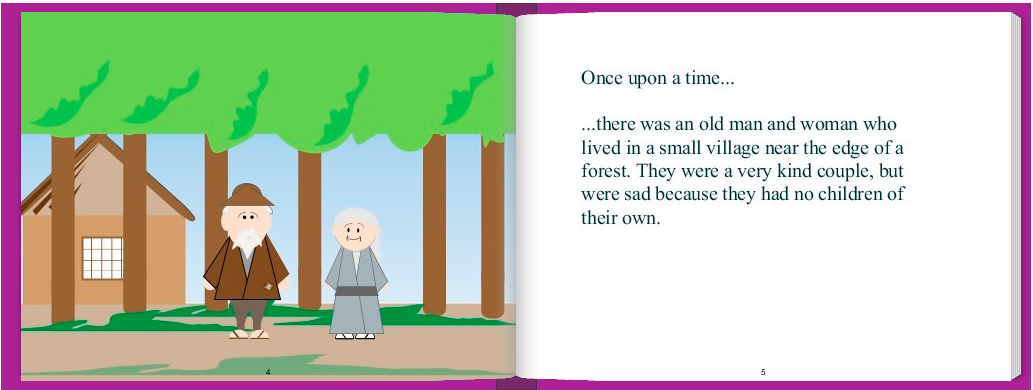
The graphics are a little crude, but that isn’t necessarily a drawback. The attempt (and the fear of potential failure) to achieve professional / polished work can be intimidating for students that aren't tech savvy. That anxiety stifles students’ creativity in my opinion. A sloppy looking platform gives students the freedom to get past the details and into the meat of the learning objective. Additionally, the interface of the program is simple and students will not be bogged down in the navigation or manipulation that can be common with products like Prezi.

StoryJumper Sample .png
Graphics from: www.storyjumper.com


The images available within the program lend themselves to fictional or fantastical tales; great for the younger audience. However, when needed students can supplement the library stock with uploaded images. As a result the application is useful to all grade levels.


The StoryJumper site is going to increase the learning and literacy skills of all grade levels (but not in the same way). Younger students will love working with graphic manipulatives in their story. It will encourage their creative instincts while they develop their 21st century skills including digital learning, critical thinking, decision making and communication. Older students will have fun with those features but also be cognitively ready to take advantage of the programs’ story development aids. The program offers stimulation to most learning types; tactile, logical, linguistic and spatial learners.


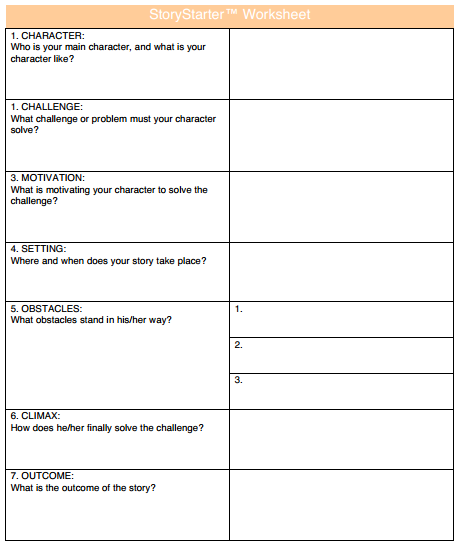
What I was most impressed with was the length to which the developers went to to make this website classroom ready. First, this website will work on any browser. That consideration isn't as important in Moore County, NC because we have great hardware in the hands of our students (HP Chromebooks), but it may be a relevant consideration for your LEA’s situation. Second, teachers’ accounts are free & they can set up “classroom” lists with students, usernames, and set time limits for in-class work (students have the option to create "at home" accounts to show their creation to their parents or work from home). Third, there is a one-click button that will create “getting started handouts” for each student with their personal log in information. Last but definitely not least, scaffolding and differentiation have been built into the program! Click on “Help” and find the link “download worksheet”. Seen below, the worksheet walks students through all the steps of character and story development.


TIP: If you are not in a one to one environment, students can complete story worksheets  & storyboards ahead of time to maximize time on task when you have hardware access.


Screenshot 2014-05-29 at 9.24.47 AM.png
Graphics from: www.storyjumper.com

I love this website and I can't wait to start using it in MCS classrooms next year. I see this fitting perfectly with our ELA, History, Foreign Language, and Science instruction. If you can think of anything else, put in the comments box below and share with our PLN. 

Read Graphite’s review here:

Read Common Sense Media’s review here: 


Will Herring
Digital Integration Facilitator
Moore County Schools
@WilliamHerrin16

Monday, May 12, 2014

Teacher Feature - Jilian Reynolds

Jilian Reynolds is a rock star 7th grade ELA teacher at Elise Middle School in Robbins, NC.  She is one of those teachers that has always been at the forefront of using technology with students, always chomping at the bit for more!

Because of this, at the start of this 2013-2014 school year, Jilian was a natural selection to pilot 1:1 Chromebooks for our county.  Her students did amazing work, created incredible multimedia projects, and have become a model classroom for others to come visit and see what every student is capable of doing on these machines.  She and her student's work and willingness to share their positive feedback on the Chromebook experience was a big factor in our decision to move forward with these devices for all students in grades 6-12.

As a bonus, Ms. Reynolds produced a short video with her students that shows how she uses Chromebooks in her classroom to easily and powerfully differentiate instruction and assessments.  Enjoy!