Showing posts with label edtech. Show all posts

Monday, October 24, 2016

Halloween is coming but Mrs. Futral isn't afraid

Integrating technology can be scary. 


Technology is constantly changing. It takes a lot of patience and perseverance. Especially when the computer, iPad, app, robot, chromebook, website (you see where I am going with this) is not working like it should. It is easy to become frustrated. But through it all, Johnna Futral knows that integrating technology is worth the risk. I have worked with Johnna over the past three years and she has become one of my closest allies in the world of digital learning. I know that if there is something new that I would like to take for a test drive I can approach Johnna and she will be eager to give it a shot. Not only is she open to my suggestions, she's an advocate for the benefits of digital learning. I wanted to share her teaching pedagogy that includes using technology to enhance her instruction so that other educators may see that the rewards are worth the risks that you take when you step out of your comfort zone. Here's a piece of my interview with another one of Moore County's finest:


Question: How long have you been a teacher in Moore County Schools?
Answer: This is my eighteenth years teaching. All in Moore County Schools. I’ve taught second grade for seven years, Kindergarten for seven years and two years in fourth grade. I also worked as an assistant for two years.

Q: How would you describe your teaching style?
A: My teaching philosophy has always been that high expectations lead to high achievers. I like a lot of movement in the classroom. I like to change things on a whim. I’d like to say that I’m organized enough that I’m effective but if something isn’t working I like to change it on the fly. I’d say I’m a little bit of a “fly by the seat of my pants” kind of teacher. It depends on what the kids need. What I think when I’m planning may be different than what happens when I’m actually teaching. I also like a lot of creative in the classroom. I like to integrate arts and science because the kids enjoy it and I bring that passion so then the kids get excited.

Q: You often integrate technology in your lessons. How does technology enhance your instruction?
A: For one thing, when the kids are using technology they are a lot more engaged compared to when they’re talking to their classmates. I think it has a lot to do with the world we’re living in. It enhances teaching when you bring in something they're familiar with. 21st century learners must be fluent with technology to be able to function as an adult. Showing students those skills of creating, collaboration, and publishing prepares them for what’s to come in their future. They still need to be able to talk through their thinking as well. That way we don’t take out the personal connection part.

Q: What are some of your favorite lessons that included technology?
A: I especially enjoyed the solar oven engineering lesson where our students created a plan, then made and tested, as well as improved a way of using the energy from the sun to make s’mores. I also enjoyed the Lego robotics lessons where our students created and programed robots that supplemented math lessons in measurement and comparing numbers. You can see the kids enjoy these lessons and you know the content will stick with them because of how much they enjoy it. Even though some of those lessons are harder to prepare for, it turns out being some of the best lessons. Once we got out there to see that something they created was successful when the sun had melted our chocolate...they’ll remember that forever..


Q: What would you say to a teacher who may be reluctant to use technology with their students?
A: I would say to utilize your resources. If your Digital Integration Facilitator is offering to give you help, you should take advantage of that resource because if you’re not comfortable with technology, your DIF is so you’ll be able to step outside of your comfort zone and then you’ll grow as a teacher. You are more likely to try something new when you’re working with a DIF. Until I see it, I don’t understand how it works. The only way you’re growing to grow as an educator is to step outside of the box of comfort. No one is going to grow until they take risks. Just like we tell our students. I often find that if I do take a risk and fail it’s a good lesson for my students as well. You teach them perseverance and not to give up with some things are hard.

Q: Does your principal affect your motivation or desire to use technology?
A: No. I think he’s very tech savy. It’s something that I do on my own because I think it’s beneficial.

Q: You’re an inspiration to many people, including myself, what inspires you?
A: From the time I was a small child I knew I wanted to be a teacher. I was inspired at a young age by my kindergarten teacher. I don’t know exactly what it was but she was a huge inspiration for me. I even did an internship where I went back into her classroom and worked with her.  My children also inspire me. My colleagues inspire me. I get inspired by other educators. I think that my daughter inspires me and that I inspire her as well as my students. They’re so much love in a school building that is enough in itself to be inspiring. I like to have fun. I don’t like to do things like in the olden days. I like to be creative and I think teaching allows me to do that.

Q: What is your favorite part about being a teacher?

A: I think my favorite part is the kids and how much they love you. It’s like having a classroom full of your own children that you mold and shape. Even though you send them home at the end of everyday you still think about them. Why else would you be a teacher? It’s about the kids. I like to see them excited about things. Like today, when they were building their robots today that’s something they were excited about.


This is Mrs. Futral's first year at Cameron Elementary School and they are beyond lucky to have such an amazing teacher. If I had kids, I would love for them to have her as their teacher. She is a phenomenal educator and I absolutely love collaborating with her.

Friday, April 24, 2015

Simplify Text with ReWordify


   Rewordify is a site that was introduced to me by one of my amazing colleagues. This tool can simplify text from an entire website or selected portions. Words that that are deemed as challenging will be adjusted to a lower lexile level, and will be highlighted to reflect words that were changed. Rewordify is a great tool to use for research projects; it opens many doors for various site exploration, that would normally be too difficult for students to understand. 
   To use Rewordify, you can either enter in a website URL, which will give vocabulary assistance for the entire website, or you can select certain paragraphs or sentences. 


   This is also a terrific tool to use with struggling readers or ELL students to assist with vocabulary acquisition. Rewordify is a site that can be used across the curriculum and is a great addition to any classroom.

Enjoy!
~Deanna Boesch

Friday, November 14, 2014

Collaboration Cool Tool
RealtimeBoard for Education

Good Looking, Powerful, and Chrome-Ready Mindmapping

Screen Shot 2014-11-14 at 6.00.19 AM.png

In my research to write this article (Cool Tools for Collaboration) I saw tons of workspace apps for the iPad and Chrome. They all give the students a virtual space to collaborate with similar features. The Apple Apps were more pleasing aesthetically and easier to teach with than the Chrome alternatives with which I was familiar. Chrome apps had a little more functionality than the Apple Store offerings, but those are typically more distracting than helpful in the classroom. I like the versatility of Lucid, but the design space is clunky. The Chrome version of Popplet is attractive, but lacks function and has lost the trust of our teachers because of some connectivity issues.

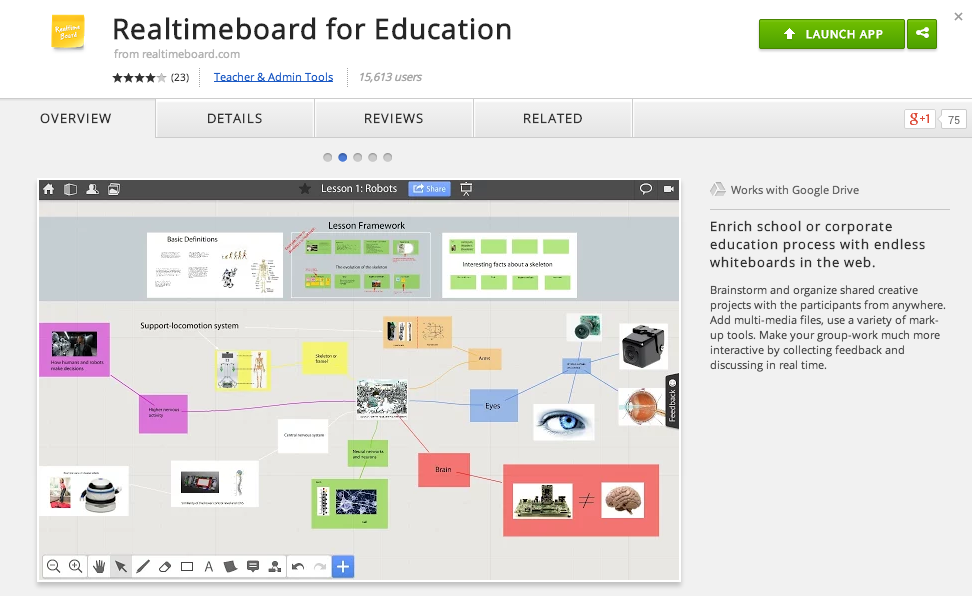
In my search to find something easy to use, powerful, and attractive for my Chromebook users I stumbled upon RealtimeBoard for Education. It is already loaded into the Moore@Schools Webstore and ready to use now.
Screen Shot 2014-11-14 at 6.03.50 AM.png
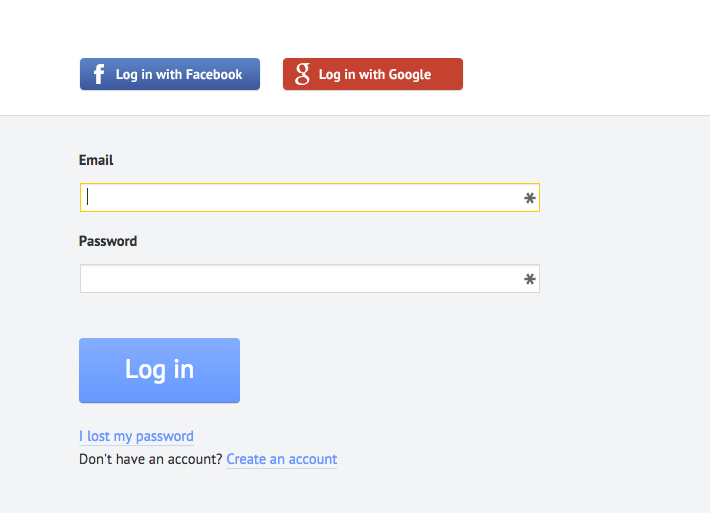
RealtimeBoard EDU supports single signin with edu gmail accounts.
Screen Shot 2014-11-14 at 5.14.39 AM.png
Screen Shot 2014-11-14 at 6.01.33 AM.png
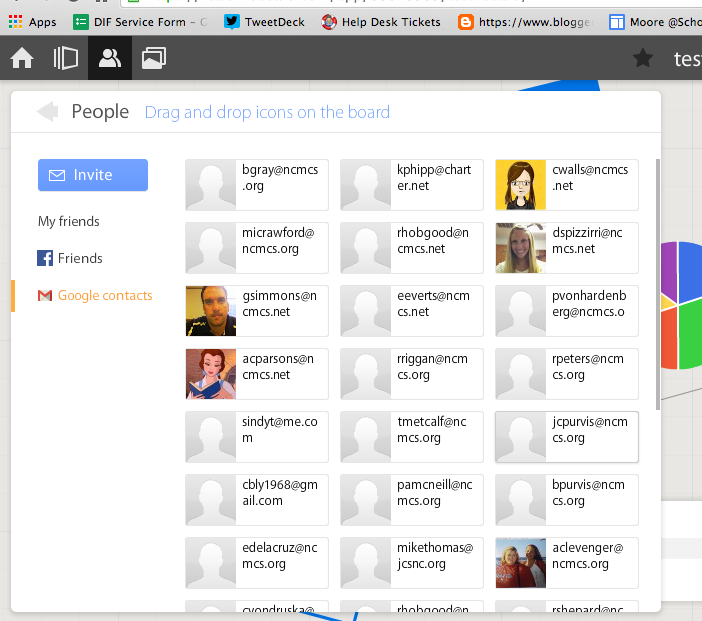
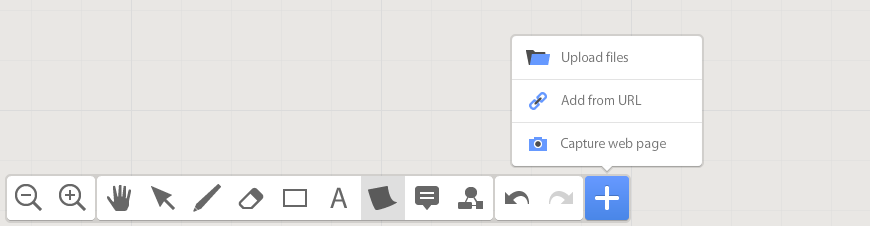
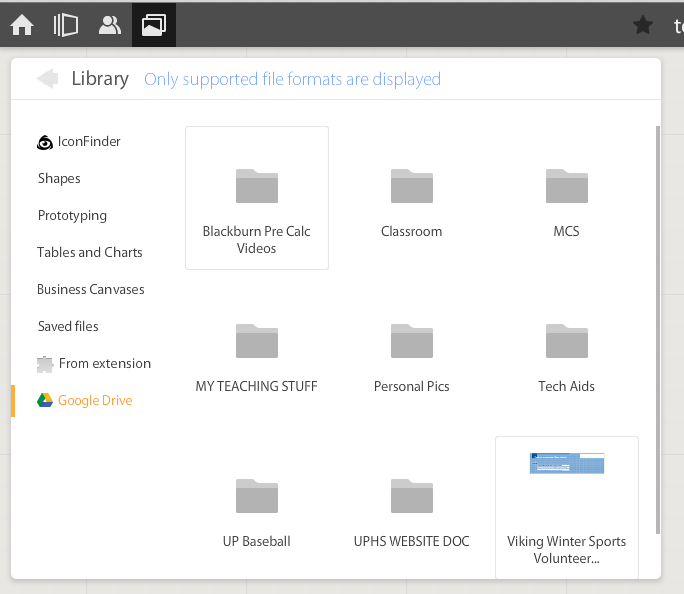
If allowed to do so it will also link to Drive like Lucid (very handy) and collaborators can be located and added through gmail. The user can also add an extension to capture whole or partial screenshots that will be automatically added to the RealtimeBoard Library (handier than I originally thought it would be).
Screen Shot 2014-11-14 at 5.22.29 AM.png
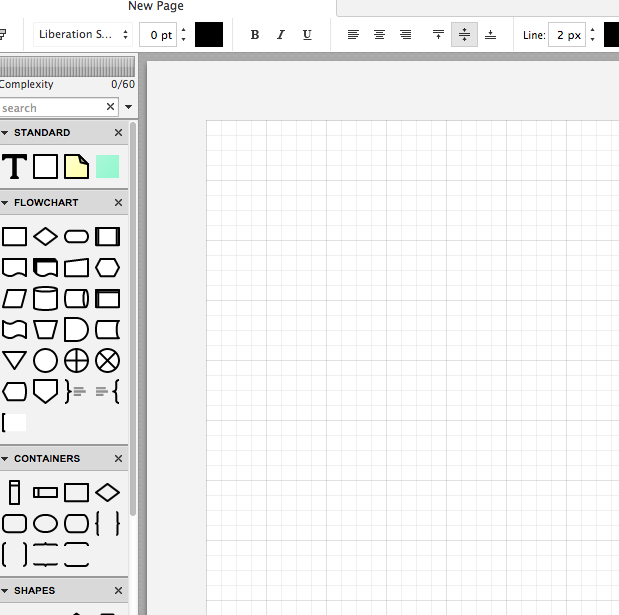
RealtimeBoard EDU has a great, clean space for the students to collaborate synchronously. It utilizes pretty common features for this type of program including drawing tools, shapes, connectors / arrow lines, and text boxes. The types of shapes & text bubbles are far fewer than Lucid but more than adequate for our needs.

RealtimeBoard EDU Lucid
Screen Shot 2014-11-14 at 5.24.20 AM.png Screen Shot 2014-11-14 at 9.15.59 AM.png
Screen Shot 2014-11-14 at 5.32.28 AM.png

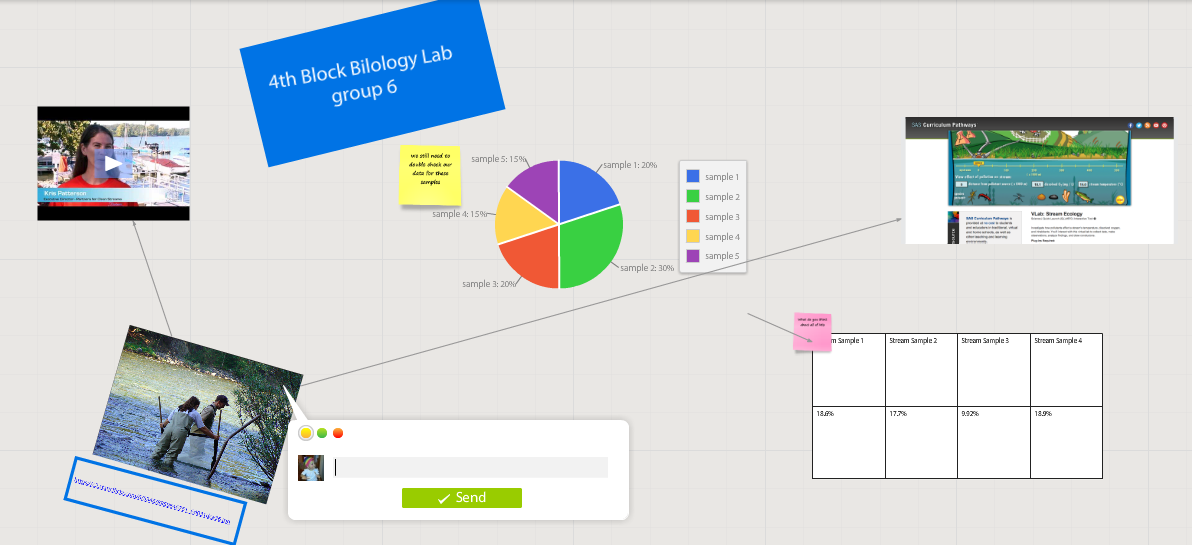
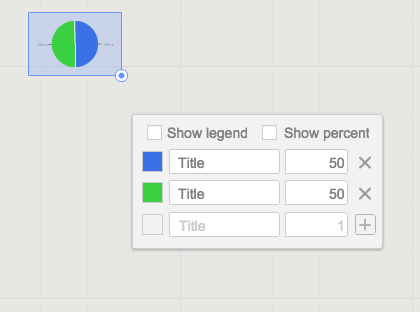
Students can embed video as with Popplet using the URL. Additions to those common tools include very easy to generate tables and charts (pie and various bar graphs).
Screen Shot 2014-11-14 at 5.35.55 AM.png
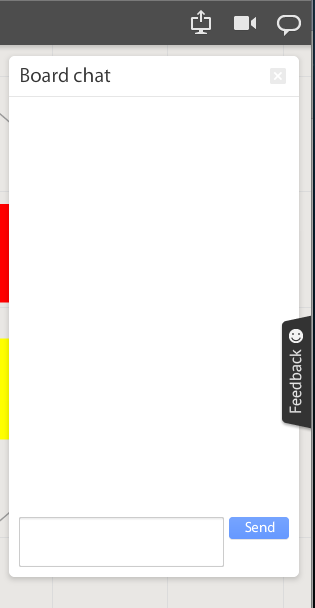
Students communicate in the workspace by generating post-it type notes, screen-share or by the onscreen “board chat” feature.
Screen Shot 2014-11-14 at 9.06.50 AM.png
What is unlike similar applications? RealtimeBoard lets users import entire documents, pictures, screenshots (very easy if you add extension--not currently in the Moore@School WebStore).

As students analyze these pieces and begin to see how they work together they can organize or combine the elements to convey a larger story.
Screen Shot 2014-11-14 at 6.00.19 AM.png
Student/students can save their work to Drive, download as PDF, add the instructor as collaborator, or send them the link. This many ways to submit make it quick and easy.

I really like the application at this point and I am happy to have an attractive alternative for my teachers. I anticipate this will be a big hit. Instructionally it could be modified to fit most assignment types and levels of Bloom’s framework.

__________________________________________
Ideas for Instruction:

Science: Lab & Experiment Reporting, Categorization

Social Studies: Biographies, Primary Doc Analysis, & Complex Cause-Effect

Math:Terminology, Illustrations of Real World Application of Skill

ELA: Character Development, Thematic Strands in Story, Types of Poetry, Mood/Tone/Theme

Foreign Language: Cultural Elements, Dialectic Variations, Topically Related Verb/Nouns
_______________________________________________________________________________
If you have found any other great alternatives or have something to add to the discussion here just post a comment below.

Will Herring, MEd-IT NBPTS
Moore County Schools, IDI DIF

@WilliamHerrin16

Friday, September 12, 2014

What's? and Hows? of the New Google Classroom

What's? and Hows? of the New Google Classroom 

I have been leading a weekly roundtable of teachers using the recently released Google Classroom. Overwhelmingly the teachers are pleased with the platform’s material distribution capacity and thrilled with the automated collection and storage. For those of you that have not had a chance to play with it yet, I’ll walk you through getting started.


Setting up your Stream:

Navigate to classroom.google.com and login using their Google for Education enabled credentials (Classroom App is available in the Google Store). You will be asked if you are a teacher or student. Once you have successfully logged in, you are taken to your personal “home screen”  seen in image II.

Screen Shot 2014-09-12 at 3.pngScreen Shot 2014-09-12 at 3.png
What we found: You see in screenshot II that I am both a teacher of sections and a student in an honors biology course. We found it to be very useful to “join” each others courses so we could preview how our assignments looked from the students’ perspective.

Click the “+” (shown above) to “Create” or “Join” a course. To join a course, enter the alphanumeric class code and the icon for that course will appear on your homepage.

If you create a class, you will be prompted to give it a name. After be taken to the class “Stream” (stream is like your Facebook wall) where you will post announcements and assignments. On the left sidebar of your screen you will see your class code so that others can enrol in your course.

What you will not see initially is that Google has also created a folder in your Drive account called CLASSROOM. It will create a subfolder here for each class you create.

In the top left of your screen you will see three horizontal bars that will return you to the home screen. In the top center, you will see three options:
1) Stream -- announcements and assignments, 2) Students -- shows the name of everyone that has enrolled in your course, 3) About -- allows you to give your course a description.  


Ready to add to your Stream:
You have two options; Announcement or Assignment. They are essentially the same but Assignments have a few additional features that are the beauty and power of Classroom.

This is always at the top of the teacher’s screen Screen Shot 2014-09-12 at 3.38.57 PM.png

Clicking on Announcement drops down to look like this
Screen Shot 2014-09-12 at 3.39.51 PM.png
You can see you are asked to enter the text you wish your class to see. You can also add attachments, insert any type of material stored in Drive, embed a YouTube video or link to an external site.

What we found:
We have not found a limit to the number of items you can put here; it will also accept entire folders from your linked Drive account. Click Post to add it to your Stream.

Clicking on Assignment drops down to look like this
Screen Shot 2014-09-12 at 3.39.57 PM.png
See the additional line for instructions. Set a due date and time if desired. All the same attachment options exist here with a new choice of if you want the students to view the resource or be given their own copy automatically. Plus is names those documents with the name of the assignment + the student’s name. Click Assign to post to your Stream. If you need to change a post, do so by clicking on the three dots in the top right of the announcement or assignment.

What we found:
Changing assignments: Your students see the version of the assignment posted when THEY accessed their Stream. If you make any edits after student open the course they will need to refresh the screen to see the changes.
Only use assignment if there is a document, poster, etc… to turn in. Filling out forms or writing a hard copy journal does not result in deliverables; they can’t upload anything. When this happens, Google thinks they have a missing assignment.

Getting students work:
When you have students make a copy Google does two things behind the scenes: 1) Google creates a subfolder in your Drive>Classroom>Class> with the name of the assignment. 2) When a student creates their copy it will automatically be deposited within this folder.
Back in your Stream, you see how many students have started their work, how many have turned in their work, and you can click the students’ name to give real time feedback. By clicking on the assignment you can open, grade and email students their feedback.
Screen Shot 2014-09-12 at 4.27.03 PM.png
What we found:
Return acts as both a send and save button. If you exit without clicking Return you will lose any grades you had entered during that session.


Conclusions:
We are infatuated but not in love with Classroom...yet. It is better than most of its predecessors: Edmodo, etc.. The group and I continue to tweak how to use it best and what it needs to be better. I’ll keep you updated.

My next post will be on the subject of what and how to supplement the Classroom with synergistic systems.

Thursday, May 29, 2014

Teaching Story Development to Digital Natives with StoryJumper

Teaching Story Development to Digital Natives with StoryJumper


StoryJumper Logo
StoryJumper www.storyjumper.com


It’s Thursday and that mean it is time for Chromebooks in Education to highlight a Web 2.0 cool tool for student production. A partnership teacher and I were preparing lesson concepts for next year when we stumbled across StoryJumper. As I write this, my mind is racing with applications for this web tool.


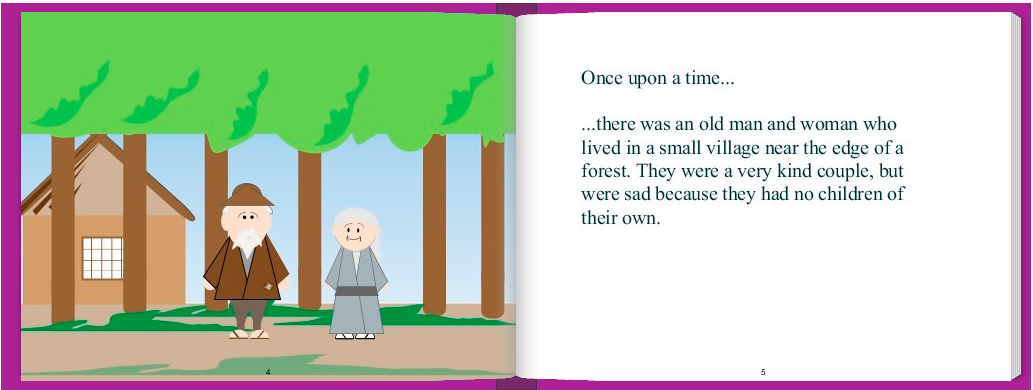
The graphics are a little crude, but that isn’t necessarily a drawback. The attempt (and the fear of potential failure) to achieve professional / polished work can be intimidating for students that aren't tech savvy. That anxiety stifles students’ creativity in my opinion. A sloppy looking platform gives students the freedom to get past the details and into the meat of the learning objective. Additionally, the interface of the program is simple and students will not be bogged down in the navigation or manipulation that can be common with products like Prezi.

StoryJumper Sample .png
Graphics from: www.storyjumper.com


The images available within the program lend themselves to fictional or fantastical tales; great for the younger audience. However, when needed students can supplement the library stock with uploaded images. As a result the application is useful to all grade levels.


The StoryJumper site is going to increase the learning and literacy skills of all grade levels (but not in the same way). Younger students will love working with graphic manipulatives in their story. It will encourage their creative instincts while they develop their 21st century skills including digital learning, critical thinking, decision making and communication. Older students will have fun with those features but also be cognitively ready to take advantage of the programs’ story development aids. The program offers stimulation to most learning types; tactile, logical, linguistic and spatial learners.


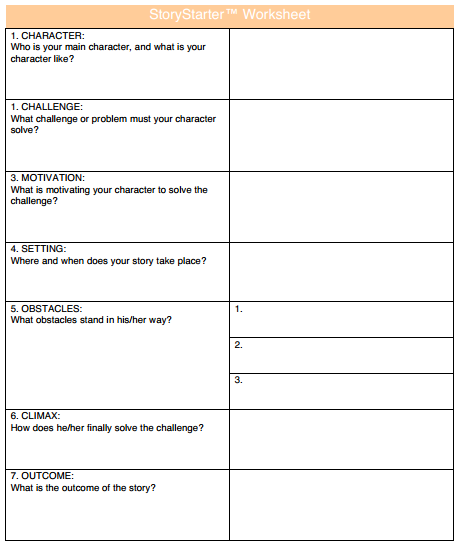
What I was most impressed with was the length to which the developers went to to make this website classroom ready. First, this website will work on any browser. That consideration isn't as important in Moore County, NC because we have great hardware in the hands of our students (HP Chromebooks), but it may be a relevant consideration for your LEA’s situation. Second, teachers’ accounts are free & they can set up “classroom” lists with students, usernames, and set time limits for in-class work (students have the option to create "at home" accounts to show their creation to their parents or work from home). Third, there is a one-click button that will create “getting started handouts” for each student with their personal log in information. Last but definitely not least, scaffolding and differentiation have been built into the program! Click on “Help” and find the link “download worksheet”. Seen below, the worksheet walks students through all the steps of character and story development.


TIP: If you are not in a one to one environment, students can complete story worksheets  & storyboards ahead of time to maximize time on task when you have hardware access.


Screenshot 2014-05-29 at 9.24.47 AM.png
Graphics from: www.storyjumper.com

I love this website and I can't wait to start using it in MCS classrooms next year. I see this fitting perfectly with our ELA, History, Foreign Language, and Science instruction. If you can think of anything else, put in the comments box below and share with our PLN. 

Read Graphite’s review here:

Read Common Sense Media’s review here: 


Will Herring
Digital Integration Facilitator
Moore County Schools
@WilliamHerrin16