Showing posts with label Google App. Show all posts

Friday, December 2, 2016

Travel the world (and beyond) with Google Expeditions

Google Expeditions


Wanna get away? That's the catchy slogan that Southwest airlines uses to advertise their low prices on airfare but I think this would make a nice jingle for virtual reality headsets too. You may have seen the commercials for companies like Samsung and Playstation who have brought virtual reality into the homes of consumers but now these headsets are popping up in classrooms across the country. It's basically comprised of three things, a cell phone that has the gyroscope feature to enable the virtual reality pictures, a headset to house the phone and a set of lenses that view the pictures (usually included with the headset).

You'll find a number of apps that are compatible with virtual reality but the one that I've found most helpful for teachers is Google Expeditions. This is the perfect app for teachers who are interested in taking their class on virtual field trips. There are over 400 locations to travel to within this app. There are many appealing features that this app offers for educators. First and foremost, it's free! But what I love about Google Expeditions is all of the information that is provided for teachers with each location. For each destination Google Expeditions provides:

  • Descriptive paragraphs that teachers can read to students to provide background information while they're immersed in their journey. 
  • Leveled questions to check your students for understanding
  • Focus Points that direct your students' attention to certain spots where Google provides you with more information to enhance your trip 


Another thing that I love about Google Expeditions is the teacher is the "Leader" of the expedition which puts them in complete control and the students are the "Followers". The teacher determines where we go on our expedition and they can also stop the expedition at any time through the use of a separate device, I used an iPad. There are locations that are waiting for you to explore that are directly aligned to the curriculum. We've traveled to a Native American fair to learn more about their culture and how they adapted to their environment. We're flying into space to examine the many features of our solar system next week. I'm really looking forward to that lesson! 

Here's what we purchased and the cost for each:

Teefan Headsets - $15.72 from Amazon   Samsung Galaxy S4 Smart Phones (Refurbished) - $120.00


Disclaimer
Be sure to consult your IT department to ensure your district has the wireless capability of pairing the cell phones to other devices, such as an iPad. 


Friday, November 14, 2014

Collaboration Cool Tool
RealtimeBoard for Education

Good Looking, Powerful, and Chrome-Ready Mindmapping

Screen Shot 2014-11-14 at 6.00.19 AM.png

In my research to write this article (Cool Tools for Collaboration) I saw tons of workspace apps for the iPad and Chrome. They all give the students a virtual space to collaborate with similar features. The Apple Apps were more pleasing aesthetically and easier to teach with than the Chrome alternatives with which I was familiar. Chrome apps had a little more functionality than the Apple Store offerings, but those are typically more distracting than helpful in the classroom. I like the versatility of Lucid, but the design space is clunky. The Chrome version of Popplet is attractive, but lacks function and has lost the trust of our teachers because of some connectivity issues.

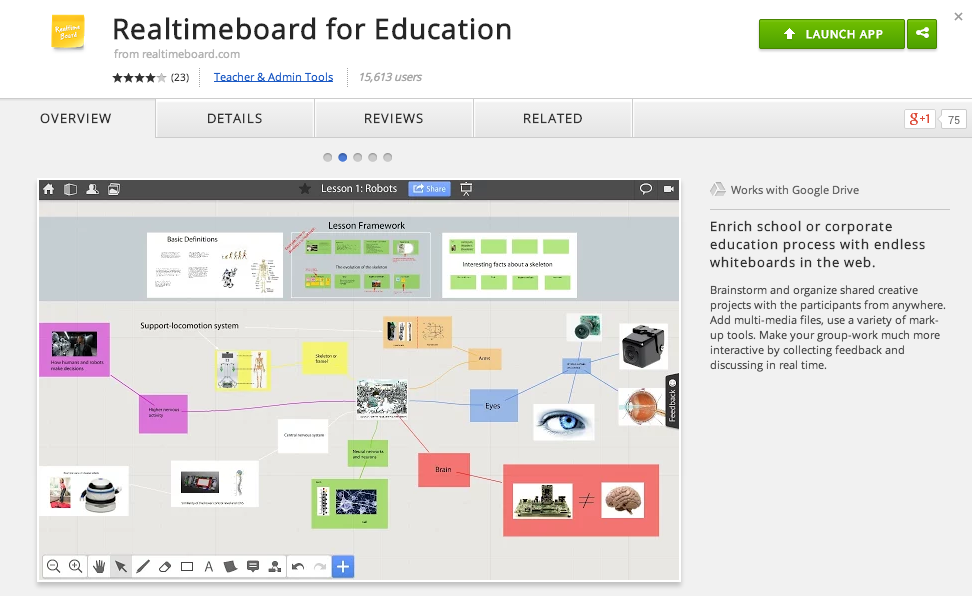
In my search to find something easy to use, powerful, and attractive for my Chromebook users I stumbled upon RealtimeBoard for Education. It is already loaded into the Moore@Schools Webstore and ready to use now.
Screen Shot 2014-11-14 at 6.03.50 AM.png
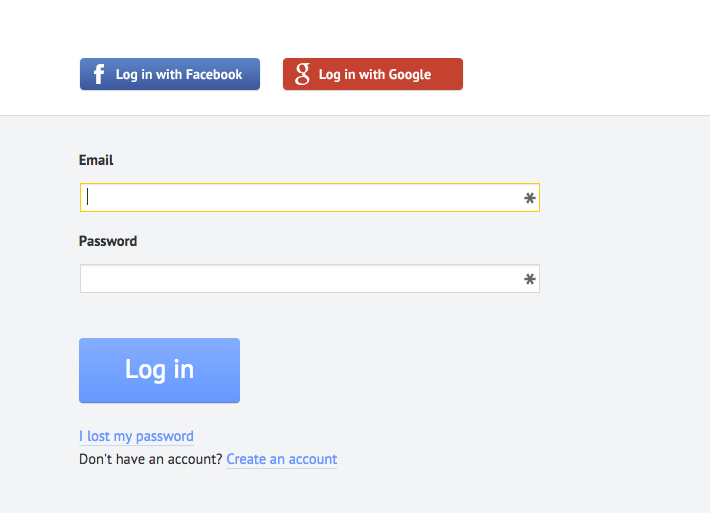
RealtimeBoard EDU supports single signin with edu gmail accounts.
Screen Shot 2014-11-14 at 5.14.39 AM.png
Screen Shot 2014-11-14 at 6.01.33 AM.png
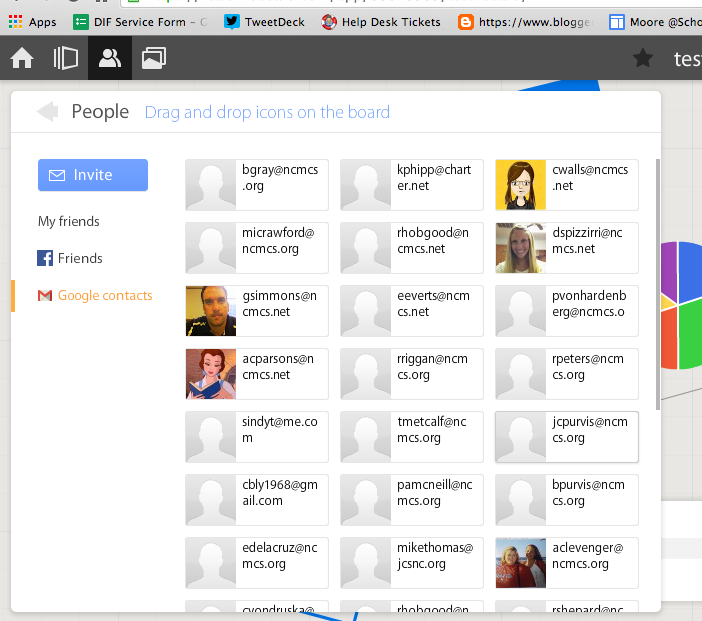
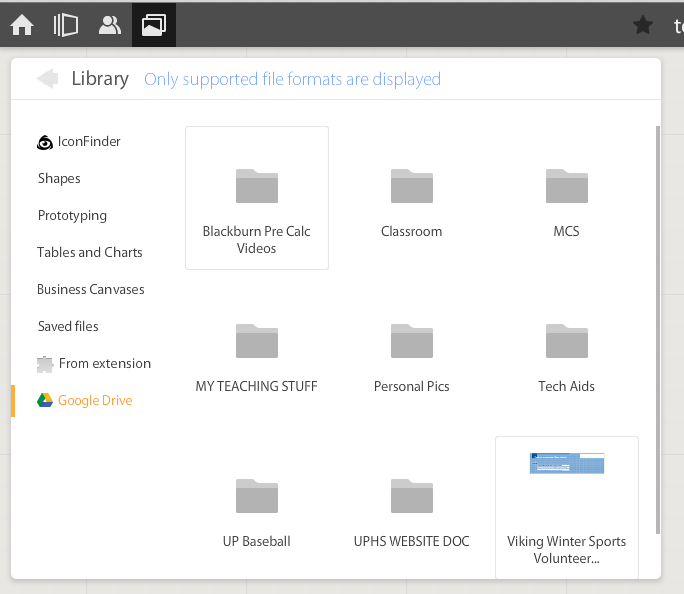
If allowed to do so it will also link to Drive like Lucid (very handy) and collaborators can be located and added through gmail. The user can also add an extension to capture whole or partial screenshots that will be automatically added to the RealtimeBoard Library (handier than I originally thought it would be).
Screen Shot 2014-11-14 at 5.22.29 AM.png
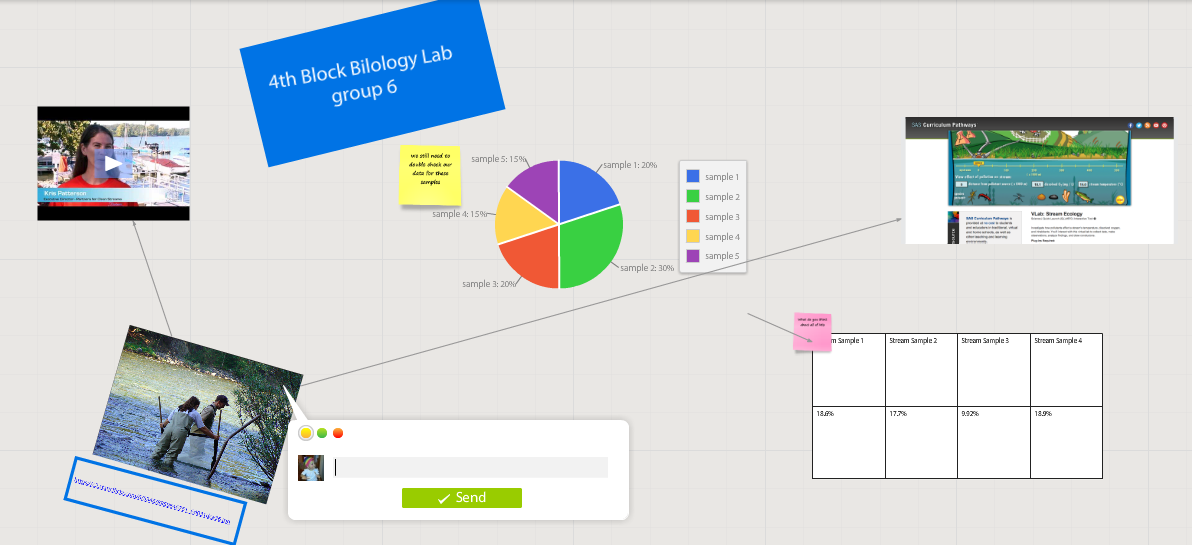
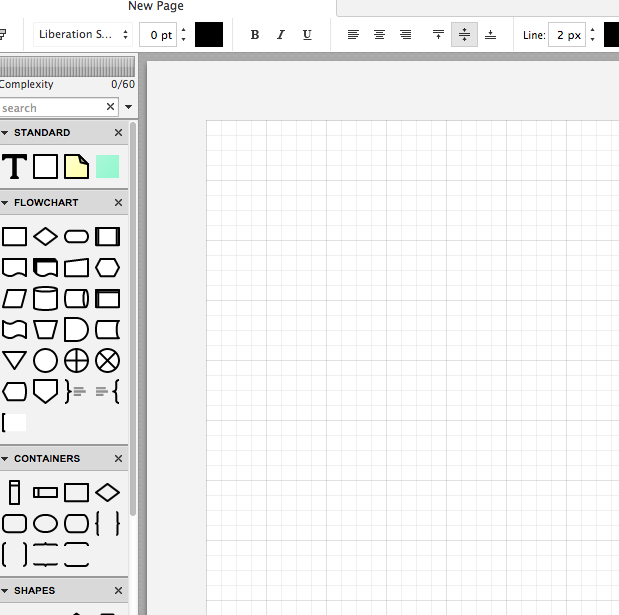
RealtimeBoard EDU has a great, clean space for the students to collaborate synchronously. It utilizes pretty common features for this type of program including drawing tools, shapes, connectors / arrow lines, and text boxes. The types of shapes & text bubbles are far fewer than Lucid but more than adequate for our needs.

RealtimeBoard EDU Lucid
Screen Shot 2014-11-14 at 5.24.20 AM.png Screen Shot 2014-11-14 at 9.15.59 AM.png
Screen Shot 2014-11-14 at 5.32.28 AM.png

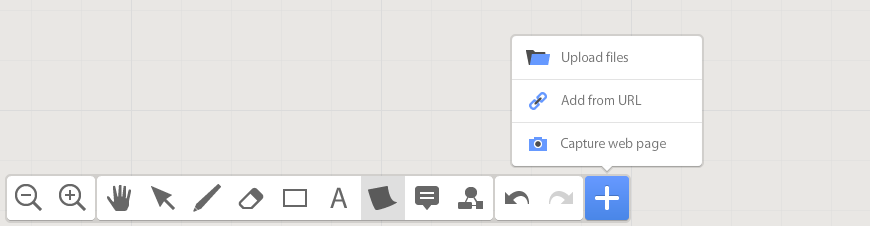
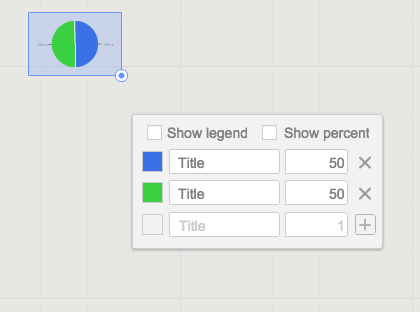
Students can embed video as with Popplet using the URL. Additions to those common tools include very easy to generate tables and charts (pie and various bar graphs).
Screen Shot 2014-11-14 at 5.35.55 AM.png
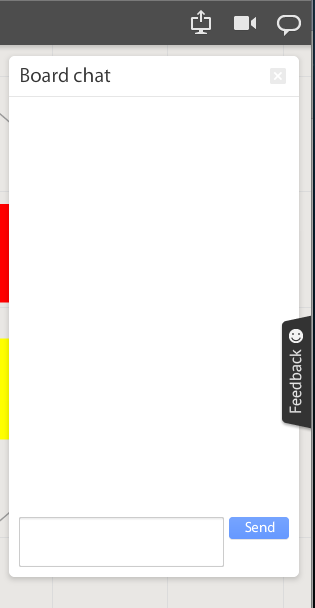
Students communicate in the workspace by generating post-it type notes, screen-share or by the onscreen “board chat” feature.
Screen Shot 2014-11-14 at 9.06.50 AM.png
What is unlike similar applications? RealtimeBoard lets users import entire documents, pictures, screenshots (very easy if you add extension--not currently in the Moore@School WebStore).

As students analyze these pieces and begin to see how they work together they can organize or combine the elements to convey a larger story.
Screen Shot 2014-11-14 at 6.00.19 AM.png
Student/students can save their work to Drive, download as PDF, add the instructor as collaborator, or send them the link. This many ways to submit make it quick and easy.

I really like the application at this point and I am happy to have an attractive alternative for my teachers. I anticipate this will be a big hit. Instructionally it could be modified to fit most assignment types and levels of Bloom’s framework.

__________________________________________
Ideas for Instruction:

Science: Lab & Experiment Reporting, Categorization

Social Studies: Biographies, Primary Doc Analysis, & Complex Cause-Effect

Math:Terminology, Illustrations of Real World Application of Skill

ELA: Character Development, Thematic Strands in Story, Types of Poetry, Mood/Tone/Theme

Foreign Language: Cultural Elements, Dialectic Variations, Topically Related Verb/Nouns
_______________________________________________________________________________
If you have found any other great alternatives or have something to add to the discussion here just post a comment below.

Will Herring, MEd-IT NBPTS
Moore County Schools, IDI DIF

@WilliamHerrin16

Friday, September 12, 2014

What's? and Hows? of the New Google Classroom

What's? and Hows? of the New Google Classroom 

I have been leading a weekly roundtable of teachers using the recently released Google Classroom. Overwhelmingly the teachers are pleased with the platform’s material distribution capacity and thrilled with the automated collection and storage. For those of you that have not had a chance to play with it yet, I’ll walk you through getting started.


Setting up your Stream:

Navigate to classroom.google.com and login using their Google for Education enabled credentials (Classroom App is available in the Google Store). You will be asked if you are a teacher or student. Once you have successfully logged in, you are taken to your personal “home screen”  seen in image II.

Screen Shot 2014-09-12 at 3.pngScreen Shot 2014-09-12 at 3.png
What we found: You see in screenshot II that I am both a teacher of sections and a student in an honors biology course. We found it to be very useful to “join” each others courses so we could preview how our assignments looked from the students’ perspective.

Click the “+” (shown above) to “Create” or “Join” a course. To join a course, enter the alphanumeric class code and the icon for that course will appear on your homepage.

If you create a class, you will be prompted to give it a name. After be taken to the class “Stream” (stream is like your Facebook wall) where you will post announcements and assignments. On the left sidebar of your screen you will see your class code so that others can enrol in your course.

What you will not see initially is that Google has also created a folder in your Drive account called CLASSROOM. It will create a subfolder here for each class you create.

In the top left of your screen you will see three horizontal bars that will return you to the home screen. In the top center, you will see three options:
1) Stream -- announcements and assignments, 2) Students -- shows the name of everyone that has enrolled in your course, 3) About -- allows you to give your course a description.  


Ready to add to your Stream:
You have two options; Announcement or Assignment. They are essentially the same but Assignments have a few additional features that are the beauty and power of Classroom.

This is always at the top of the teacher’s screen Screen Shot 2014-09-12 at 3.38.57 PM.png

Clicking on Announcement drops down to look like this
Screen Shot 2014-09-12 at 3.39.51 PM.png
You can see you are asked to enter the text you wish your class to see. You can also add attachments, insert any type of material stored in Drive, embed a YouTube video or link to an external site.

What we found:
We have not found a limit to the number of items you can put here; it will also accept entire folders from your linked Drive account. Click Post to add it to your Stream.

Clicking on Assignment drops down to look like this
Screen Shot 2014-09-12 at 3.39.57 PM.png
See the additional line for instructions. Set a due date and time if desired. All the same attachment options exist here with a new choice of if you want the students to view the resource or be given their own copy automatically. Plus is names those documents with the name of the assignment + the student’s name. Click Assign to post to your Stream. If you need to change a post, do so by clicking on the three dots in the top right of the announcement or assignment.

What we found:
Changing assignments: Your students see the version of the assignment posted when THEY accessed their Stream. If you make any edits after student open the course they will need to refresh the screen to see the changes.
Only use assignment if there is a document, poster, etc… to turn in. Filling out forms or writing a hard copy journal does not result in deliverables; they can’t upload anything. When this happens, Google thinks they have a missing assignment.

Getting students work:
When you have students make a copy Google does two things behind the scenes: 1) Google creates a subfolder in your Drive>Classroom>Class> with the name of the assignment. 2) When a student creates their copy it will automatically be deposited within this folder.
Back in your Stream, you see how many students have started their work, how many have turned in their work, and you can click the students’ name to give real time feedback. By clicking on the assignment you can open, grade and email students their feedback.
Screen Shot 2014-09-12 at 4.27.03 PM.png
What we found:
Return acts as both a send and save button. If you exit without clicking Return you will lose any grades you had entered during that session.


Conclusions:
We are infatuated but not in love with Classroom...yet. It is better than most of its predecessors: Edmodo, etc.. The group and I continue to tweak how to use it best and what it needs to be better. I’ll keep you updated.

My next post will be on the subject of what and how to supplement the Classroom with synergistic systems.