Showing posts with label DIF. Show all posts

Tuesday, March 22, 2016

Pinecrest Students Decide Who We Can Trust in 2016

March 22nd, 2016


Kasich_J-cropped.jpg
vqLFytq3.jpg
Trump.jpg
1wPBxxKw.jpg
g4a6P9Yh.jpg
svmwnMOr.jpg


The 2016 presidential election season is in full swing. It is at the forefront of the news and our students’ minds. Accusations are flying freely  and the decorum of the candidates is as low as we have seen since the 1830’s.

Shawna Farbotnik and Emma Robinson, both Civics and Economics teachers at Pinecrest High School in Southern Pines, wanted their students to critically analyze the claims of the candidates. Using the site, Politifact as a model, Shawna, Emma and I created a lesson that required students to identify six specific claims by one of the candidates, search for confirming or conflicting evidence using only reputable sources, and then present their work in front of a green screen.

The kids did a great job with their claims and research. The green screen work and editing threw us for a loop but they turned out well and we’ll know how to do a little better next time. Here is the link to our work, the lesson plan, and our rubric. As with all things, these are works in progress. Feel free to use in your room and if you figure something out send us the tip!

button.png
~~~~~~~~~~~~~~~~~~~~~~
Images
https://blogger.googleusercontent.com/img/b/R29vZ2xl/AVvXsEjx82fzflnLnOaBvrUSuYGAIYj5R5rkJjsc1pzqmfPAO8rrF0wapCfTKKuAKzM6nuYnoynOikHSR8EB7xC4jaRB_YsQvgKo4-qVnrO7WwwXyRnTXF_PGZHgTVU-hxoknzsDTHqKEHcJVpmX/s1600/Trump.jpg
https://pbs.twimg.com/profile_images/617770216412442625/vqLFytq3.jpg
http://fightbigmoney.com/images/scorecard/Kasich_J-cropped.jpg
https://pbs.twimg.com/profile_images/677279682283200513/1wPBxxKw.jpg
https://pbs.twimg.com/profile_images/618647359380000769/g4a6P9Yh.jpg
https://pbs.twimg.com/profile_images/589003774624079873/svmwnMOr.jpg

Will Herring
Digital Integration Facilitator
MCS, UPHS, PHS
@willherrin16


Friday, September 12, 2014

What's? and Hows? of the New Google Classroom

What's? and Hows? of the New Google Classroom 

I have been leading a weekly roundtable of teachers using the recently released Google Classroom. Overwhelmingly the teachers are pleased with the platform’s material distribution capacity and thrilled with the automated collection and storage. For those of you that have not had a chance to play with it yet, I’ll walk you through getting started.


Setting up your Stream:

Navigate to classroom.google.com and login using their Google for Education enabled credentials (Classroom App is available in the Google Store). You will be asked if you are a teacher or student. Once you have successfully logged in, you are taken to your personal “home screen”  seen in image II.

Screen Shot 2014-09-12 at 3.pngScreen Shot 2014-09-12 at 3.png
What we found: You see in screenshot II that I am both a teacher of sections and a student in an honors biology course. We found it to be very useful to “join” each others courses so we could preview how our assignments looked from the students’ perspective.

Click the “+” (shown above) to “Create” or “Join” a course. To join a course, enter the alphanumeric class code and the icon for that course will appear on your homepage.

If you create a class, you will be prompted to give it a name. After be taken to the class “Stream” (stream is like your Facebook wall) where you will post announcements and assignments. On the left sidebar of your screen you will see your class code so that others can enrol in your course.

What you will not see initially is that Google has also created a folder in your Drive account called CLASSROOM. It will create a subfolder here for each class you create.

In the top left of your screen you will see three horizontal bars that will return you to the home screen. In the top center, you will see three options:
1) Stream -- announcements and assignments, 2) Students -- shows the name of everyone that has enrolled in your course, 3) About -- allows you to give your course a description.  


Ready to add to your Stream:
You have two options; Announcement or Assignment. They are essentially the same but Assignments have a few additional features that are the beauty and power of Classroom.

This is always at the top of the teacher’s screen Screen Shot 2014-09-12 at 3.38.57 PM.png

Clicking on Announcement drops down to look like this
Screen Shot 2014-09-12 at 3.39.51 PM.png
You can see you are asked to enter the text you wish your class to see. You can also add attachments, insert any type of material stored in Drive, embed a YouTube video or link to an external site.

What we found:
We have not found a limit to the number of items you can put here; it will also accept entire folders from your linked Drive account. Click Post to add it to your Stream.

Clicking on Assignment drops down to look like this
Screen Shot 2014-09-12 at 3.39.57 PM.png
See the additional line for instructions. Set a due date and time if desired. All the same attachment options exist here with a new choice of if you want the students to view the resource or be given their own copy automatically. Plus is names those documents with the name of the assignment + the student’s name. Click Assign to post to your Stream. If you need to change a post, do so by clicking on the three dots in the top right of the announcement or assignment.

What we found:
Changing assignments: Your students see the version of the assignment posted when THEY accessed their Stream. If you make any edits after student open the course they will need to refresh the screen to see the changes.
Only use assignment if there is a document, poster, etc… to turn in. Filling out forms or writing a hard copy journal does not result in deliverables; they can’t upload anything. When this happens, Google thinks they have a missing assignment.

Getting students work:
When you have students make a copy Google does two things behind the scenes: 1) Google creates a subfolder in your Drive>Classroom>Class> with the name of the assignment. 2) When a student creates their copy it will automatically be deposited within this folder.
Back in your Stream, you see how many students have started their work, how many have turned in their work, and you can click the students’ name to give real time feedback. By clicking on the assignment you can open, grade and email students their feedback.
Screen Shot 2014-09-12 at 4.27.03 PM.png
What we found:
Return acts as both a send and save button. If you exit without clicking Return you will lose any grades you had entered during that session.


Conclusions:
We are infatuated but not in love with Classroom...yet. It is better than most of its predecessors: Edmodo, etc.. The group and I continue to tweak how to use it best and what it needs to be better. I’ll keep you updated.

My next post will be on the subject of what and how to supplement the Classroom with synergistic systems.

Friday, June 6, 2014

What is Google Drive & Why Use It?

Google Drive....A Closer Look


   Over the past year, there have been many questions surrounding Google Drive. Teachers, students, parents, and administrators are all curious as to why Google Drive ('the cloud') is being used as a storage space for information. It is a new idea, and ventures away from the traditional save and email documents modality. As with most new ideas, they are approached with caution and apprehension at times. Therefore, it is important to learn the benefits of Google Drive, before deciding one way or another.
   Google Drive, in a nutshell, is an online storage space. Documents, media, presentations, and much more can be housed in 'the cloud'. The benefit of using an online storage space, like Google Drive, is the accessibility of documents, without the fear of them being lost. Anything stored in Google Drive, can be accessed from any device, at any time, and from anywhere. Therefore if your computer breaks, you can still access and work on your documents from a different device.  This is an important feature in that it eliminates the worry of the 'computer crashing', and losing all of your information. 
   Also, Google Drive contains its own unique suite of writing tools. Google Documents (word processing), Google Slides (presentation), Google spreadsheet, and Google Drawing are among the basic tools provided on Google Drive. With these documents, students and teachers have the ability to collaborate on work, simultaneously. This notion assists teachers and students in achieving work completion, despite overlapping schedules.  
   Lastly, through Google Drive, the user has the ability to share documents with others. Once documents have been shared, the user can determine whether others can edit, comment, or simply just view their work.  Once work has been shared with another person, there is no need to share again if revisions have been made or suggested. This is an important piece to Google Drive, as it alleviates the need to email documents back and forth for every revision. 
   Just like any other tool, Google Drive will have its positive and negatives. The important question to keep in mind is, does Google Drive best suit your needs as an educator? The only way to truly determine its benefits for you, is to try it out and ask lots of questions! Best of luck on your Google Drive journey!
~Deanna Spizzirri

Thursday, May 22, 2014

Create Your Own Classroom Posters!


Create Your Own Classroom Posters!

   As classroom teachers and administrators, we know how expensive decorative supplies and programs can be. With new technology, it is possible to create your own, personalized, classroom posters. These posters can state your class motto, school pledge, or favorite quote. 


   These customizable posters can be created at recitethis.com. Simply type in your word, quote, or statement and choose a theme.

    
      After selecting your desired poster template, you are ready to share, download, and eventually print. After just a few easy steps, your classroom will be transformed into a unique, personalized, learning environment.


Happy designing!
~Deanna Spizzirri

Friday, May 16, 2014

A Notable Addition to MCS Chromebooks

A Notable Addition to MCS Chromebooks


Hi everyone! My name is Will Herring & I’m the newest member of the Moore County School’s Digital Integration Facilitation team. During my second week on the job, one of MCSs’ outstanding APUSH teachers asked if there was an app in the Moore@School Google App Store that would allow his students to 1) annotate and 2) collaborate in PDF files. To prepare for the AP test he needs to have students practice with document based questions (DBQ’s) that can run upwards of 8-10 pages per student. If such an app was available, teachers could save thousands of copies (and time), expose their students to a wider range of resources, and give them powerful tools to activate critical reading, thinking, and peer editing skills.


images


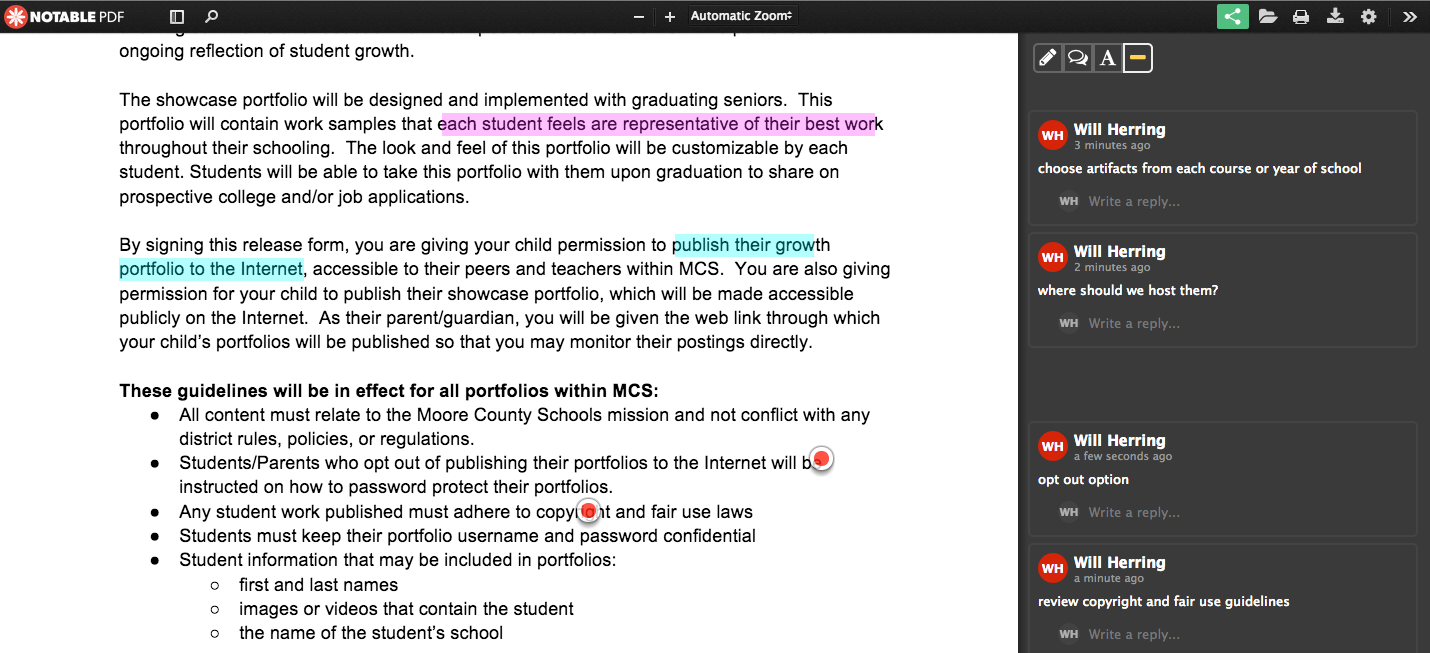
Enter Notable PDF to the Google Marketplace. Notable is available as either an App or extension in Google Chrome. Import PDF’s individually with “Open As” or set Notable as your default viewer. Connect with real-time collaborators with the “link” icon in the top right corner of your screen. Once you have the document you need, there are two options for annotation;
Highlight & Comment: Choose the “highlight” icon in the top right of the screen, select the color you want, and select text you want to annotate. When you release the mouse, a comment box will automatically appear on the right-hand column.


O Target & Comment: Double click on the document where you would like to add a notation. A “target”  placeholder will stay there and a comment box will appear in the right-hand column.


Screen Shot 2014-05-16 at 3.23.41 PM.png


I can see a place for this app for collaborative idea development, peer review/feedback (but not replace Docs), and resource analysis. I’m really looking forward to see how our foreign language and visual arts teachers figure out how to use this tool.


Maybe the greatest feature for my logistics oriented mind is that Notable will work offline and upload when the student returns to a WiFi enabled area. This is so important for those students without access away from school.