Showing posts with label Chromebooks in edu. Show all posts

Tuesday, April 28, 2015

Teacher Spotlight - Joshua Cassellius Union Pines

Today I bring you some integration ideas I learned from Joshua Cassellius, a spanish teacher at Union Pines High School. Mr. Cassellius has been doing an exceptional job, smoothly incorporating technology into his daily instruction. He was an early adopter of Google Classroom to manage workflow and now runs a largely paper free classroom. Mr. Cassellius understands well that Chromebooks are a teacher’s tool for instruction that doesn’t fit every instructional situation. Accordingly, students move their devices back and forth from desktop to backpack efficiently several times in a class period.
Mr Cassellius has been particularly good at using Chromebooks this year to 1) increase student-teacher communication and 2) increasing the rigor of student mastery assignment through creation, collaboration, and publication.
In a recent training session we discussed Today’s Meet. Mr. Cassellius volunteered to his colleagues that he uses it with great success. He make one “room” per course, sets the time limit for 1 year, and posts the entrance code on the “About” tab of the course’s Google Classroom page. Before tests and quizzes he asks students to post any questions they have to the wall. He credits the anonymity afforded by Today’s Meet for the increased increase in student requests for help and as a result better student performance on the quizzes. Similarly he solicits student responses in spanish to verbal questions and as responses are collected peers critique the grammar and word choice without the fear of judgement by peers.
todays_meet2.jpg
http://blogs.nvcc.edu/kriddick/files/2013/10/todays_meet2.jpg
Mr. Cassellius has also asked that students work in groups to create video presentations with cell phones and WeVideo to demonstrate their mastery of elementary spanish. This one activity allows Mr. Cassellius to reach all 4 of the central components of spanish skill instruction: speak, writing, listening, and presentation. The task is made challenging and relevant because these students have to collaborate with each other to produce mastery work while navigating the non-native language.  


Here are a few sample products by Mr. Cassellius’ students


Learn more about Mr. Cassellius’ tools featured above by clicking the icons below
Screen Shot 2015-04-27 at 2.42.03 PM.png Screen Shot 2015-04-27 at 2.44.27 PM.png Screen Shot 2015-04-27 at 2.46.01 PM.png

Friday, April 24, 2015

Simplify Text with ReWordify


   Rewordify is a site that was introduced to me by one of my amazing colleagues. This tool can simplify text from an entire website or selected portions. Words that that are deemed as challenging will be adjusted to a lower lexile level, and will be highlighted to reflect words that were changed. Rewordify is a great tool to use for research projects; it opens many doors for various site exploration, that would normally be too difficult for students to understand. 
   To use Rewordify, you can either enter in a website URL, which will give vocabulary assistance for the entire website, or you can select certain paragraphs or sentences. 


   This is also a terrific tool to use with struggling readers or ELL students to assist with vocabulary acquisition. Rewordify is a site that can be used across the curriculum and is a great addition to any classroom.

Enjoy!
~Deanna Boesch

Friday, March 20, 2015

Cool Tool - Streamus

I always enjoy attending NCTIES and this year's conference was no exception.  It's always a great opportunity to learn from other professionals around the state and share successes, failures and the newest ways to use technology in your classroom.  Anytime I can take away a tool that can help in the classroom, as well as my personal life, it is a bonus.

Streamus is one of those bonus sites that has applications in and outside of the classroom.  Streamus is a Chrome Extension that allows users to stream audio clips that are pulled from YouTube videos.

Classroom Uses:

  • Classroom environment
  • Content Enrichment
  • Pacing
  • Creativity
  • Writing Prompts

Personal Uses:
  • Creating awesome playlists

"Music is the electrical soil in which the spirit lives, thinks and invents."
-Ludwig van Beethoven

Enjoy!

Tyler Callahan
Moore County Schools
Digital Integration Facilitator


Monday, March 2, 2015

Southern Pines Primary Students React to...The Device Pilot

Friday, November 14th was a big day for the elementary schools of Moore County. This was the day that devices were delivered to Highfalls Elementary, Westmoore Elementary, and Southern Pines Primary School to be put in the hands of students so that our district could get input from students and teachers as to which device they should go with as move towards our 1:1 goal. Here at Southern Pines Primary, two second grade classes received a cart of Chromebooks to test out and two first grade classes got their hands on a cart of Samsung Galaxy tablets.

It was love at first sight. These students have truly enjoyed the opportunity to test out the Chromebooks and Samsung Galaxies. Their eyes light up when I walk into their classrooms because they know they usually work with their device when I'm in the room. It's hard to have a bad day when you have kids running up to hug you when they see you. To give you an idea of how these students feel about the pilot devices, as well as a taste of what they can create with them, here's a video I made with a Samsung Galaxy using WeVideo.


Find out more information about our Elementary School Pilot by visiting our website here.


- Clint Rogers

Thursday, February 26, 2015

Tower Building Challenge with Mrs. Early

   At Westmoore Elementary, collaboration is encouraged with the integration of technology in the classroom. It was arduous to pick only one teacher at Westmoore Elementary to highlight for the blog this month, since so many enjoy using technology in the classroom. Mrs. Dawn Early is a fifth grade teacher at Westmoore, who teaches math and science. When asked if she wanted to participate in the Marshmallow Tower Building challenge, as a way to incorporate STEM, she immediately jumped on the opportunity. 
   Together we mapped out the initial lessons to the students on how to plan their tower design. Mrs. Early was wanting to have a large emphasis on the engineering design process and promoting the use of chromebooks to aid in this activity. Students were encouraged to use Educreations, 3DTin, and Google Drawing to assist with the design and planning of their tower. It was impressive to see the level of focus and dedication the students gave to this project. Some students even researched famous towers and looked at the digital blue prints of the structures to gain insight on how to build a strong frame.
Using Google Drawing to design the base of the tower structure.


   After two days of researching and planning their design, students were able to build their towers. Students worked in teams of three to four and were limited to the following materials: 1 box of spaghetti, 8 linguine noodles, 1 lasagna noodle, 8 regular marshmallows, and 100 mini marshmallows. Some teams struggled at first, but quickly remembered that redesigning is sometimes a critical component in the engineering design process. It was evident that Mrs. Early has spent significant time on teamwork skills, as most teams cooperatively worked together to build their tower. Also it was encouraging to see students using measurement to ensure precise length of their noodles. 


  This project was an excellent, fun, and unique learning experience for students. It allowed Mrs. Early's class to practically use information they had learned in science and math to complete a task. The response from students was overwhelmingly positive and most wanted to try this project again, using the information they gleaned from this first experience. Mrs. Early did a fantastic job in leading this activity and inspired other teachers to promote inquiry within their classrooms at Westmoore. 

~Deanna Boesch

Wednesday, January 14, 2015

Student Reflections on 1:1


Twelve months ago, Union Pines High School began their 1:1 experiment with Chromebooks. In this Student Feature issue of CBiE I asked UPHS junior Bailey Marona, to share her thoughts on the first year of implementation. Here is what she had to say...

...The first time I heard we were getting Chromebooks I was thrilled to know that we would be allowed to use technology more in a classroom setting. The Chromebooks, although they have their disadvantages, have made my high school education easier and more manageable. In class I am able to do research all over the web and use specific sites such as Quizlet, PowerSchool, and Google Classroom on a regular basis to help me study, prepare for tests and also manage all of my school work. This year I was introduced to Google Classroom and I must say this is my favorite website that I use with my Chromebook. This site allows me to turn in all of my work online and know when things are due and never have to worry about losing papers or being absent. Even when I am absent, I am able to turn in work on my Chromebook and get makeup work so I don’t get too behind. The Chromebooks have also allowed me to better stay in touch with my teachers about deadlines and my teachers are also able to send reminder emails that help out a lot. (Its hard to remember all the things that go on everyday in the life of a junior). In the past 12 months I’ve learned to enjoy classes more due to the fact I get to interact with the information I am being taught. In two of my classes, I do all my work on the Chromebook. These are the two classes that I am most successful in and I feel like I learn the best in. My all time favorite thing about the Chromebook is that there is  no more sitting in a classroom and listening to a teacher talk while you scribble notes down that you can’t understand later that night. Typing my notes electronically is faster, easier to study, and more efficient. Now that we have the Chromebooks I don’t think I could go back to the way school was 12 months ago. I am very glad that the school system saw the need to supply us with these tools. They have been put to good use and will help me each day get one step closer to graduation...

Thanks Bailey and we hope you will share your insights with us again soon!

Will Herring
Moore County Schools
DIF Team

Tuesday, December 9, 2014

Computer Science Education Week


This is my first year getting my feet wet with coding, but after I realized that I wouldn't drown in all of the computer science programming mumbo jumbo, I dove in head first! I'll admit, I was a little intimated when I first clicked on http://code.org/learn to try my hand at what over 61,000,000 people had done, learn the basics of coding. I've been a part of meetings with our technology department and looked over the shoulder of one of the lead technicians while he went into the "guts" of some of the programs we use in our county. It wasn't pretty. It was foreign language. So to say I was hesitant to try my hand at coding would be putting it lightly. Then I watched this video from our President and I was inspired to give it a shot. Take a look.


That's when I hoped over to http://code.org/learn to start coding. I was amazed at how well the instruction for coding was organized. You start simple with drag-and-drop coding with blocks to create snowflake designs with Anna and Elsa of Frozen. They even have cameos from Bill Gates and Mark Zuckerberg. If you really want to challenge yourself, you can even create your own app or game with tutorials to help guide you along. 

By the end of the night (more than just one hour) and with the help of http://code.org/learn's training wheels, I was caught up in the excitement of creating my own code! I was wrapped up in the ability to create something just by writing the code for it. To get an idea of how powerful coding can be, check out this Google Hangout with Jack Dorsey, the co-founder of Twitter.


I want to challenge YOU and your students to make some time for an hour of code. Give your students the opportunity to build something impactful, something meaningful, something they can be proud of. "It helps nurture problem-solving skills, logic and creativity. By starting early, students will have a foundation for success in any 21st-century career path." - Code.org

Here are a few resources to help you get started:


-Clint Rogers

Tuesday, November 18, 2014

Online Bulletin Boards with Padlet

   
   As teachers, we are always looking for new ways to spark discussion, share resources, and communicate with students. Padlet is a multi-functional tool that has various benefits in the classroom. Not only is Padlet a free website, but contributors do not need to have an account in order to access it. Below is a list and short description of ways to use Padlet in your classroom!

Option 1: Group Discussion
  • The teacher can post a question onto his/her Padlet wall and share it with students. Padlet walls can be shared through email, QR codes, links, or even writing it down on a whiteboard.
  • As students access the Padlet, they can begin to discuss the question or topic. The discussion occurs in real time, so as students respond, their responses will appear immediately.
  • Students do not need an account in order to respond to a discussion!

**There is now a layout option on Padlet, that allows the teacher to effectively organize responses.

Option 2: Anticipatory Sets/Closures to a Lesson
  • At the end of your lesson, you can assess your students' understanding by having them comment on their learning. 
  • By switching on the "moderate" option, it will prevent students from seeing each other's posts.
Option 3: Assignment or Project Sharing
  • As students complete a project, have him/her share the link to their assignment/project on a Padlet wall, so others can view.
To start using Padlet, go to padlet.com and begin creating engaging, digital bulletin boards for your class!

Enjoy!
~Deanna Boesch

Friday, November 14, 2014

Haiku Deck - Transform your Presentations


Don't get me wrong, I love Google Presentations just as much as the next guy. But sometimes I want to create a presentation that's got some flavor to it. That's when I found Haiku Deck. This award-winning creation tool allows its users to create simple, yet beautiful and fun stories. These presentations can easily by shared, posted, embedded on a website or blog, or viewed on a web-based device. Some of the game-changing features of Haiku Deck include: 
  • a range of stylish themes
  • the ability to upload images to use as your background including millions of free images
  • text that makes your presentation pop
  • charts that provide sleek visuals to represent your data

Whether your students have Chromebooks or iPads, this free software will be sure to turn their ordinary stories into inspirational presentations. To learn more about Haiku Deck, including a gallery of featured decks, tips on how to optimize your decks, and more reviews, be sure to visit www.haikudeck.com and begin creating your own engaging presentations. 

-Clint Rogers
Collaboration Cool Tool
RealtimeBoard for Education

Good Looking, Powerful, and Chrome-Ready Mindmapping

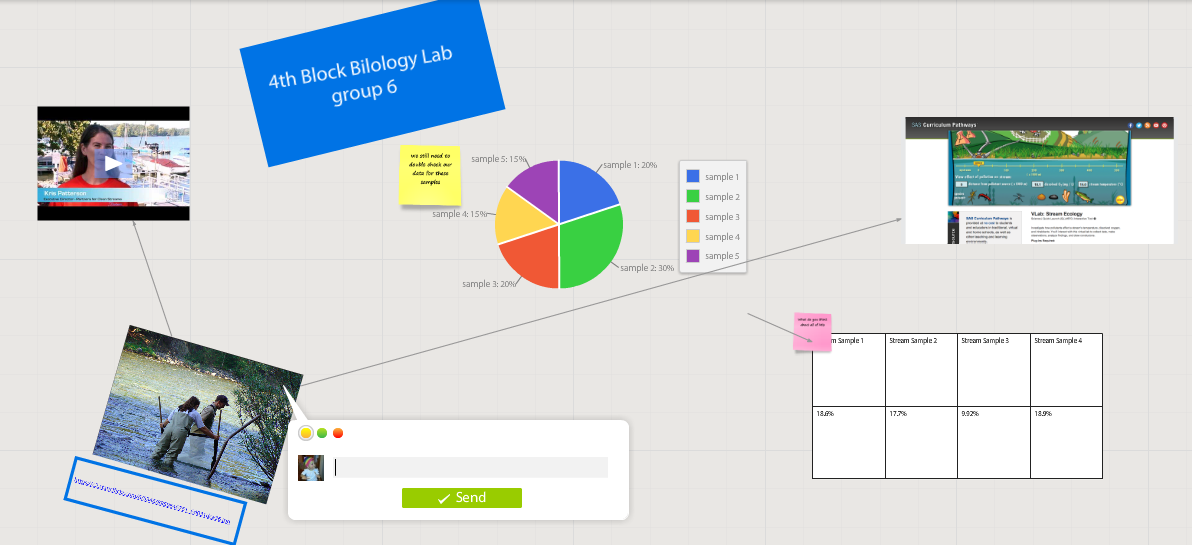
Screen Shot 2014-11-14 at 6.00.19 AM.png

In my research to write this article (Cool Tools for Collaboration) I saw tons of workspace apps for the iPad and Chrome. They all give the students a virtual space to collaborate with similar features. The Apple Apps were more pleasing aesthetically and easier to teach with than the Chrome alternatives with which I was familiar. Chrome apps had a little more functionality than the Apple Store offerings, but those are typically more distracting than helpful in the classroom. I like the versatility of Lucid, but the design space is clunky. The Chrome version of Popplet is attractive, but lacks function and has lost the trust of our teachers because of some connectivity issues.

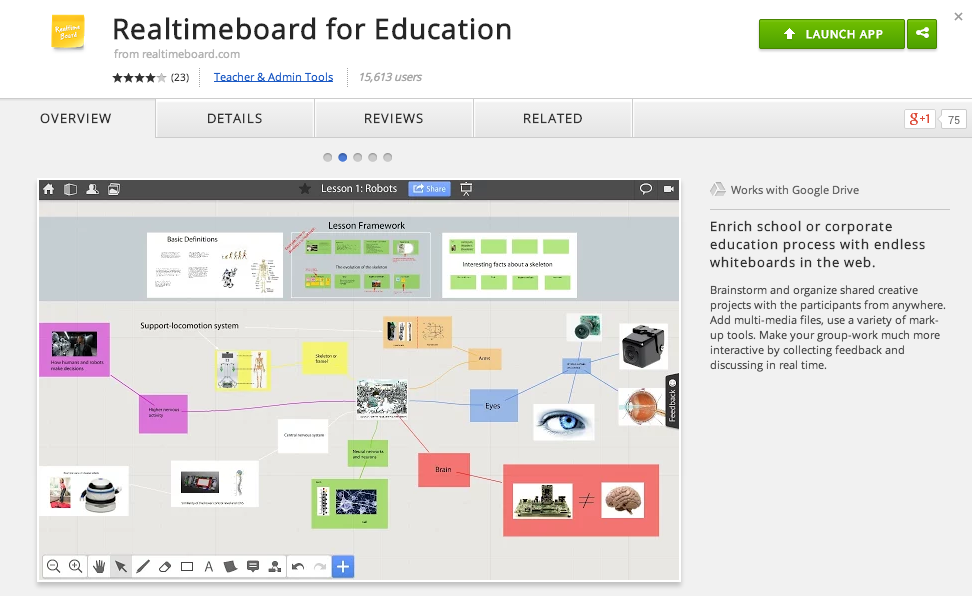
In my search to find something easy to use, powerful, and attractive for my Chromebook users I stumbled upon RealtimeBoard for Education. It is already loaded into the Moore@Schools Webstore and ready to use now.
Screen Shot 2014-11-14 at 6.03.50 AM.png
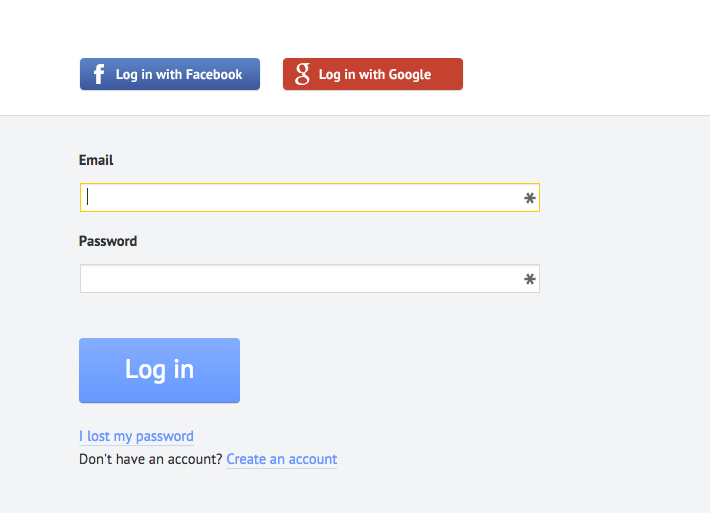
RealtimeBoard EDU supports single signin with edu gmail accounts.
Screen Shot 2014-11-14 at 5.14.39 AM.png
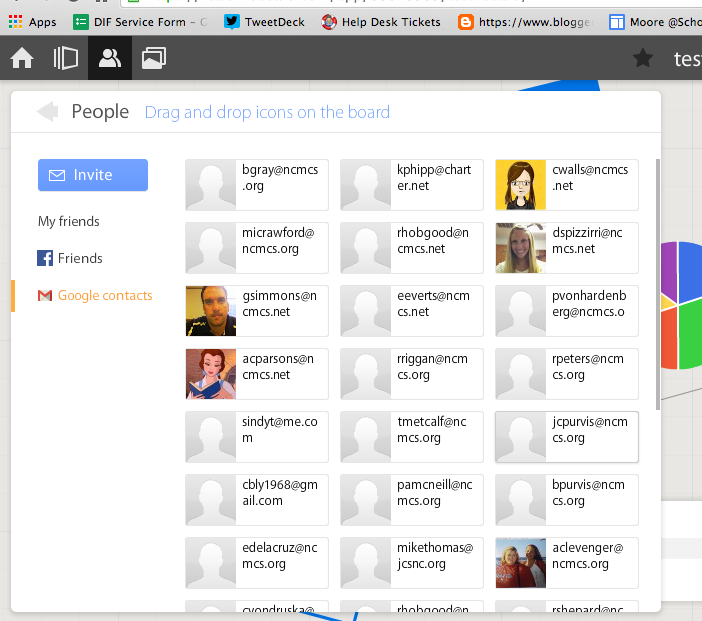
Screen Shot 2014-11-14 at 6.01.33 AM.png
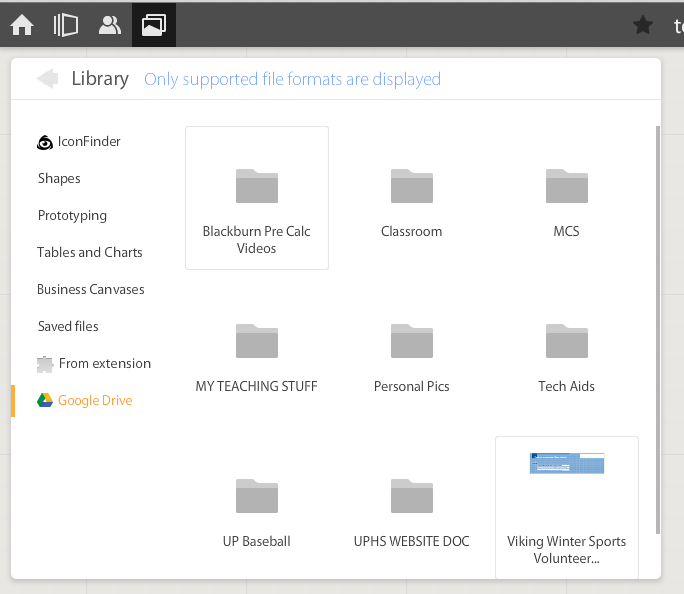
If allowed to do so it will also link to Drive like Lucid (very handy) and collaborators can be located and added through gmail. The user can also add an extension to capture whole or partial screenshots that will be automatically added to the RealtimeBoard Library (handier than I originally thought it would be).
Screen Shot 2014-11-14 at 5.22.29 AM.png
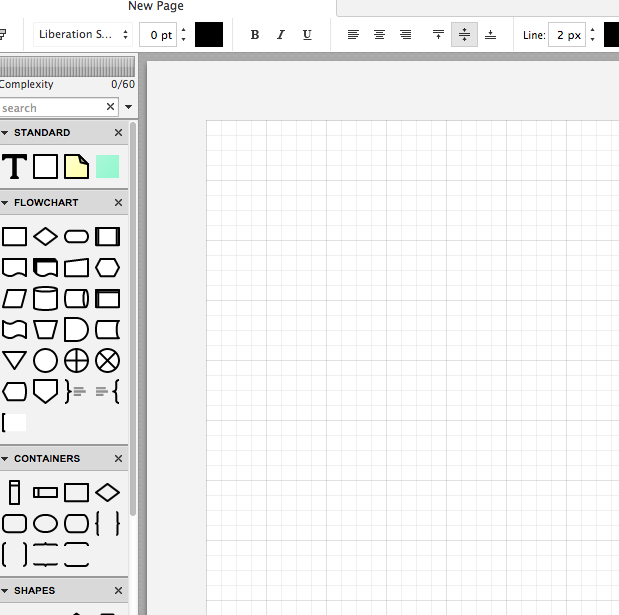
RealtimeBoard EDU has a great, clean space for the students to collaborate synchronously. It utilizes pretty common features for this type of program including drawing tools, shapes, connectors / arrow lines, and text boxes. The types of shapes & text bubbles are far fewer than Lucid but more than adequate for our needs.

RealtimeBoard EDU Lucid
Screen Shot 2014-11-14 at 5.24.20 AM.png Screen Shot 2014-11-14 at 9.15.59 AM.png
Screen Shot 2014-11-14 at 5.32.28 AM.png

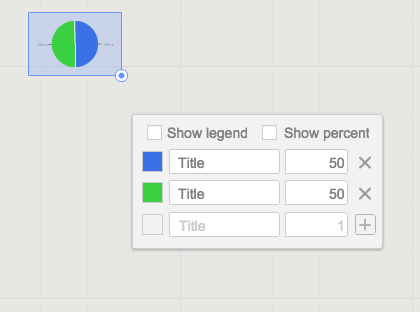
Students can embed video as with Popplet using the URL. Additions to those common tools include very easy to generate tables and charts (pie and various bar graphs).
Screen Shot 2014-11-14 at 5.35.55 AM.png
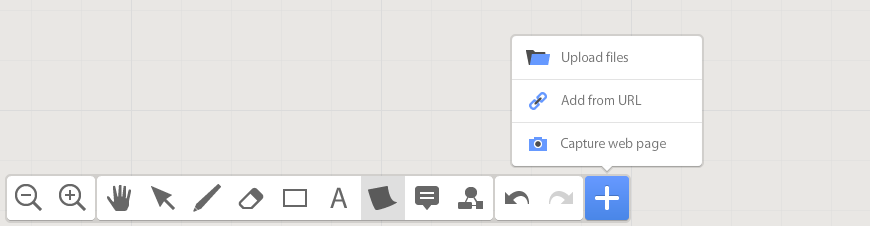
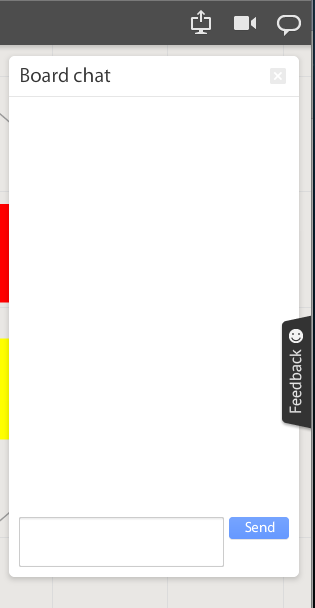
Students communicate in the workspace by generating post-it type notes, screen-share or by the onscreen “board chat” feature.
Screen Shot 2014-11-14 at 9.06.50 AM.png
What is unlike similar applications? RealtimeBoard lets users import entire documents, pictures, screenshots (very easy if you add extension--not currently in the Moore@School WebStore).

As students analyze these pieces and begin to see how they work together they can organize or combine the elements to convey a larger story.
Screen Shot 2014-11-14 at 6.00.19 AM.png
Student/students can save their work to Drive, download as PDF, add the instructor as collaborator, or send them the link. This many ways to submit make it quick and easy.

I really like the application at this point and I am happy to have an attractive alternative for my teachers. I anticipate this will be a big hit. Instructionally it could be modified to fit most assignment types and levels of Bloom’s framework.

__________________________________________
Ideas for Instruction:

Science: Lab & Experiment Reporting, Categorization

Social Studies: Biographies, Primary Doc Analysis, & Complex Cause-Effect

Math:Terminology, Illustrations of Real World Application of Skill

ELA: Character Development, Thematic Strands in Story, Types of Poetry, Mood/Tone/Theme

Foreign Language: Cultural Elements, Dialectic Variations, Topically Related Verb/Nouns
_______________________________________________________________________________
If you have found any other great alternatives or have something to add to the discussion here just post a comment below.

Will Herring, MEd-IT NBPTS
Moore County Schools, IDI DIF

@WilliamHerrin16

Thursday, October 2, 2014

Powerful, Chromebook-Approved Creation!

The critical question when giving digital devices to students is always "what do we want kids to do with them?"  In Moore County Schools, our answer to this question is that we want students to use their Chromebooks to create dynamic multimedia products that showcase their learning.  

To this end, our outstanding Digital Integration Facilitator (DIF) team worked very hard to create the excellent resource below.  We would like to share this out to any teacher, student, parent, administrator, or anyone else that would like to use Chromebooks to create dynamic work products!


Screenshot of "I Want to Create" Site


As we rolled out 1:1 with Chromebooks last year, teachers and students told us a few things we could do to help support them:

  • Don't throw a hundred tools at us that all do the same thing- tell us the one you recommend most :  We did this on each page of our "I Want to Create" site by providing a featured tool at the top and other tools linked at the bottom of each page.
  • Make sure all the tools provided work on our Chromebooks:  We tested each thoroughly on our student Chromebooks.
  • Provide an overview of the tool and also some easy ways to get started: We did this through embedded tutorial videos on each page
  • Give us a printable cheat sheet we can print out if we need extra help while working through a tool:  We did this on each and every tool page
  • Tell us which tools are good for beginner, moderately skilled, and advanced skilled learners:  We did this by organizing all the tools in exactly this manner, to allow folks to personalize their own learning.

We hope this resource can be helpful to any other educators out there that have Chromebooks in their classrooms and we look forward to seeing how this site evolves and grows throughout the next few years!

-Steve Johnson


Friday, September 12, 2014

What's? and Hows? of the New Google Classroom

What's? and Hows? of the New Google Classroom 

I have been leading a weekly roundtable of teachers using the recently released Google Classroom. Overwhelmingly the teachers are pleased with the platform’s material distribution capacity and thrilled with the automated collection and storage. For those of you that have not had a chance to play with it yet, I’ll walk you through getting started.


Setting up your Stream:

Navigate to classroom.google.com and login using their Google for Education enabled credentials (Classroom App is available in the Google Store). You will be asked if you are a teacher or student. Once you have successfully logged in, you are taken to your personal “home screen”  seen in image II.

Screen Shot 2014-09-12 at 3.pngScreen Shot 2014-09-12 at 3.png
What we found: You see in screenshot II that I am both a teacher of sections and a student in an honors biology course. We found it to be very useful to “join” each others courses so we could preview how our assignments looked from the students’ perspective.

Click the “+” (shown above) to “Create” or “Join” a course. To join a course, enter the alphanumeric class code and the icon for that course will appear on your homepage.

If you create a class, you will be prompted to give it a name. After be taken to the class “Stream” (stream is like your Facebook wall) where you will post announcements and assignments. On the left sidebar of your screen you will see your class code so that others can enrol in your course.

What you will not see initially is that Google has also created a folder in your Drive account called CLASSROOM. It will create a subfolder here for each class you create.

In the top left of your screen you will see three horizontal bars that will return you to the home screen. In the top center, you will see three options:
1) Stream -- announcements and assignments, 2) Students -- shows the name of everyone that has enrolled in your course, 3) About -- allows you to give your course a description.  


Ready to add to your Stream:
You have two options; Announcement or Assignment. They are essentially the same but Assignments have a few additional features that are the beauty and power of Classroom.

This is always at the top of the teacher’s screen Screen Shot 2014-09-12 at 3.38.57 PM.png

Clicking on Announcement drops down to look like this
Screen Shot 2014-09-12 at 3.39.51 PM.png
You can see you are asked to enter the text you wish your class to see. You can also add attachments, insert any type of material stored in Drive, embed a YouTube video or link to an external site.

What we found:
We have not found a limit to the number of items you can put here; it will also accept entire folders from your linked Drive account. Click Post to add it to your Stream.

Clicking on Assignment drops down to look like this
Screen Shot 2014-09-12 at 3.39.57 PM.png
See the additional line for instructions. Set a due date and time if desired. All the same attachment options exist here with a new choice of if you want the students to view the resource or be given their own copy automatically. Plus is names those documents with the name of the assignment + the student’s name. Click Assign to post to your Stream. If you need to change a post, do so by clicking on the three dots in the top right of the announcement or assignment.

What we found:
Changing assignments: Your students see the version of the assignment posted when THEY accessed their Stream. If you make any edits after student open the course they will need to refresh the screen to see the changes.
Only use assignment if there is a document, poster, etc… to turn in. Filling out forms or writing a hard copy journal does not result in deliverables; they can’t upload anything. When this happens, Google thinks they have a missing assignment.

Getting students work:
When you have students make a copy Google does two things behind the scenes: 1) Google creates a subfolder in your Drive>Classroom>Class> with the name of the assignment. 2) When a student creates their copy it will automatically be deposited within this folder.
Back in your Stream, you see how many students have started their work, how many have turned in their work, and you can click the students’ name to give real time feedback. By clicking on the assignment you can open, grade and email students their feedback.
Screen Shot 2014-09-12 at 4.27.03 PM.png
What we found:
Return acts as both a send and save button. If you exit without clicking Return you will lose any grades you had entered during that session.


Conclusions:
We are infatuated but not in love with Classroom...yet. It is better than most of its predecessors: Edmodo, etc.. The group and I continue to tweak how to use it best and what it needs to be better. I’ll keep you updated.

My next post will be on the subject of what and how to supplement the Classroom with synergistic systems.