Showing posts with label Chrome Web Store. Show all posts

Wednesday, May 10, 2017

Traci Keith - A Teacher's Teacher

Some people were born to be educators. You can tell the moment you step into their classroom that the students who have the privilege of being in this room are in for an amazing year. There are lots of teachers that come to mind when I think of natural-born educators, one of which is Traci Keith, a fifth grade teacher at Cameron Elementary School. She has all the things a principal would look for in an exceptional teacher. She’s creative, passionate, knowledgeable, and her students love her! She creates a learning environment where her students are set up for success. A lesson that stands out for me is when her class participated in a novel study and the setting of the story was a cafe. Guess what the students walked into the first day of the novel study…...a cafe. Yep, she decorated her entire classroom like a cafe. You’ll find Miss Keith doing things like this all the time to get her students excited about their learning. Another amazing learning opportunity that Miss Keith created was when her students were studying the industrial revolution. This may not come across as the most engaging unit of study as a student, so Miss Keith and I collaborated on a project where her students would bring the inventions from the industrial revolution to life using www.tinkercad.com and our 3D printer!


Students were assigned an invention that is associated with the industrial revolution, they had to research this creation and explain how it made life easier for people during this time frame. Once this was completed, students hoped on their Chromebooks and created a model of their invention using the Tinkercad website. What better way could a teacher bring their lesson to life than to have her students actually re-create the inventions that they are studying! Then, once her students completed their models, we printed them with our Dremel 3D printer! Take a look at some of their models:

Paddle boat

Steamboat

Telegraph

I always enjoy picking the brain of teachers who I look up to, so that I can hopefully take something back from them and add it to my toolbox. Take a look at what Miss Keith shared with me when I sat down to interview her and hopefully you’ll be able to take something from this phenomenal teacher:


Question: What allows you to be able to take risks with your students?
Answer: I think I take these risks because sometimes when students do things they’ve always done in the past, it’s boring and it becomes monotonous. If I take a risk and do something new with them, it becomes a learning process for both of us where I learn to be a better teacher and they learn to be a more creative learner or think more critically.


Q: How would you describe your teaching style?
A: The best way to describe it would be flexible because of the fact that every day is different and every learning style is different. You can plan as many avenues as possible but there will always be outcomes that happen that you can’t predict so you have to be ready to change at the drop of a hat.


Q: Where do you start when you are planning a lesson that includes technology?
A: For me, it starts with what I would do if I didn’t have technology and then how I can turn those things into digital pieces. For example, in vocabulary in reading instead of having them make vocabulary flashcards they used digital flashcards using Quizlet. Also, a lot of project-based learning is easier because there are more options in the digital world. It adheres to what the students like because they’re living in a world of technology.


Q: What are some of your favorite technology tools that are your “go to” tools for digital integration?
A: I use vocabulary.com a lot. I can assign the vocabulary words and then they practice those words in a number of different ways. I like Google Classroom because I can post different types of assignments and they all get turned into the same place. I can assign anything from Google Slide projects, to webquests, to Classworks reading or just give them link to check out when we’re studying a content specific area.


Q: You’re an inspiration to many people, including myself, what inspires you?
A: I think our whole staff here at Cameron because we have a staff that has tons of different teaching styles and they all make their specific teaching styles work for them. And they all have the best interest of their students in mind which inspires me to think outside of the box because what’s really important is what they learn and how they learn it. And the students, of course because honestly there’s nothing better than completing an assignment or project and seeing the light bulb go off and they finally get it.


Q: What is your favorite part about being a teacher?
A: Having fun with the kids. The best part about my job is being able to experience things with them and see their reactions when they learn something new. While lots of the things we do in class, I may have done before, they are brand new for my students so it creates a new experience for all of us and a bonding experience that helps us form relationships that last for years to come.

It truly is a pleasure to work with teachers like Miss Keith. She's always looking for ways to make the learning meaningful for her students. She has a fantastic rapport with her students and her colleagues. Thank you Miss Keith for everything that you do for your students at Cameron Elementary School.
#camscotsproud

-Clint

Friday, March 20, 2015

Cool Tool - Streamus

I always enjoy attending NCTIES and this year's conference was no exception.  It's always a great opportunity to learn from other professionals around the state and share successes, failures and the newest ways to use technology in your classroom.  Anytime I can take away a tool that can help in the classroom, as well as my personal life, it is a bonus.

Streamus is one of those bonus sites that has applications in and outside of the classroom.  Streamus is a Chrome Extension that allows users to stream audio clips that are pulled from YouTube videos.

Classroom Uses:

  • Classroom environment
  • Content Enrichment
  • Pacing
  • Creativity
  • Writing Prompts

Personal Uses:
  • Creating awesome playlists

"Music is the electrical soil in which the spirit lives, thinks and invents."
-Ludwig van Beethoven

Enjoy!

Tyler Callahan
Moore County Schools
Digital Integration Facilitator


Friday, November 14, 2014

Collaboration Cool Tool
RealtimeBoard for Education

Good Looking, Powerful, and Chrome-Ready Mindmapping

Screen Shot 2014-11-14 at 6.00.19 AM.png

In my research to write this article (Cool Tools for Collaboration) I saw tons of workspace apps for the iPad and Chrome. They all give the students a virtual space to collaborate with similar features. The Apple Apps were more pleasing aesthetically and easier to teach with than the Chrome alternatives with which I was familiar. Chrome apps had a little more functionality than the Apple Store offerings, but those are typically more distracting than helpful in the classroom. I like the versatility of Lucid, but the design space is clunky. The Chrome version of Popplet is attractive, but lacks function and has lost the trust of our teachers because of some connectivity issues.

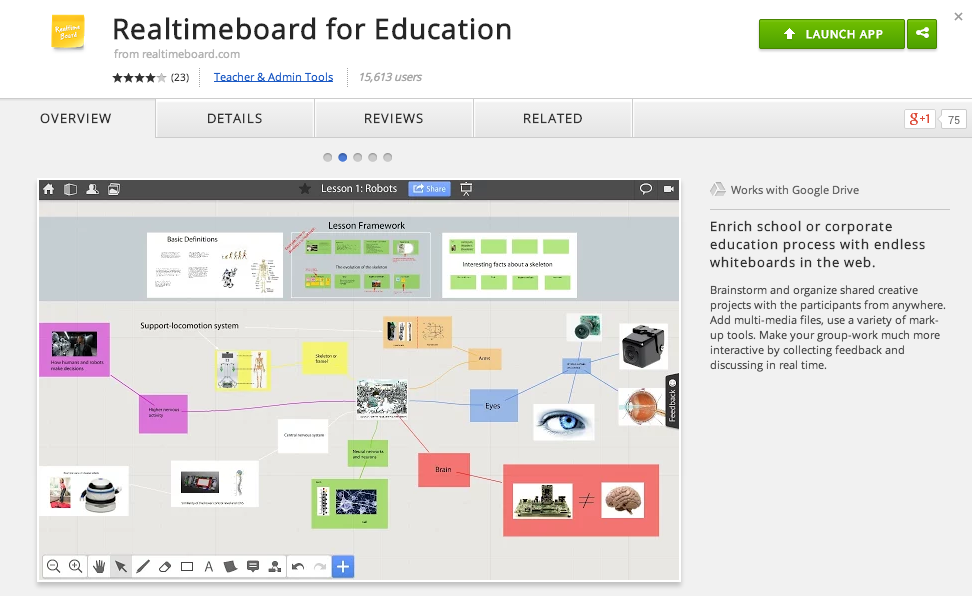
In my search to find something easy to use, powerful, and attractive for my Chromebook users I stumbled upon RealtimeBoard for Education. It is already loaded into the Moore@Schools Webstore and ready to use now.
Screen Shot 2014-11-14 at 6.03.50 AM.png
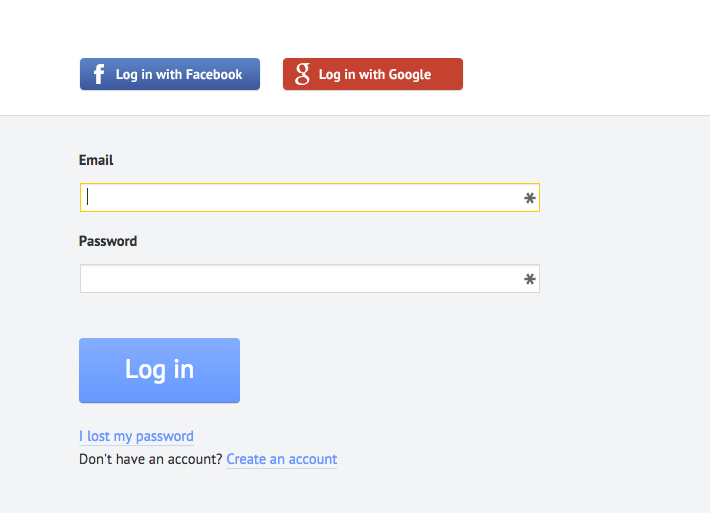
RealtimeBoard EDU supports single signin with edu gmail accounts.
Screen Shot 2014-11-14 at 5.14.39 AM.png
Screen Shot 2014-11-14 at 6.01.33 AM.png
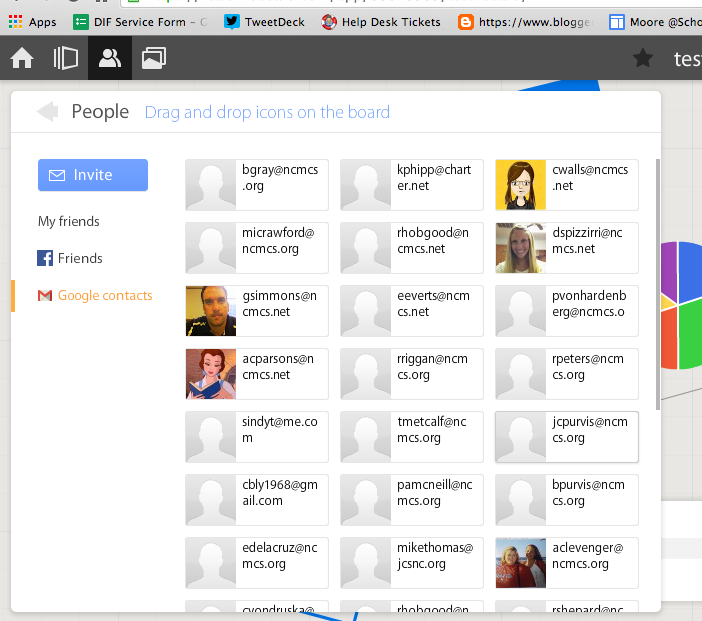
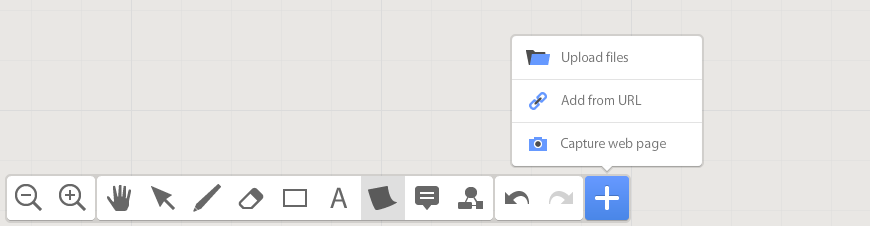
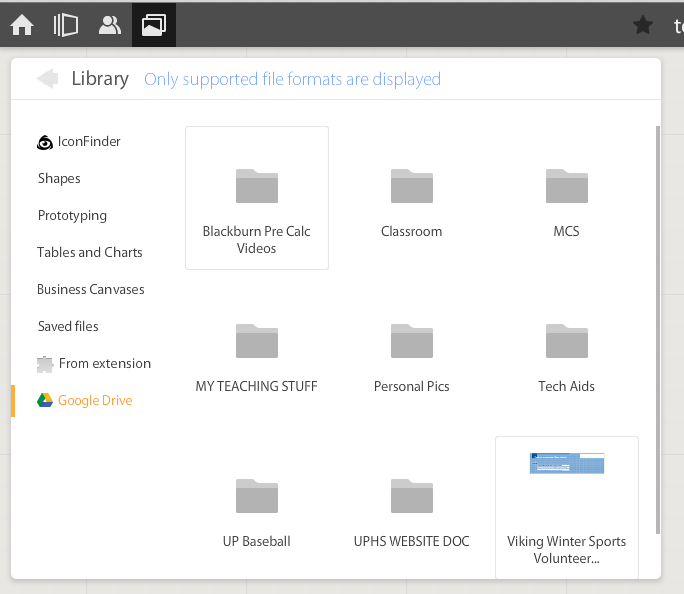
If allowed to do so it will also link to Drive like Lucid (very handy) and collaborators can be located and added through gmail. The user can also add an extension to capture whole or partial screenshots that will be automatically added to the RealtimeBoard Library (handier than I originally thought it would be).
Screen Shot 2014-11-14 at 5.22.29 AM.png
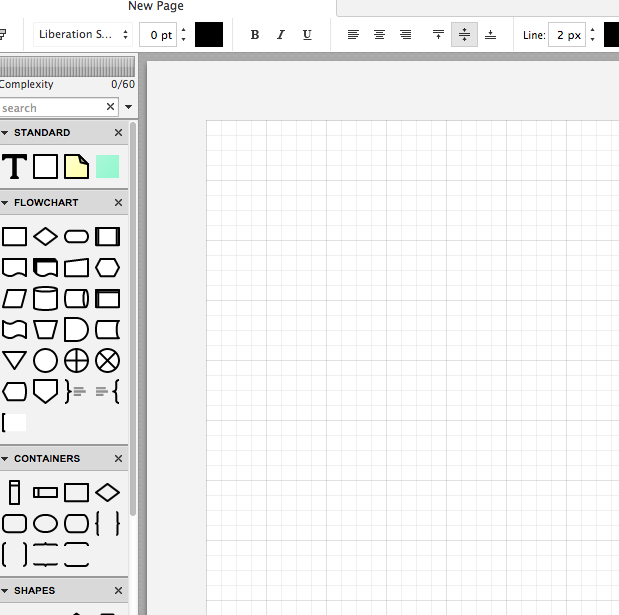
RealtimeBoard EDU has a great, clean space for the students to collaborate synchronously. It utilizes pretty common features for this type of program including drawing tools, shapes, connectors / arrow lines, and text boxes. The types of shapes & text bubbles are far fewer than Lucid but more than adequate for our needs.

RealtimeBoard EDU Lucid
Screen Shot 2014-11-14 at 5.24.20 AM.png Screen Shot 2014-11-14 at 9.15.59 AM.png
Screen Shot 2014-11-14 at 5.32.28 AM.png

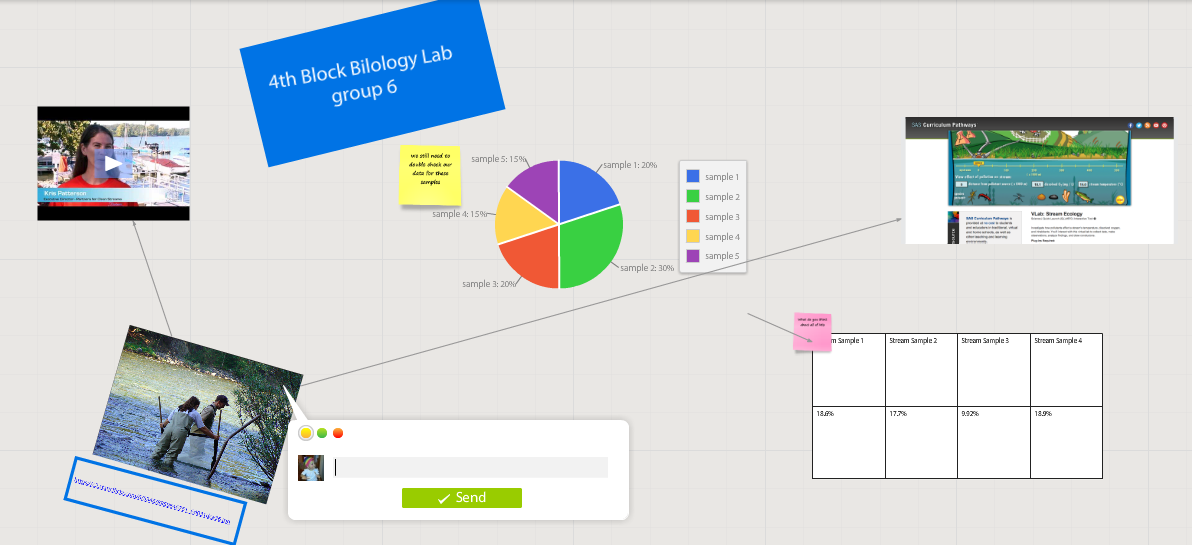
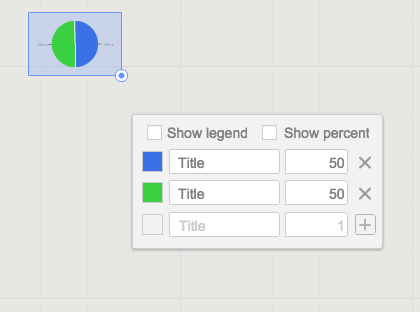
Students can embed video as with Popplet using the URL. Additions to those common tools include very easy to generate tables and charts (pie and various bar graphs).
Screen Shot 2014-11-14 at 5.35.55 AM.png
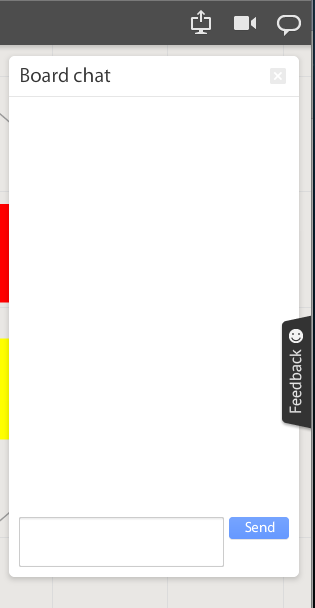
Students communicate in the workspace by generating post-it type notes, screen-share or by the onscreen “board chat” feature.
Screen Shot 2014-11-14 at 9.06.50 AM.png
What is unlike similar applications? RealtimeBoard lets users import entire documents, pictures, screenshots (very easy if you add extension--not currently in the Moore@School WebStore).

As students analyze these pieces and begin to see how they work together they can organize or combine the elements to convey a larger story.
Screen Shot 2014-11-14 at 6.00.19 AM.png
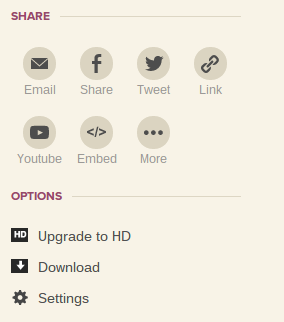
Student/students can save their work to Drive, download as PDF, add the instructor as collaborator, or send them the link. This many ways to submit make it quick and easy.

I really like the application at this point and I am happy to have an attractive alternative for my teachers. I anticipate this will be a big hit. Instructionally it could be modified to fit most assignment types and levels of Bloom’s framework.

__________________________________________
Ideas for Instruction:

Science: Lab & Experiment Reporting, Categorization

Social Studies: Biographies, Primary Doc Analysis, & Complex Cause-Effect

Math:Terminology, Illustrations of Real World Application of Skill

ELA: Character Development, Thematic Strands in Story, Types of Poetry, Mood/Tone/Theme

Foreign Language: Cultural Elements, Dialectic Variations, Topically Related Verb/Nouns
_______________________________________________________________________________
If you have found any other great alternatives or have something to add to the discussion here just post a comment below.

Will Herring, MEd-IT NBPTS
Moore County Schools, IDI DIF

@WilliamHerrin16

Monday, June 9, 2014

Teaching Transformations in Math Using Webcam Toy

We've all caught students taking those funny pictures using the Chrome App, Webcam Toy. Now you can use that App in the math classroom. I helped a teacher use Photo Booth on the Macbook Air to teach reflections, rotations and translations in her math class. The students used this program and added special effects to their pictures to demonstrate each transformation concept. I wanted to find something similar to this on the Chromebook. The special effects that are available in Webcam Toy will allow the student to demonstrate each concept.

Effects that can be used in Webcam Toy:
  • Reflection - left mirror, right mirror, bottom mirror, quad mirror
  • Rotation - kaleidoscope
  • Translation - quad cam, split screen (ok...this may be a little harder to see)

Friday, June 6, 2014

What is Google Drive & Why Use It?

Google Drive....A Closer Look


   Over the past year, there have been many questions surrounding Google Drive. Teachers, students, parents, and administrators are all curious as to why Google Drive ('the cloud') is being used as a storage space for information. It is a new idea, and ventures away from the traditional save and email documents modality. As with most new ideas, they are approached with caution and apprehension at times. Therefore, it is important to learn the benefits of Google Drive, before deciding one way or another.
   Google Drive, in a nutshell, is an online storage space. Documents, media, presentations, and much more can be housed in 'the cloud'. The benefit of using an online storage space, like Google Drive, is the accessibility of documents, without the fear of them being lost. Anything stored in Google Drive, can be accessed from any device, at any time, and from anywhere. Therefore if your computer breaks, you can still access and work on your documents from a different device.  This is an important feature in that it eliminates the worry of the 'computer crashing', and losing all of your information. 
   Also, Google Drive contains its own unique suite of writing tools. Google Documents (word processing), Google Slides (presentation), Google spreadsheet, and Google Drawing are among the basic tools provided on Google Drive. With these documents, students and teachers have the ability to collaborate on work, simultaneously. This notion assists teachers and students in achieving work completion, despite overlapping schedules.  
   Lastly, through Google Drive, the user has the ability to share documents with others. Once documents have been shared, the user can determine whether others can edit, comment, or simply just view their work.  Once work has been shared with another person, there is no need to share again if revisions have been made or suggested. This is an important piece to Google Drive, as it alleviates the need to email documents back and forth for every revision. 
   Just like any other tool, Google Drive will have its positive and negatives. The important question to keep in mind is, does Google Drive best suit your needs as an educator? The only way to truly determine its benefits for you, is to try it out and ask lots of questions! Best of luck on your Google Drive journey!
~Deanna Spizzirri

Thursday, May 29, 2014

What is the difference between an App and an Extension?

In the Chrome store, you will notice that there is a section to select Apps and a section to select Extensions. What is the difference between the two?


Chrome App - Chrome Apps are really just websites that allow you to accomplish a certain task. If I wanted to create a video on my Chromebook, I could go to WeVideo.com or click the App for WeVideo. Downloading apps from the Chrome store allows us to have quick access to websites that we use on a regular basis. Apps are categorized in the Chrome store. This helps me when I am searching for a good website/app to use for a specific purpose. **Note:  Apps now also include many offline-capable applications that work similarly to traditional PC or MAC programs- opening as a separate window.  You can find these under "For Your Desktop" and they're also marked with a lightning bolt in your search results**

Chrome Extension - A Chrome extension gets it name because it actually extends your browser's capabilities across many websites. These capabilities could be anything from taking a screenshot, creating a screen recording, having text read to you, etc. For example, I used a Chrome extension called Webpage Screenshot to take the screenshot you see in this post and to annotate that screenshot. That extension works no matter what webpage I am on. 

Friday, April 25, 2014

Promoting Student Voice with Chromebooks

One huge benefit we've found in deploying Chromebooks on a large scale is that they are so much easier to manage than any other device we've used in the past (PC's, Macs, iPads, etc.).  One of the excellent features of Google Apps Admin is the ability to easily create a district-specific App Store within the larger Chrome Web Store Environment (if you'd like to read more on how to do this, click here for a tutorial).  Our store is called "Moore@School".

The way we set up our Chromebooks for app downloads is in two tiers- staff and students:  
Staff:  Any staff member has full rights to view and download ANY app from the wider Chrome Web Store.

Students:  All students can VIEW apps on the wider Chrome Web Store and have access to download and install any apps within our "Moore@School" store.

So how do we promote more student voice within our district?  Well, we give all students an opportunity to request an app to be placed within the Moore@School store. All students have to do is go to this page and fill out this form to request an app to be loaded.  I get a notification of the request, download and test the app, then approve or deny it.  Once it is approved, I email the student back to thank them and let them know of it's approval, then push it out to our web store.  This entire process- from my email dinging with a notification to the app showing up for download in the web store takes less than 5 minutes.

We've seen great benefits from this already!  The students are doing an outstanding job of providing sound reasoning and justification for their app choices.  Here are just a few excerpts from apps that were requested and approved:

App Request:  Caret  (Requestor: Garret K)

"This app is a text editor. I am trying to write html and javascript code on my chromebook but the text app has a very hard to use interface and doesn's make a whole lot of since. After every opening tag it adds a two space indention that you have to remove to had a closing tag to keep your text aligned. I'm on the search for the best text editing app on the web store."

App Request:  Cacoo  (Requestor:  Cheyenne)

"I think cacoo should be add to Moore County Schools because it is a app that would help us in math and science and reading. Cacoo can help us in science because we are learning about plants. In reading we do flow charts that help us draw conclusions It can help us in math because we plot coordinates on a coordinates plane. It can help us in social studies because we do timelines. Thank you for taking our suggestion."


App Request:  Graph.tk  (Requestor:  Brittany)

"I believe students of Moore County Schools should be able to access the app Graph.tk. I believe this because it’s a very useful and educational app. The 6th-8th grade students of Highfalls Elementary School are working on learning graphing and calculating functions. In this utility you are able to use exponents which would be very useful for the upcoming years. The reviews on this app are “excellent graphing utility” and ”quite amazing”. Graph.tk can help us in many ways such as with completing tasks. Also, it allows easy work formation, and allows you to plot and design your own graphical unit. It has more functions that are still new to the app and it is easily used. By having this tool we would be able to use less paper by graphing parallelograms, trapezoids, and polygons through the app. Thank you for considering my suggestion."


If you're interested in seeing how our app list has grown, check out this page and scroll to the embedded G Doc toward the bottom.

We've been able to be responsive to student needs, have been exposed to a lot of great new apps, and students are able to have a positive impact on the rest of the students in our county- a true win for increased student voice!

Tuesday, February 18, 2014

Featured Chrome Extension: ScreenCastify

ScreenCastify is a new Chrome extension tool that can be used to record all activity inside a tab window including browser audio or audio from your microphone. When you add the extension to your Chrome browser, it adds an icon in the top right corner. Click the icon anytime you need to record your screen.


Uses for Education: ScreenCastify is perfect for creating a video recorded lesson. Students can use it to record how-to videos using step-by-step directions.

Note: There is a desktop screen recording option; however, it is still in the experimental stage.

Thursday, January 30, 2014

Featured Chrome App: WeVideo


WeVideo: Video Creation for the Cloud Generation

Whether you're looking to make a detail oriented video where your students are flexing their creativity, critical thinking, communication and collaboration muscles or you just want to quickly put something together as your lesson activator, WeVideo can be your "go-to" video creating app in your 21st century classroom.

With an easy-to-use storyboard editing interface, WeVideo makes creating your own videos a pain-free process. Or you can step your game up and use the advanced editor mode for all of your students who like to go above and beyond the call of duty.

One of the most convenient features of WeVideo is the publication of your videos.
Once you've synced your google account with WeVideo, you can upload your video to your Google Drive.

If you haven't already, give WeVideo a shot the next time you or your students want to create a video.

- Clint R


Featured Chrome App: Animoto

Animoto

One of my favorite apps is Animoto.  Animoto is a cloud-based application that lets you create videos/slideshows from pictures, video clips and music.  The free version of Animoto allows users to create videos up to 30 seconds in length.

FOR TEACHERS!
One of the best features of the site is that it allows educators to sign up with their school email address and receive a promo code which allows 50 students to upgrade their account.  To apply for the upgrade for your students, click here.  With the upgraded account, users will now be able to add up to 300 pictures or make videos 10 minutes in length.

Once the videos/slideshows are created, they are published to your account.  From the Animoto website you are able to share out your final product in several ways.  You also have the option to download the videos locally to your computer.
For a creative, professional looking video/slideshow, be sure to check out Animoto.  
Tyler C.  

Monday, January 27, 2014

Chrome Store Apps we're rolling with


So there are a ton of great apps, extensions and webclips available for Chromebooks, and the number is growing all the time!  Our team in Moore County has finished putting together a list of Chrome Store apps that we want to make available for teachers and students and we thought others might benefit from seeing where we're starting.

We categorized them in two ways, depending on how we wanted to make them available.  Our general Chrome management has given us the easy opportunity to allow:

Teachers:  Able to access the full web store and download/install any app or extension of their choosing
Students:  Able to access our district-controlled "Moore @ School" Web Store, from which they can install any app or extension that is provided in the store.

We created this page on our digital learning site to manage this moving forward.  From here, teachers can submit a form for any app/extension they would like to have added to be available for student download.

On the bottom of the page are all the pre-loaded apps we are pushing out as well as all of the apps we're currently making available for student download via the "Moore @School" Web Store.  Here is a direct link to that list as a G Doc, if you would like to see where we are starting from.

This list will undoubtedly change as we roll Chromebooks out.  Check back often!
-Steve J