Showing posts with label GoogleAPP. Show all posts

Friday, November 14, 2014

Collaboration Cool Tool
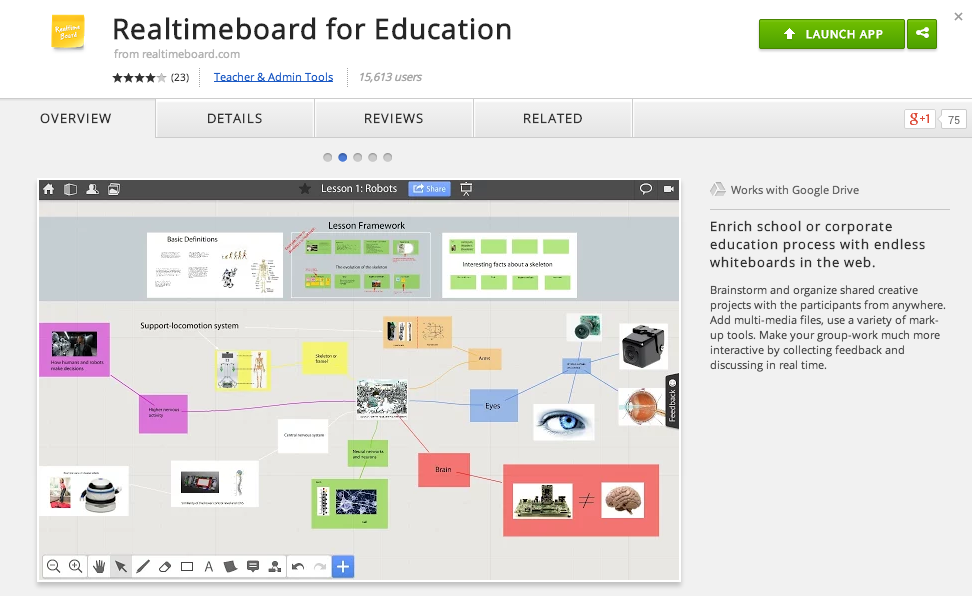
RealtimeBoard for Education

Good Looking, Powerful, and Chrome-Ready Mindmapping
Screen Shot 2014-11-14 at 6.00.19 AM.png

In my research to write this article (Cool Tools for Collaboration) I saw tons of workspace apps for the iPad and Chrome. They all give the students a virtual space to collaborate with similar features. The Apple Apps were more pleasing aesthetically and easier to teach with than the Chrome alternatives with which I was familiar. Chrome apps had a little more functionality than the Apple Store offerings, but those are typically more distracting than helpful in the classroom. I like the versatility of Lucid, but the design space is clunky. The Chrome version of Popplet is attractive, but lacks function and has lost the trust of our teachers because of some connectivity issues.

In my search to find something easy to use, powerful, and attractive for my Chromebook users I stumbled upon RealtimeBoard for Education. It is already loaded into the Moore@Schools Webstore and ready to use now.
Screen Shot 2014-11-14 at 6.03.50 AM.png
RealtimeBoard EDU supports single signin with edu gmail accounts.
Screen Shot 2014-11-14 at 5.14.39 AM.png
Screen Shot 2014-11-14 at 6.01.33 AM.png
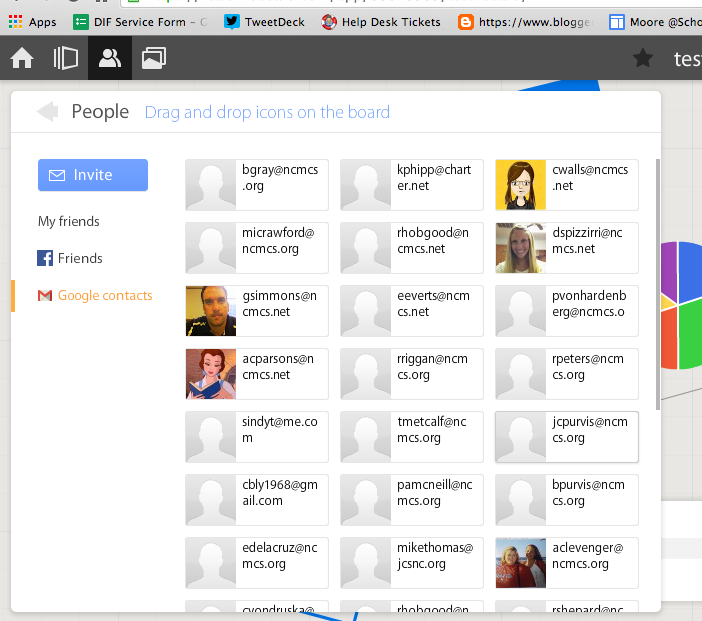
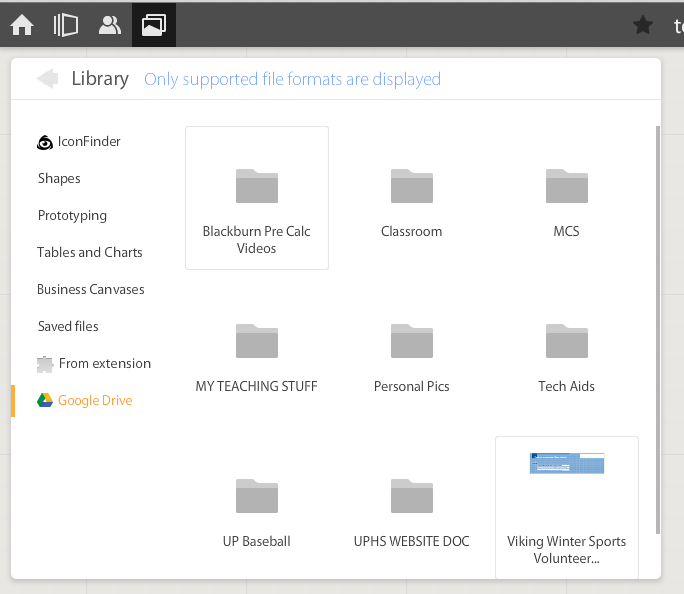
If allowed to do so it will also link to Drive like Lucid (very handy) and collaborators can be located and added through gmail. The user can also add an extension to capture whole or partial screenshots that will be automatically added to the RealtimeBoard Library (handier than I originally thought it would be).

Screen Shot 2014-11-14 at 5.22.29 AM.png
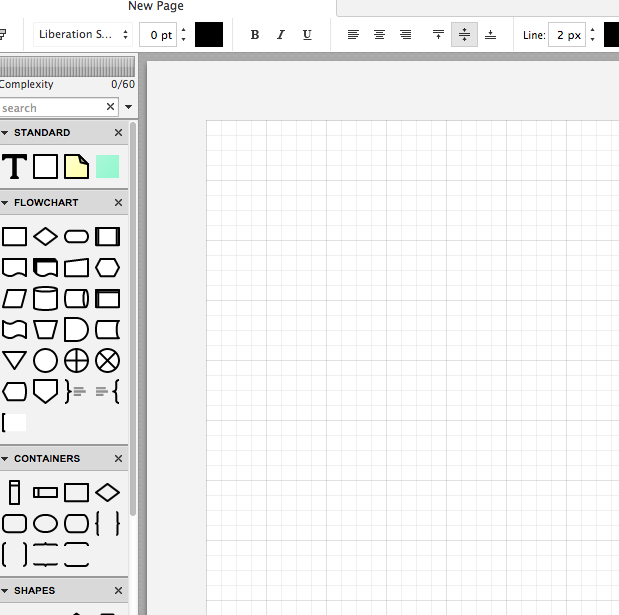
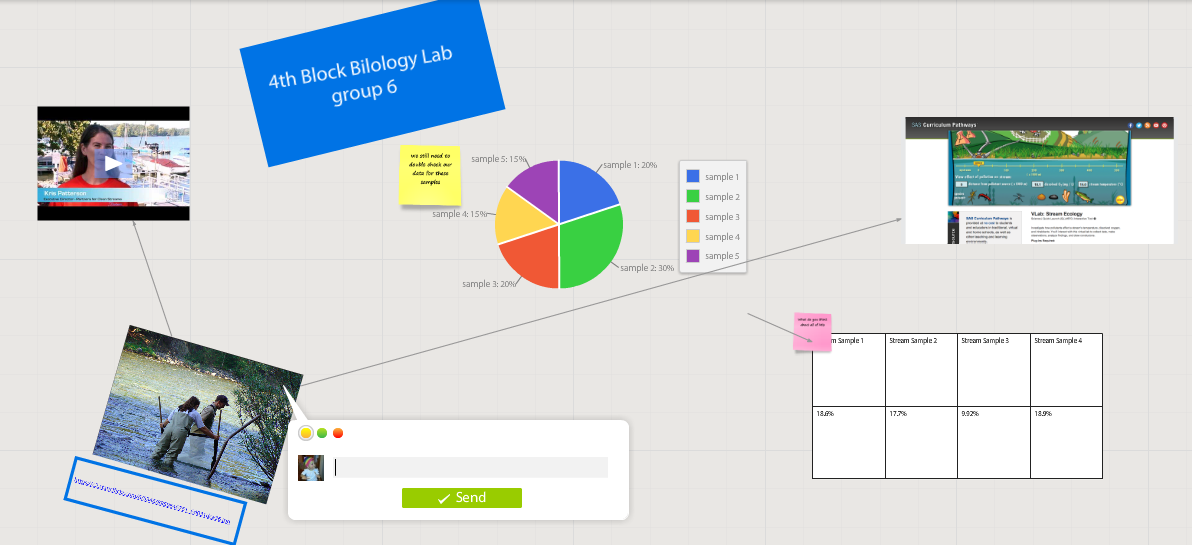
RealtimeBoard EDU has a great, clean space for the students to collaborate synchronously. It utilizes pretty common features for this type of program including drawing tools, shapes, connectors / arrow lines, and text boxes. The types of shapes & text bubbles are far fewer than Lucid but more than adequate for our needs.

RealtimeBoard EDU Lucid
Screen Shot 2014-11-14 at 5.24.20 AM.png Screen Shot 2014-11-14 at 9.15.59 AM.png
Screen Shot 2014-11-14 at 5.32.28 AM.png

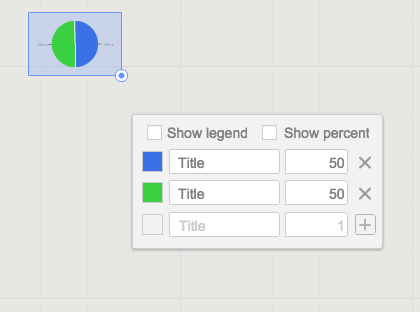
Students can embed video as with Popplet using the URL. Additions to those common tools include very easy to generate tables and charts (pie and various bar graphs).
Screen Shot 2014-11-14 at 5.35.55 AM.png
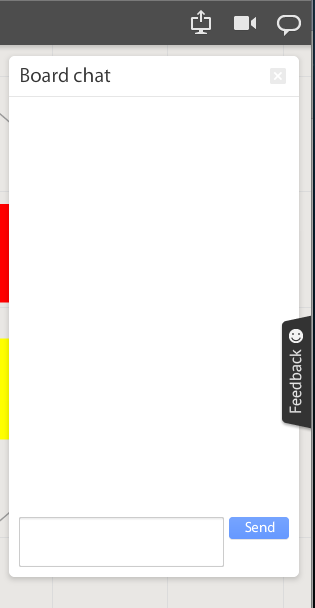
Students communicate in the workspace by generating post-it type notes, screen-share or by the onscreen “board chat” feature.
Screen Shot 2014-11-14 at 9.06.50 AM.png
What is unlike similar applications? RealtimeBoard lets users import entire documents, pictures, screenshots (very easy if you add extension--not currently in the Moore@School WebStore).

As students analyze these pieces and begin to see how they work together they can organize or combine the elements to convey a larger story.
Screen Shot 2014-11-14 at 6.00.19 AM.png
Student/students can save their work to Drive, download as PDF, add the instructor as collaborator, or send them the link. This many ways to submit make it quick and easy.

I really like the application at this point and I am happy to have an attractive alternative for my teachers. I anticipate this will be a big hit. Instructionally it could be modified to fit most assignment types and levels of Bloom’s framework.

__________________________________________
Ideas for Instruction:

Science: Lab & Experiment Reporting, Categorization

Social Studies: Biographies, Primary Doc Analysis, & Complex Cause-Effect

Math:Terminology, Illustrations of Real World Application of Skill

ELA: Character Development, Thematic Strands in Story, Types of Poetry, Mood/Tone/Theme

Foreign Language: Cultural Elements, Dialectic Variations, Topically Related Verb/Nouns
_______________________________________________________________________________
If you have found any other great alternatives or have something to add to the discussion here just post a comment below.

Will Herring, MEd-IT NBPTS
Moore County Schools, IDI DIF

@WilliamHerrin16

Monday, June 16, 2014

Maintaining Assessment Integrity in the 1:1 Environment


Maintaining Assessment Integrity in the 1:1 Environment

I continue to hear the notion that web enabled devices and / or 1:1 devices undermine the integrity of our classrooms and assessments. The truth is that it is no more in danger than at any other point. The strategies used by students looking to get over on teachers has changed; but if they can adapt, so can we. I want to show you a couple of quick tips & tricks to tackle some of your usual suspects:


Cheating
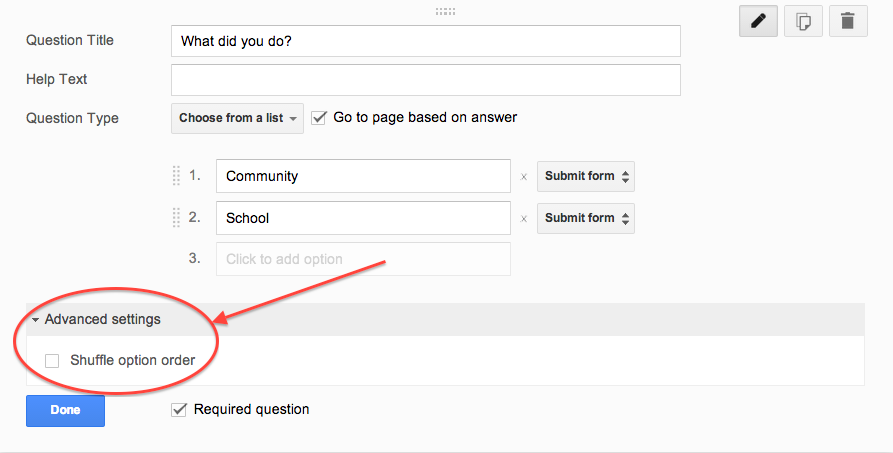
Cheating will be attempted in the standard, Honors, and the Advanced Placement version of any course. It is difficult to catch but easy to vex. If you are using Google Forms (which I recommend) to conduct M/C or T/F quizzing, this has a simple fix. After you write a question click “advanced setting” above the “Done” button. Check the box “Shuffle Option Order” & you’re all set.


Screen Shot 2014-06-16 at 4.35.55 PM.png


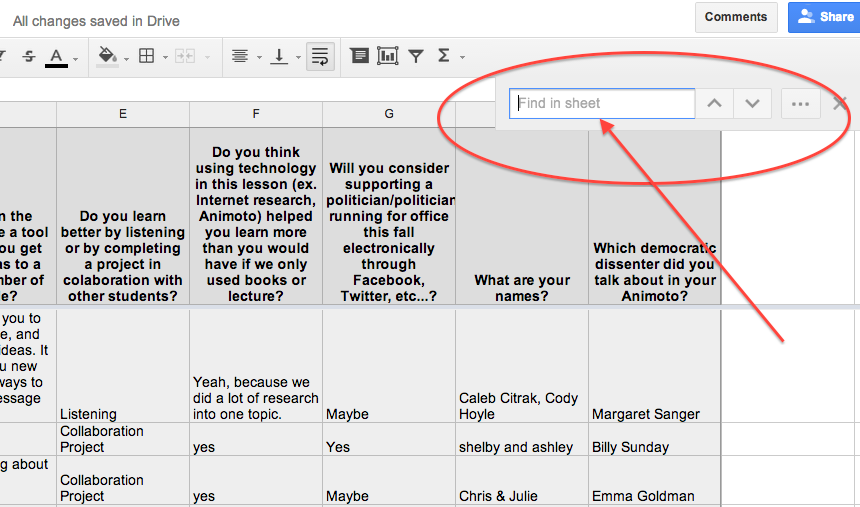
For short answer text questions you can go into your Google Sheet and pull up your suspect’s answers, use the Ctrl F feature to search for similar student responses. Confront them cautiously because your evidence is only circumstantial. It may be enough just to poke them with a little joking comment to make them understand you are on to them. Redirection of behavior is our goal. Getting caught is a teachable moment.


Screen Shot 2014-06-16 at 4.37.53 PM.png


Plagiarism

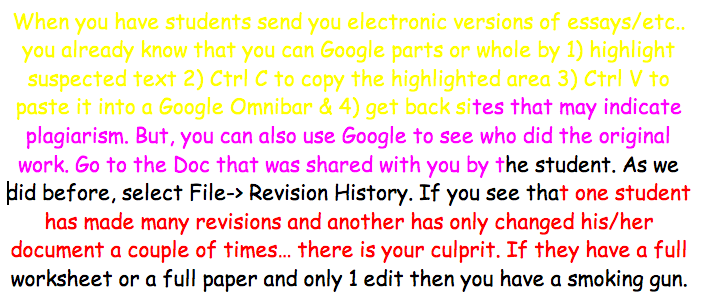
When you have students send you electronic versions of essays/etc.. you already know that you can Google parts or whole by 1) highlight suspected text 2) Ctrl C to copy the highlighted area 3) Ctrl V to paste it into a Google Omnibar & 4) get back sites that may indicate plagiarism.
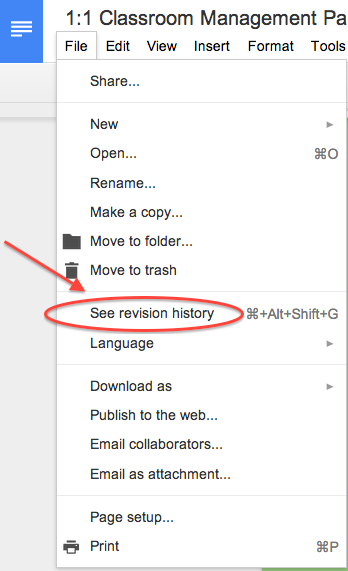
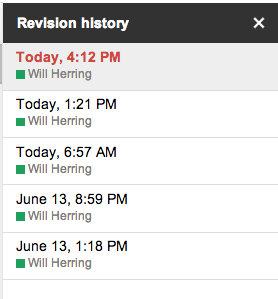
But, you can also use Google Revision History to see who did original work. Go to the Doc that was shared with you by the student. As we did before, select File-> Revision History. If you see that one student has made many revisions and another has only changed his/her document a couple of times… there is your culprit. If you have a really difficult situation between students you can go as far as to see the timestamped revision in which the actual questioned portion is contained. 

It is probably needless to say that if they have a full worksheet or a full paper and only 1 edit then you have a smoking gun.


Screen Shot 2014-06-16 at 4.09.11 PM.png


The Worst Partner EVER; (AKA: UN-collaborator)


We’ve all listened to students complain that they did more work than any other member & it’s UNFAIR! One easy way to check for participation is to have students collaborate in a Google Doc using different color text. You can eyeball the doc to see who is doing what & if a dispute arises use the revision history feature to see if someone has altered another student’s work. To see the “Revision History” of any Doc click on “File” -> “Revision History”


Screen Shot 2014-06-16 at 4.54.54 PM.png


Screen Shot 2014-06-16 at 4.09.11 PM.pngScreen Shot 2014-06-16 at 4.12.19 PM.png

Keep in Mind

The cat and mouse game is centuries old. The Chromebooks are just a new field of play. Don’t spend too much effort building a better mousetrap. Instead spend your time creating challenging and interesting lessons with authentic assessment items that incorporate student product generation and publication. Embrace the notion that students have access to any fact based knowledge in the history of man in their pockets and ask them to DO something with it!


Add a teacher pro-tip in the Comments section below if you have even more ideas

Will Herring
MCS DIF

Friday, May 16, 2014

A Notable Addition to MCS Chromebooks

A Notable Addition to MCS Chromebooks


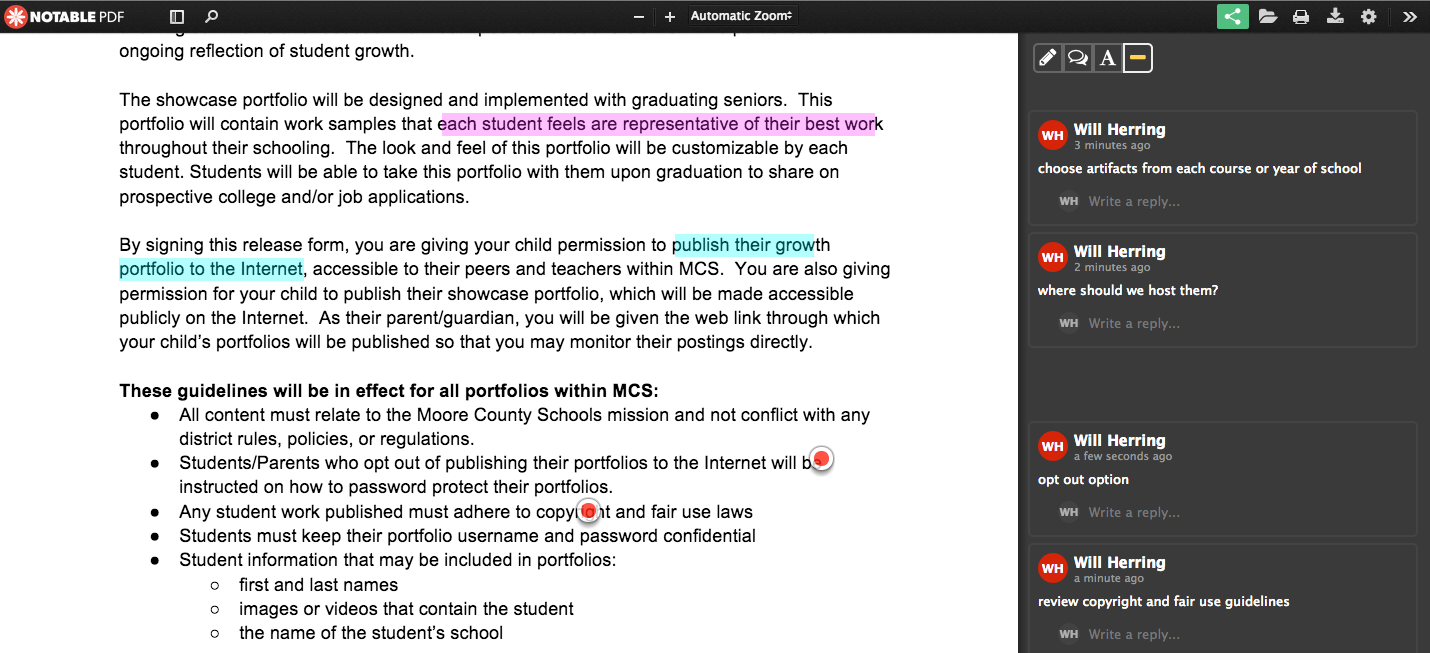
Hi everyone! My name is Will Herring & I’m the newest member of the Moore County School’s Digital Integration Facilitation team. During my second week on the job, one of MCSs’ outstanding APUSH teachers asked if there was an app in the Moore@School Google App Store that would allow his students to 1) annotate and 2) collaborate in PDF files. To prepare for the AP test he needs to have students practice with document based questions (DBQ’s) that can run upwards of 8-10 pages per student. If such an app was available, teachers could save thousands of copies (and time), expose their students to a wider range of resources, and give them powerful tools to activate critical reading, thinking, and peer editing skills.


images


Enter Notable PDF to the Google Marketplace. Notable is available as either an App or extension in Google Chrome. Import PDF’s individually with “Open As” or set Notable as your default viewer. Connect with real-time collaborators with the “link” icon in the top right corner of your screen. Once you have the document you need, there are two options for annotation;
Highlight & Comment: Choose the “highlight” icon in the top right of the screen, select the color you want, and select text you want to annotate. When you release the mouse, a comment box will automatically appear on the right-hand column.


O Target & Comment: Double click on the document where you would like to add a notation. A “target”  placeholder will stay there and a comment box will appear in the right-hand column.


Screen Shot 2014-05-16 at 3.23.41 PM.png


I can see a place for this app for collaborative idea development, peer review/feedback (but not replace Docs), and resource analysis. I’m really looking forward to see how our foreign language and visual arts teachers figure out how to use this tool.


Maybe the greatest feature for my logistics oriented mind is that Notable will work offline and upload when the student returns to a WiFi enabled area. This is so important for those students without access away from school.