Showing posts with label collaboration. Show all posts

Wednesday, April 25, 2018

This Teacher Works the Right AND Left Side of Your Brain

I am probably one of the least creative people you’ll ever meet. I am constantly on Twitter or reaching
out to the people I work with to get new ideas of how to integrate technology into the classroom. And I
am without a doubt the least artistic person you’ll ever come across. I hated Thursdays when I was
little because that was arts and crafts day at my elementary school. But I think my view on arts and
crafts would be totally different if I had Barbara Kennerly as my art teacher back in the day. The entire
right side of my brain would be way more developed if “Mrs. K” had been around in my younger days.
I have had the pleasure of working with Barb for a couple of years now and in my opinion, she is one
of the best art teachers we have in our district. She expands the cultural awareness of her students
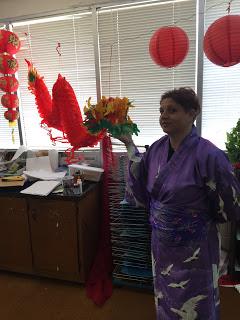
tenfold from what they’ve had prior to walking in her classroom. She’ll even wear the clothing that
goes along with her lesson, which makes her even more special for her students. Here she is wearing
a Japanese kimono to go along with the lesson I'm highlighting:
She knows her curriculum like the back of her hand but it doesn’t stop there. She reaches beyond
the art program to make connections to what’s going on in the other areas of instruction. One of my
favorite projects that I helped out with this year was a collaboration with Mrs. K where she integrated
art, science and technology into the 5th grade literacy curriculum. Her students created a dragon
tooth that we then 3D printed for them!


I took a wild ride into Barb’s head to pick her brain about this assignment and get all the details. Here’s
what she had to say about this amazing lesson. Buckle up...
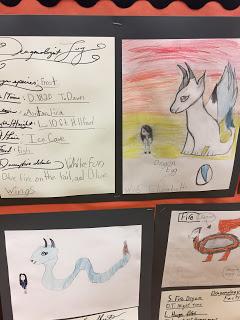
“It started with Dana Wyckoff (the 5th grade ELA teacher), she was doing a story Where the Mountain
Meets the Moon. I was integrating the Chinese New Year and how the dragon is used as a symbol in
more than one culture. Then the assignment was that we were going to be dragon scientists and we
discovered a new dragon. We logged all the scientific information into our notebook (where it lives,
what it eats, its environment and how it would influence its color, antarctic dragon would be white or
blue, etc.) In this project they designed the tooth that went with the dragon. The shape of the tooth
would indicate whether it was a carnivore or not. This was also connected to the Dragonology books
that students were working with in the media center.
Barb is going to take the dragon teeth that we 3D printed and turn them into a necklace that students
can wear! Almost like those shark tooth necklaces that you get at the beach. The students at Cameron
Elementary and Southern Pines Primary are very fortunate to have Mrs. K as their art teacher. I’m so
jealous of those Scots and Bees. They get to have an offbeat, inspirational, funny (in a good way)
and creative art teacher to open their eyes to the wonderful world of art.

-Clint

Tuesday, September 26, 2017

Every school needs a Lori Paulus

There are lots of people who make a school a special place. From board members to bus drivers, many people influence the lives of our Moore County Schools students. But there are few who have the positive impact that Lori Paulus has at Cameron Elementary School. At first glance, she may appear to be a typical media center specialist with books in hand and a list of Reading Counts stats closeby but there is so much more to Mrs. Paulus than what meets the eye. You will be hard pressed to find a more caring, supportive, dedicated, hard-working and passionate employee in our district who only has the absolute best in mind for our students. She pushes our students to achieve more than they could ever imagine. I love coming to work at Cameron and meeting with Lori because she always has these amazing ideas that she gets so excited about and you can tell that she can’t wait to roll them out to the students. Another thing that I love about Lori is her eagerness to incorporate technology into her lessons. Her relentless drive to find ways to use iPads, Chromebooks, and even robots with her classes motivates me to be a better DIF. Don’t get me wrong, Lori knows the importance of having her students complete assignments by getting out a dictionary or using a non-fiction book to research a topic. But she is constantly looking for ways to enhance instruction through the use of digital learning.


One project that I am really anxious to help her with is a lesson where we are going to incorporate our new Spheros! Since we are celebrating Hispanic Heritage Month we are going to take a look at three folk tales. Two are Mexican and the other is Cuban. We will use the Spheros to work on our sequencing skills while we retell the stories. The students will recreate the different scenes from the story then they will code the Spheros to retell the important details as it goes through the sequence of events. Follow us on Twitter for pictures from our lesson!


I always enjoy picking the brain of teachers who I look up to, so that I can hopefully take something back from them and add it to my toolbox. Take a look at what Mrs. Paulus shared with me when I sat down to interview her and hopefully you’ll be able to take something from this phenomenal librarian:


Question: How long have you worked at Cameron/Moore County?
Answer: This my 15th year. Before that I was not in school system. I ran a used book store, worked with the Peace Corps in Thailand, but I spent most of my time teaching environmental education classes in New York. Almost 50 different types of classes.


Q: How would you describe your teaching style?
A: I think because there are so many awesome books I very rarely teach the same lesson every year. I’m always trying something different. I try to use fresh material for the kids, and for me as well. I don’t like to repeat things.


Q: What motivates you to use technology in your lessons?
A: We really had a mandate in our curriculum to integrate technology. It really has eved and flowed with different teachers. I think for kids technology is so motivating. The engagement and differentiation is crucial for our students. But technology could also engage them in a topic that they may not be interested in before. I think if you show a variety of things to kids it expands their repertoire and hopefully it will set them up for classes in the future. I like it for organization too. Things like Google Drive are so great for students to organize and keep their materials from year to year. Finding different ways for students to express themselves. It’s also good for independence.


Q: What is one of your most memorable lessons that included some kind of digital learning?
A: The thing that I really enjoy is our One Book One School program. We’ve done a blog in years past for students to have an ongoing discussion on the books. I loved that the parents were involved in it also. Parents who had trouble reading had access to the videos we made. And kids who didn’t have a parent reading with them could watch the videos at home. We would have the traditional reading experience for students but technology allowed us to expand on reaching more of our population by giving them an alternative way to interact with the book. It could also be extended by responding to the blog. It was a great encouragement for those kids.


Q: You’re an inspiration to many people, including myself, what inspires you?
A: I listen to National Public Radio a lot. They have new ideas in art and music. They will highlight authors as well as technology. They have a lot of ideas that we could use in our classroom.  I also check social media daily, like Twitter. Authors tweet a lot. Facebook and Pinterest also give me lots of ideas.


Q: What is your favorite part about being a teacher?
A: The special part for me and my job is that everybody is my patron. It’s not just students, it’s staff. I get to work with every student. I love to work with staff as they come in. I love to work with big groups or small groups. I like working with people. I like connecting people with resources that connect with them.

Mrs. Paulus is, without a doubt, the heart and soul of Cameron Elementary School. She is an absolute pleasure to work with and the students at Cameron are very lucky to have her as their media center specialist.

-Clint

Tuesday, January 6, 2015

Rachel Davis - Discovery Education Tech Book

Discovery Ed - Tech Book

Ms. Rachel Davis


As eighth graders enter Ms. Davis' Social Studies class at New Century Middle School, they know they are in for an engaging experience. As class begins, students open their Chromebooks and log in to Discovery Education. 

Discovery Education has a Social Studies Techbook which is phenomenal. The digital Techbook, aligned to the North Carolina Essential Standards and Common Core, allows teachers to transition to a digital classroom while actively engaging students to read, write and think critically. It reaches all learning modalities as it incorporates text, audio, video, images and digital investigations. 

In addition to the Techbook, students use a variety of other tech tools including Edmodo, Moodle, Schoolnet and Google apps. Students use Kahoot to create their own review questions to quiz their classmates. They have also used Movenote and PowToon to create informative presentations.

As I watched the students interact in the discussion, some were taking notes "the old-fashioned way -- with paper and pencil while others were carefully color-coding the notes they were typing in a Google Doc/Slide. This form of differentiation was powerful for the students. What was powerful for me was that EVERYONE was taking notes and remember, these are 8th graders!


"The Techbook is easy to use and we use it as we take notes or create quizzes for each other," Blake explained.

"I have been using the Techbook for two full years in all three grade levels, 6, 7th and 8th. It definitely  has streamlined my research for lessons and resources. One thing that I like is that students have the ability to change the reading level which allows for differentiation and greater student success. The translation feature allows non-English speaking parents to assist their students with homework assignments. The exposure to primary source documents deepens the knowledge and understanding of many historical concepts. When it is time to assess, the Techbook offers constructed response and higher level thinking questions that I can amend and incorporate into my test."


The closing activity was Six Square Review. Students "danced" around the room until the music stopped and then collaboratively shared answers.

Ms. Davis is an 8th Grade teacher at New Century Middle School. She has been teaching in Moore County for four years. New Century has had their Chromebooks for about seven months. 


*The Social Studies Techbook is a paid-subscription. All Moore County School teachers have access to Discovery Education! Be sure to explore for ideas for your own classroom!

Discovery Education

Edmodo

Kahoot - Getting Started

Movenote

Powtoon

Student Samples:


Wednesday, December 3, 2014

SpiderScribe - Cool Tool for Collaboration


SpiderScribe - Cool Tool for Collaboration

picture from spinderscribe.net

SpiderScribe.net has an app available in the Chrome Web Store and is my focus for Collaboration tool for this week.  SpiderScribe is a mind mapping tool that gives you the ability to embed a variety of content into your map.  The best part of this tool is that  students can work on the same map, at the same time, to collaboratively edit and share ideas.  


 Students will choose from the various tools listed on the left hand side of their maps to import content.  They can insert text they type themselves, documents from their Google Drive, pictures, maps, and important dates.  All students need to do to add content, is drag and drop the stencil for the type of content they would like onto their map.  Then students can draw arrows, linking various content.


Maps can be private, or public, depending on what you are wanting students to do with them.  Just like working with a Google Doc, students can collaborate in real time with SpiderScribe allowing them to work together on projects.  This feature really makes it stand out among the many other mind mapping tools available.  


Friday, November 14, 2014

Collaboration Cool Tool
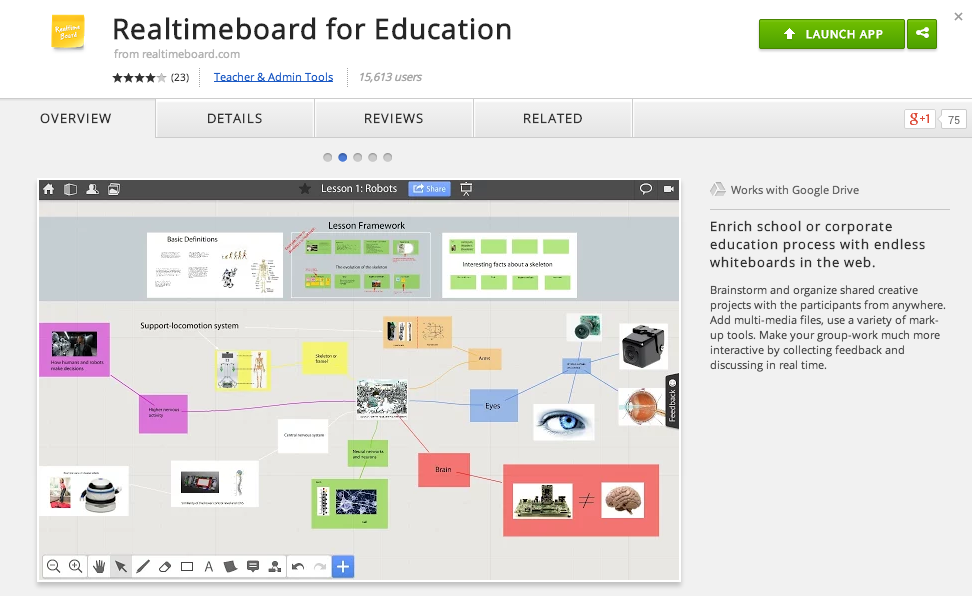
RealtimeBoard for Education

Good Looking, Powerful, and Chrome-Ready Mindmapping

Screen Shot 2014-11-14 at 6.00.19 AM.png

In my research to write this article (Cool Tools for Collaboration) I saw tons of workspace apps for the iPad and Chrome. They all give the students a virtual space to collaborate with similar features. The Apple Apps were more pleasing aesthetically and easier to teach with than the Chrome alternatives with which I was familiar. Chrome apps had a little more functionality than the Apple Store offerings, but those are typically more distracting than helpful in the classroom. I like the versatility of Lucid, but the design space is clunky. The Chrome version of Popplet is attractive, but lacks function and has lost the trust of our teachers because of some connectivity issues.

In my search to find something easy to use, powerful, and attractive for my Chromebook users I stumbled upon RealtimeBoard for Education. It is already loaded into the Moore@Schools Webstore and ready to use now.
Screen Shot 2014-11-14 at 6.03.50 AM.png
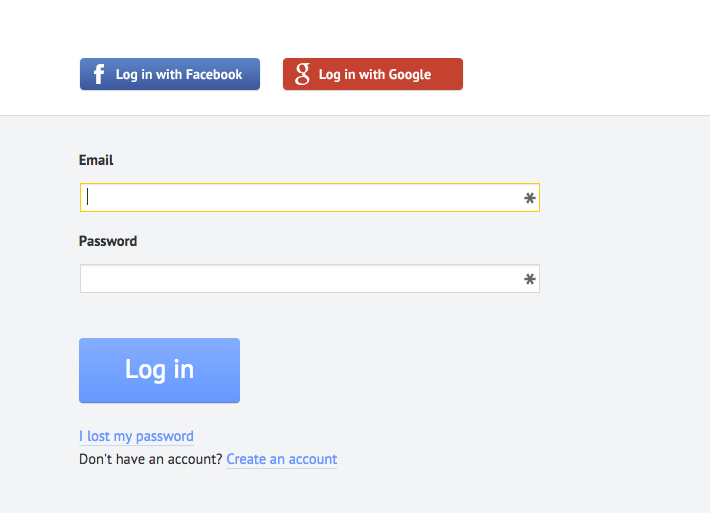
RealtimeBoard EDU supports single signin with edu gmail accounts.
Screen Shot 2014-11-14 at 5.14.39 AM.png
Screen Shot 2014-11-14 at 6.01.33 AM.png
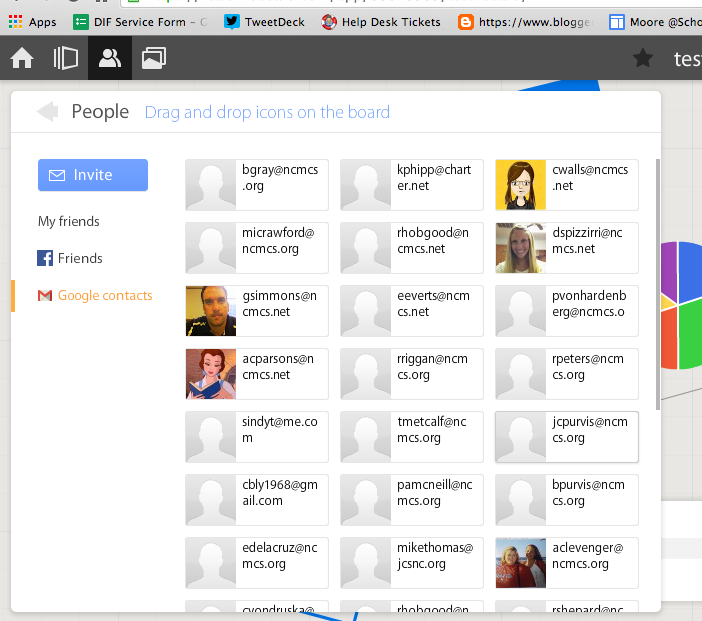
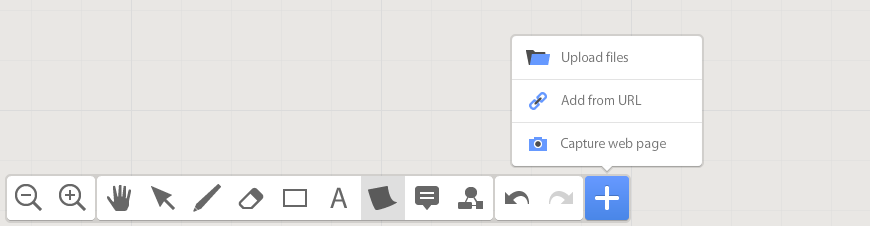
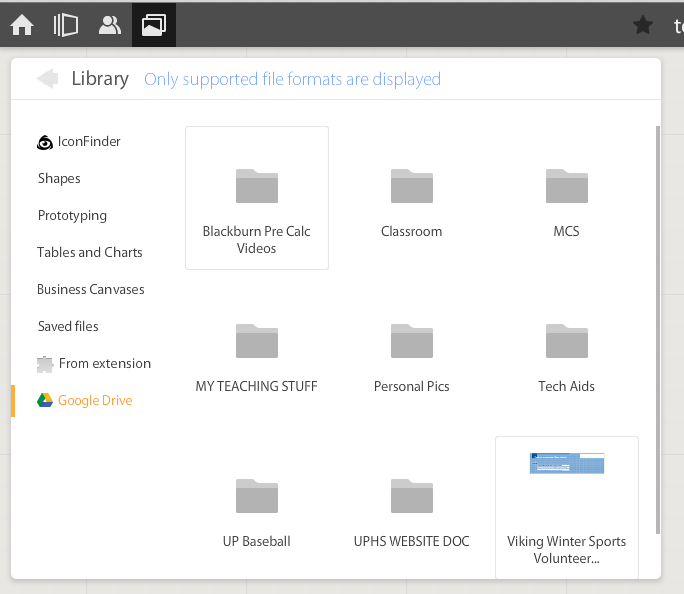
If allowed to do so it will also link to Drive like Lucid (very handy) and collaborators can be located and added through gmail. The user can also add an extension to capture whole or partial screenshots that will be automatically added to the RealtimeBoard Library (handier than I originally thought it would be).
Screen Shot 2014-11-14 at 5.22.29 AM.png
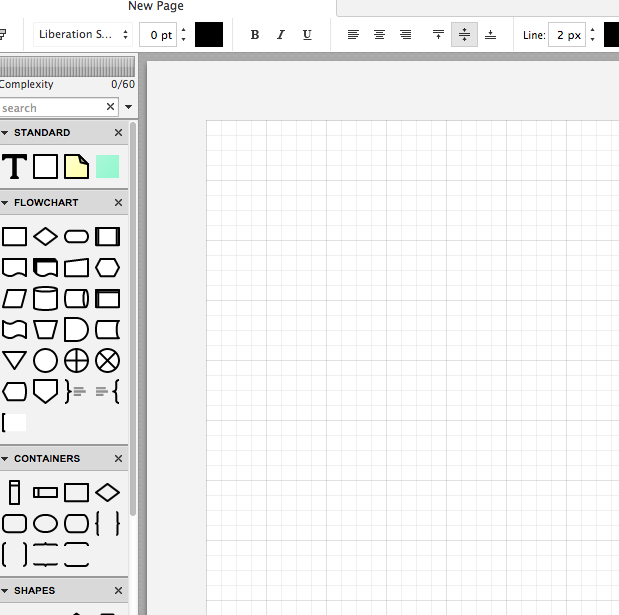
RealtimeBoard EDU has a great, clean space for the students to collaborate synchronously. It utilizes pretty common features for this type of program including drawing tools, shapes, connectors / arrow lines, and text boxes. The types of shapes & text bubbles are far fewer than Lucid but more than adequate for our needs.

RealtimeBoard EDU Lucid
Screen Shot 2014-11-14 at 5.24.20 AM.png Screen Shot 2014-11-14 at 9.15.59 AM.png
Screen Shot 2014-11-14 at 5.32.28 AM.png

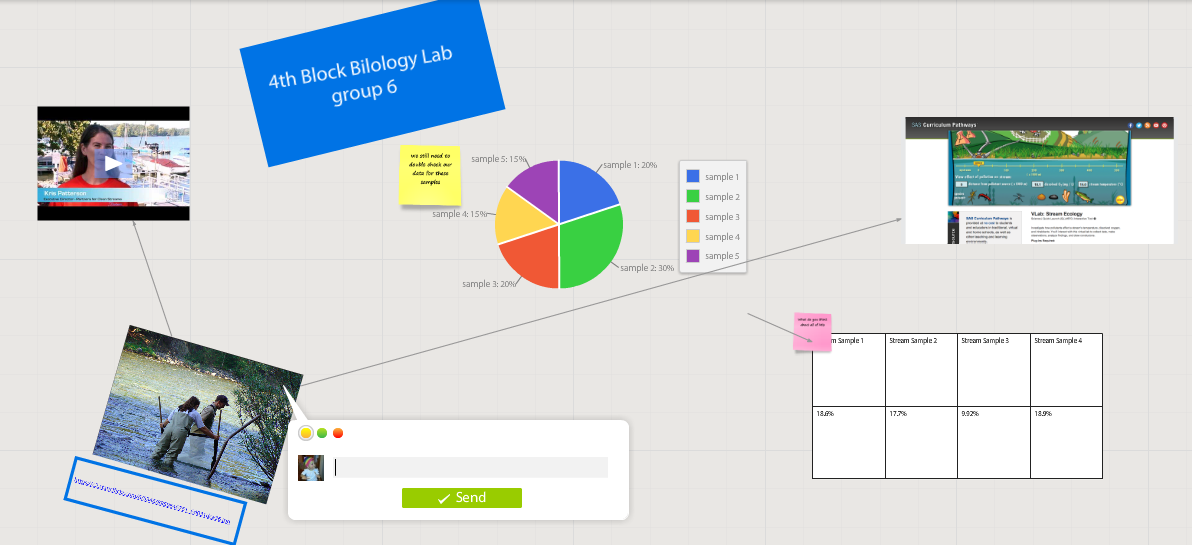
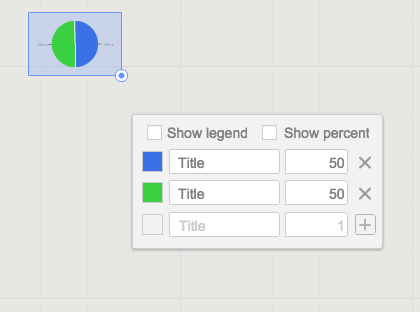
Students can embed video as with Popplet using the URL. Additions to those common tools include very easy to generate tables and charts (pie and various bar graphs).
Screen Shot 2014-11-14 at 5.35.55 AM.png
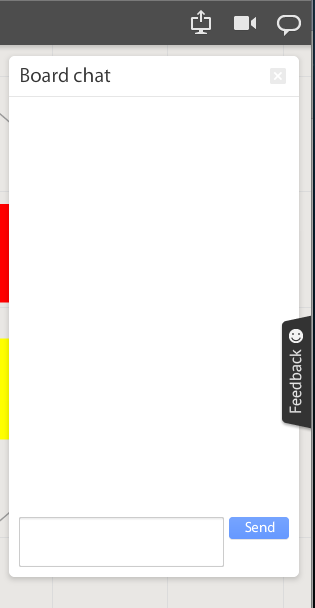
Students communicate in the workspace by generating post-it type notes, screen-share or by the onscreen “board chat” feature.
Screen Shot 2014-11-14 at 9.06.50 AM.png
What is unlike similar applications? RealtimeBoard lets users import entire documents, pictures, screenshots (very easy if you add extension--not currently in the Moore@School WebStore).

As students analyze these pieces and begin to see how they work together they can organize or combine the elements to convey a larger story.
Screen Shot 2014-11-14 at 6.00.19 AM.png
Student/students can save their work to Drive, download as PDF, add the instructor as collaborator, or send them the link. This many ways to submit make it quick and easy.

I really like the application at this point and I am happy to have an attractive alternative for my teachers. I anticipate this will be a big hit. Instructionally it could be modified to fit most assignment types and levels of Bloom’s framework.

__________________________________________
Ideas for Instruction:

Science: Lab & Experiment Reporting, Categorization

Social Studies: Biographies, Primary Doc Analysis, & Complex Cause-Effect

Math:Terminology, Illustrations of Real World Application of Skill

ELA: Character Development, Thematic Strands in Story, Types of Poetry, Mood/Tone/Theme

Foreign Language: Cultural Elements, Dialectic Variations, Topically Related Verb/Nouns
_______________________________________________________________________________
If you have found any other great alternatives or have something to add to the discussion here just post a comment below.

Will Herring, MEd-IT NBPTS
Moore County Schools, IDI DIF

@WilliamHerrin16

Monday, June 16, 2014

Maintaining Assessment Integrity in the 1:1 Environment


Maintaining Assessment Integrity in the 1:1 Environment

I continue to hear the notion that web enabled devices and / or 1:1 devices undermine the integrity of our classrooms and assessments. The truth is that it is no more in danger than at any other point. The strategies used by students looking to get over on teachers has changed; but if they can adapt, so can we. I want to show you a couple of quick tips & tricks to tackle some of your usual suspects:


Cheating
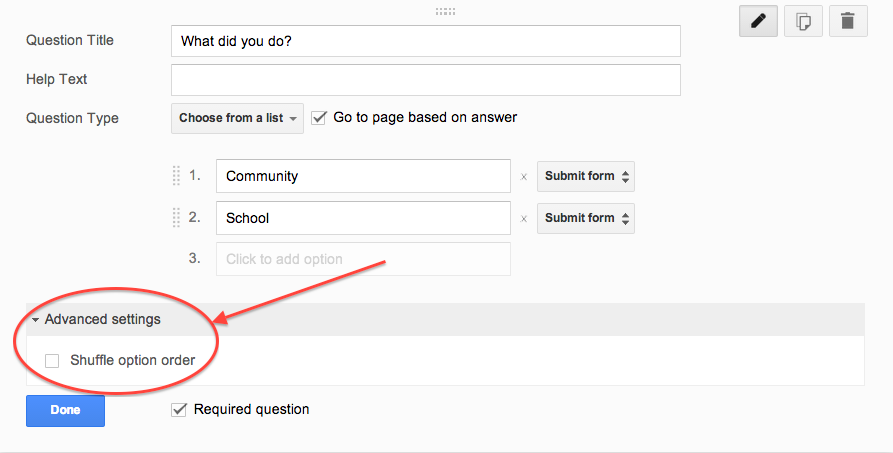
Cheating will be attempted in the standard, Honors, and the Advanced Placement version of any course. It is difficult to catch but easy to vex. If you are using Google Forms (which I recommend) to conduct M/C or T/F quizzing, this has a simple fix. After you write a question click “advanced setting” above the “Done” button. Check the box “Shuffle Option Order” & you’re all set.


Screen Shot 2014-06-16 at 4.35.55 PM.png


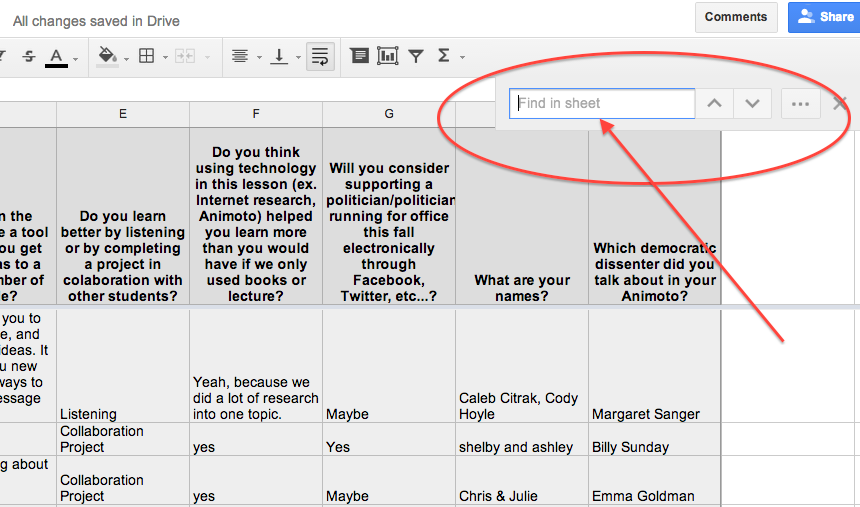
For short answer text questions you can go into your Google Sheet and pull up your suspect’s answers, use the Ctrl F feature to search for similar student responses. Confront them cautiously because your evidence is only circumstantial. It may be enough just to poke them with a little joking comment to make them understand you are on to them. Redirection of behavior is our goal. Getting caught is a teachable moment.


Screen Shot 2014-06-16 at 4.37.53 PM.png


Plagiarism

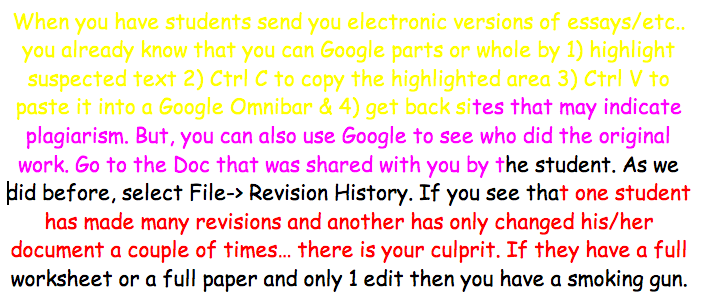
When you have students send you electronic versions of essays/etc.. you already know that you can Google parts or whole by 1) highlight suspected text 2) Ctrl C to copy the highlighted area 3) Ctrl V to paste it into a Google Omnibar & 4) get back sites that may indicate plagiarism.
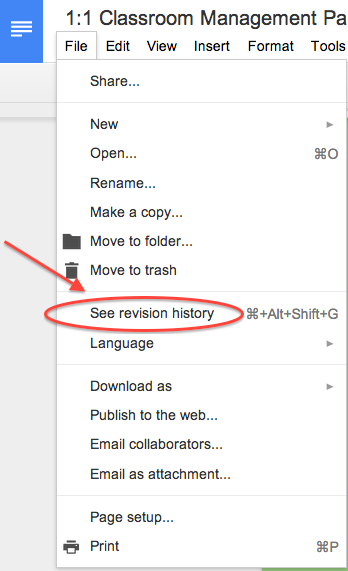
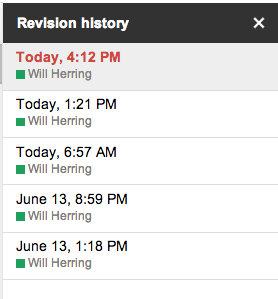
But, you can also use Google Revision History to see who did original work. Go to the Doc that was shared with you by the student. As we did before, select File-> Revision History. If you see that one student has made many revisions and another has only changed his/her document a couple of times… there is your culprit. If you have a really difficult situation between students you can go as far as to see the timestamped revision in which the actual questioned portion is contained. 

It is probably needless to say that if they have a full worksheet or a full paper and only 1 edit then you have a smoking gun.


Screen Shot 2014-06-16 at 4.09.11 PM.png


The Worst Partner EVER; (AKA: UN-collaborator)


We’ve all listened to students complain that they did more work than any other member & it’s UNFAIR! One easy way to check for participation is to have students collaborate in a Google Doc using different color text. You can eyeball the doc to see who is doing what & if a dispute arises use the revision history feature to see if someone has altered another student’s work. To see the “Revision History” of any Doc click on “File” -> “Revision History”


Screen Shot 2014-06-16 at 4.54.54 PM.png


Screen Shot 2014-06-16 at 4.09.11 PM.pngScreen Shot 2014-06-16 at 4.12.19 PM.png

Keep in Mind

The cat and mouse game is centuries old. The Chromebooks are just a new field of play. Don’t spend too much effort building a better mousetrap. Instead spend your time creating challenging and interesting lessons with authentic assessment items that incorporate student product generation and publication. Embrace the notion that students have access to any fact based knowledge in the history of man in their pockets and ask them to DO something with it!


Add a teacher pro-tip in the Comments section below if you have even more ideas

Will Herring
MCS DIF

Tuesday, June 3, 2014

Stormboard - Online Brainstorming and Collaboration Platform

So it's the last few days of school and you're interested in trying out a new digital tool in preparation for next year. Here's a suggestion: Stormboard


Stormboard is a free tool for real-time collaboration, brainstorming, and mind-mapping. Using Stormboard, users can create an unlimited amount of "storms" from a bank of education templates (Character Map, Compare & Contrast, Conflict Map, Reading & Analyzing Non-Fiction, etc.) or start from scratch with a blank brainstorming wall. Once the storm is created, users can invite up to 5 collaborators via email, providing the link to the storm, or giving out the storm ID & key. 


Your storm can include color-coded sticky notes, images, videos, and sketches. Users can utilize the chat option to communicate within the storm. The drag-and-drop process makes it very easy to edit the storm. A couple of the nice features of Stormboard is the ability to vote on the ideas on the storm (each user gets 10 votes to prioritize the sticky notes) and the option of commenting on each item on the storm so that your collaborators can give feedback on the ideas. You can retrieve reports from your Stormboard in a variety of formats. 

The Google sign-in feature makes this an easily accessible tool for your Chromebook users. The numerous literacy templates are great if you're thinking about going paperless. 

*Free education accounts until July 31, 2014 which enables unlimited users per storm*


Wednesday, May 21, 2014

Global Connections on Chromebooks with ePals

One of the absolute best tools I've encountered over the years to increase global awareness and collaboration across the world is ePals (located at http://epals.com).


"ePals" are what the name implies - Electronic Pen Pals.  But the service offers so much more (and all free!).  With ePals, you can connect with classrooms from over 200 countries all over the world, whose students speak 136 different languages and range in age from preschool to college age.  

Once you're logged in as a teacher and have completed your class profile, you can easily search for and connect with classes through an intuitive process.  As you can see, it's very easy to narrow down your search so you can start looking at profiles that fit your classroom's exact needs. 

The three types of collaboration that are available are simple email exchanges (like a traditional pen pal), video chats, and collaborative project work spaces.  These three can certainly be combined as you grow more comfortable with your ePals.


A sample profile


Each classroom profile is created by the teacher and explains the types of connections they are hoping to make.


Finally, another great service that ePals provides are message forums for teachers and students alike.  Here, students can pose and answer questions to the global community that are interesting or relevant to their lives. Here, you'll see students from all over the world discuss things like their favorite foods, favorite books, favorite movies, as well as globally important issues such as gun control, women's roles, and cloning. It's great to see students read through and contribute their own thoughts and ideas about topics that are highly relevant to their lives.  It can be quite an eye-opener for many students who may otherwise never get an opportunity to communicate with kids their age from around the globe.


Here's to hoping you take the dive and expose your students to the global community in a way that is very accessible and "real."  Try ePals!