Showing posts with label Chromebook. Show all posts

Wednesday, May 10, 2017

Traci Keith - A Teacher's Teacher

Some people were born to be educators. You can tell the moment you step into their classroom that the students who have the privilege of being in this room are in for an amazing year. There are lots of teachers that come to mind when I think of natural-born educators, one of which is Traci Keith, a fifth grade teacher at Cameron Elementary School. She has all the things a principal would look for in an exceptional teacher. She’s creative, passionate, knowledgeable, and her students love her! She creates a learning environment where her students are set up for success. A lesson that stands out for me is when her class participated in a novel study and the setting of the story was a cafe. Guess what the students walked into the first day of the novel study…...a cafe. Yep, she decorated her entire classroom like a cafe. You’ll find Miss Keith doing things like this all the time to get her students excited about their learning. Another amazing learning opportunity that Miss Keith created was when her students were studying the industrial revolution. This may not come across as the most engaging unit of study as a student, so Miss Keith and I collaborated on a project where her students would bring the inventions from the industrial revolution to life using www.tinkercad.com and our 3D printer!


Students were assigned an invention that is associated with the industrial revolution, they had to research this creation and explain how it made life easier for people during this time frame. Once this was completed, students hoped on their Chromebooks and created a model of their invention using the Tinkercad website. What better way could a teacher bring their lesson to life than to have her students actually re-create the inventions that they are studying! Then, once her students completed their models, we printed them with our Dremel 3D printer! Take a look at some of their models:

Paddle boat

Steamboat

Telegraph

I always enjoy picking the brain of teachers who I look up to, so that I can hopefully take something back from them and add it to my toolbox. Take a look at what Miss Keith shared with me when I sat down to interview her and hopefully you’ll be able to take something from this phenomenal teacher:


Question: What allows you to be able to take risks with your students?
Answer: I think I take these risks because sometimes when students do things they’ve always done in the past, it’s boring and it becomes monotonous. If I take a risk and do something new with them, it becomes a learning process for both of us where I learn to be a better teacher and they learn to be a more creative learner or think more critically.


Q: How would you describe your teaching style?
A: The best way to describe it would be flexible because of the fact that every day is different and every learning style is different. You can plan as many avenues as possible but there will always be outcomes that happen that you can’t predict so you have to be ready to change at the drop of a hat.


Q: Where do you start when you are planning a lesson that includes technology?
A: For me, it starts with what I would do if I didn’t have technology and then how I can turn those things into digital pieces. For example, in vocabulary in reading instead of having them make vocabulary flashcards they used digital flashcards using Quizlet. Also, a lot of project-based learning is easier because there are more options in the digital world. It adheres to what the students like because they’re living in a world of technology.


Q: What are some of your favorite technology tools that are your “go to” tools for digital integration?
A: I use vocabulary.com a lot. I can assign the vocabulary words and then they practice those words in a number of different ways. I like Google Classroom because I can post different types of assignments and they all get turned into the same place. I can assign anything from Google Slide projects, to webquests, to Classworks reading or just give them link to check out when we’re studying a content specific area.


Q: You’re an inspiration to many people, including myself, what inspires you?
A: I think our whole staff here at Cameron because we have a staff that has tons of different teaching styles and they all make their specific teaching styles work for them. And they all have the best interest of their students in mind which inspires me to think outside of the box because what’s really important is what they learn and how they learn it. And the students, of course because honestly there’s nothing better than completing an assignment or project and seeing the light bulb go off and they finally get it.


Q: What is your favorite part about being a teacher?
A: Having fun with the kids. The best part about my job is being able to experience things with them and see their reactions when they learn something new. While lots of the things we do in class, I may have done before, they are brand new for my students so it creates a new experience for all of us and a bonding experience that helps us form relationships that last for years to come.

It truly is a pleasure to work with teachers like Miss Keith. She's always looking for ways to make the learning meaningful for her students. She has a fantastic rapport with her students and her colleagues. Thank you Miss Keith for everything that you do for your students at Cameron Elementary School.
#camscotsproud

-Clint

Friday, November 4, 2016

A New Way to Engage: Using Video Creation Tools in the Classroom

Overview
Teachers often struggle to engage students when teaching concepts that are, quite frankly, boring.  We have all taught lessons that we knew the students would not enjoy, but are an essential part of the conceptual framework of the subject, so skipping the lesson was simply not an option.  Why not transform these boring lessons into fun, engaging lessons by integrating video creation tools!

Why Video Presentations?
Using video creation tools provides a platform for all students to demonstrate their understanding of a concept in their own unique way.  By providing the opportunity for students to be creative with their video, engagement increases exponentially which leads to a better understanding of the once "boring" concept.

One common fear that teachers have about using technology in their classroom is that it will shift the students' focus from the subject content to the digital tool being used.  Good news!  Video creation provides a content-centered approach to learning.  Students must first have a solid understanding of the concept being taught before creating a video presentation that displays their understanding of the concept.  This allows video creating to integrate seamlessly into any lesson across any subject.

The Tools
Students at New Century Middle School have used video creation tools for a variety of projects across many different subjects.  Here are the tools they used along with their finished products:

Touchcast (iPad and iPhone)
This tool is free and includes a variety of effects including green screen, virtual whiteboard, unique sounds, and many other virtual apps (called vApps).  Students used Touchcast to create videos discussing economic issues in social studies.  They researched an economic issue in America, then created a video to present their findings and give their opinion on how to fix this particular issue.


WeVideo (web-based)
WeVideo is a web-based tool that allows you to easily edit video clips from your computer.  This is a great tool for students who are using Chromebooks.  Students used WeVideo to create videos for Red Ribbon Week detailing the dangers of taking prescription drugs.  This particular video won second place in a drug prevention video contest.


Splice (iPad and iPhone)
The easiest of the tools to use, Spice allows you to create videos using pictures and video clips from your device.  Because of it's ease of use, minimal class time is needed to teach students how to use the tool.  This particular student used Spice to create a digital "book report" on a novel they read in class.  


The Bottom Line
The next time you are looking to increase student engagement during a lesson that is far from exciting, have your students create a video presentation.  Then watch in amazement as your students create digital masterpieces that helps boost engagement and leads to content mastery.

Monday, October 24, 2016

Halloween is coming but Mrs. Futral isn't afraid

Integrating technology can be scary. 


Technology is constantly changing. It takes a lot of patience and perseverance. Especially when the computer, iPad, app, robot, chromebook, website (you see where I am going with this) is not working like it should. It is easy to become frustrated. But through it all, Johnna Futral knows that integrating technology is worth the risk. I have worked with Johnna over the past three years and she has become one of my closest allies in the world of digital learning. I know that if there is something new that I would like to take for a test drive I can approach Johnna and she will be eager to give it a shot. Not only is she open to my suggestions, she's an advocate for the benefits of digital learning. I wanted to share her teaching pedagogy that includes using technology to enhance her instruction so that other educators may see that the rewards are worth the risks that you take when you step out of your comfort zone. Here's a piece of my interview with another one of Moore County's finest:


Question: How long have you been a teacher in Moore County Schools?
Answer: This is my eighteenth years teaching. All in Moore County Schools. I’ve taught second grade for seven years, Kindergarten for seven years and two years in fourth grade. I also worked as an assistant for two years.

Q: How would you describe your teaching style?
A: My teaching philosophy has always been that high expectations lead to high achievers. I like a lot of movement in the classroom. I like to change things on a whim. I’d like to say that I’m organized enough that I’m effective but if something isn’t working I like to change it on the fly. I’d say I’m a little bit of a “fly by the seat of my pants” kind of teacher. It depends on what the kids need. What I think when I’m planning may be different than what happens when I’m actually teaching. I also like a lot of creative in the classroom. I like to integrate arts and science because the kids enjoy it and I bring that passion so then the kids get excited.

Q: You often integrate technology in your lessons. How does technology enhance your instruction?
A: For one thing, when the kids are using technology they are a lot more engaged compared to when they’re talking to their classmates. I think it has a lot to do with the world we’re living in. It enhances teaching when you bring in something they're familiar with. 21st century learners must be fluent with technology to be able to function as an adult. Showing students those skills of creating, collaboration, and publishing prepares them for what’s to come in their future. They still need to be able to talk through their thinking as well. That way we don’t take out the personal connection part.

Q: What are some of your favorite lessons that included technology?
A: I especially enjoyed the solar oven engineering lesson where our students created a plan, then made and tested, as well as improved a way of using the energy from the sun to make s’mores. I also enjoyed the Lego robotics lessons where our students created and programed robots that supplemented math lessons in measurement and comparing numbers. You can see the kids enjoy these lessons and you know the content will stick with them because of how much they enjoy it. Even though some of those lessons are harder to prepare for, it turns out being some of the best lessons. Once we got out there to see that something they created was successful when the sun had melted our chocolate...they’ll remember that forever..


Q: What would you say to a teacher who may be reluctant to use technology with their students?
A: I would say to utilize your resources. If your Digital Integration Facilitator is offering to give you help, you should take advantage of that resource because if you’re not comfortable with technology, your DIF is so you’ll be able to step outside of your comfort zone and then you’ll grow as a teacher. You are more likely to try something new when you’re working with a DIF. Until I see it, I don’t understand how it works. The only way you’re growing to grow as an educator is to step outside of the box of comfort. No one is going to grow until they take risks. Just like we tell our students. I often find that if I do take a risk and fail it’s a good lesson for my students as well. You teach them perseverance and not to give up with some things are hard.

Q: Does your principal affect your motivation or desire to use technology?
A: No. I think he’s very tech savy. It’s something that I do on my own because I think it’s beneficial.

Q: You’re an inspiration to many people, including myself, what inspires you?
A: From the time I was a small child I knew I wanted to be a teacher. I was inspired at a young age by my kindergarten teacher. I don’t know exactly what it was but she was a huge inspiration for me. I even did an internship where I went back into her classroom and worked with her.  My children also inspire me. My colleagues inspire me. I get inspired by other educators. I think that my daughter inspires me and that I inspire her as well as my students. They’re so much love in a school building that is enough in itself to be inspiring. I like to have fun. I don’t like to do things like in the olden days. I like to be creative and I think teaching allows me to do that.

Q: What is your favorite part about being a teacher?

A: I think my favorite part is the kids and how much they love you. It’s like having a classroom full of your own children that you mold and shape. Even though you send them home at the end of everyday you still think about them. Why else would you be a teacher? It’s about the kids. I like to see them excited about things. Like today, when they were building their robots today that’s something they were excited about.


This is Mrs. Futral's first year at Cameron Elementary School and they are beyond lucky to have such an amazing teacher. If I had kids, I would love for them to have her as their teacher. She is a phenomenal educator and I absolutely love collaborating with her.

Monday, February 29, 2016

NCTIES Conference Week!


In a close second to Spring Break week, the week of the annual NCTIES Conference is one I look forward to every Spring semester.  Not because it is an entire week off, but because I get to spend a couple of days with some of my innovative colleagues learning about new and exciting ways to incorporate digital tools into instruction.  NCTIES provides a 'breath of fresh air' and allows me the opportunity to learn more about technology from others in the field of education.

A few members of the Digital Integration Facilitator (DIF) Team will be presenting this year at NCTIES.

DIF Presenters

Follow the conference on Twitter with #NCTIES16.  You can also check out NCTIES on Facebook for upcoming events and dates.

Here are a few of my favorite presenters that I try to visit each year:

Some of the sessions I am looking forward to attending deal with:
  • Green Screen Technology
  • Maker Space ideas
  • Coding in the classroom
  • Classroom management with 1:1 environments
  • Deployment processes
  • Canvas LMS 
I can't wait to share what I learn with the faculty and staff of Moore County Schools.  


Friday, March 20, 2015

Cool Tool - Streamus

I always enjoy attending NCTIES and this year's conference was no exception.  It's always a great opportunity to learn from other professionals around the state and share successes, failures and the newest ways to use technology in your classroom.  Anytime I can take away a tool that can help in the classroom, as well as my personal life, it is a bonus.

Streamus is one of those bonus sites that has applications in and outside of the classroom.  Streamus is a Chrome Extension that allows users to stream audio clips that are pulled from YouTube videos.

Classroom Uses:

  • Classroom environment
  • Content Enrichment
  • Pacing
  • Creativity
  • Writing Prompts

Personal Uses:
  • Creating awesome playlists

"Music is the electrical soil in which the spirit lives, thinks and invents."
-Ludwig van Beethoven

Enjoy!

Tyler Callahan
Moore County Schools
Digital Integration Facilitator


Thursday, February 26, 2015

Tower Building Challenge with Mrs. Early

   At Westmoore Elementary, collaboration is encouraged with the integration of technology in the classroom. It was arduous to pick only one teacher at Westmoore Elementary to highlight for the blog this month, since so many enjoy using technology in the classroom. Mrs. Dawn Early is a fifth grade teacher at Westmoore, who teaches math and science. When asked if she wanted to participate in the Marshmallow Tower Building challenge, as a way to incorporate STEM, she immediately jumped on the opportunity. 
   Together we mapped out the initial lessons to the students on how to plan their tower design. Mrs. Early was wanting to have a large emphasis on the engineering design process and promoting the use of chromebooks to aid in this activity. Students were encouraged to use Educreations, 3DTin, and Google Drawing to assist with the design and planning of their tower. It was impressive to see the level of focus and dedication the students gave to this project. Some students even researched famous towers and looked at the digital blue prints of the structures to gain insight on how to build a strong frame.
Using Google Drawing to design the base of the tower structure.


   After two days of researching and planning their design, students were able to build their towers. Students worked in teams of three to four and were limited to the following materials: 1 box of spaghetti, 8 linguine noodles, 1 lasagna noodle, 8 regular marshmallows, and 100 mini marshmallows. Some teams struggled at first, but quickly remembered that redesigning is sometimes a critical component in the engineering design process. It was evident that Mrs. Early has spent significant time on teamwork skills, as most teams cooperatively worked together to build their tower. Also it was encouraging to see students using measurement to ensure precise length of their noodles. 


  This project was an excellent, fun, and unique learning experience for students. It allowed Mrs. Early's class to practically use information they had learned in science and math to complete a task. The response from students was overwhelmingly positive and most wanted to try this project again, using the information they gleaned from this first experience. Mrs. Early did a fantastic job in leading this activity and inspired other teachers to promote inquiry within their classrooms at Westmoore. 

~Deanna Boesch

Thursday, January 8, 2015

The Best Digital Tools of 2014

   For this month's blog, on a cool tool used in digital learning, a colleague and I decided it may be best to recap the "Best Digital Tools" used by teachers in 2014. There were so many foundational tools used this year, which encouraged teachers to step out of the box when it came to digital learning and teaching. As a team, we compiled a list of the top three tools used at schools throughout Moore County.
   First on the list is Kahoot. This tool was an immediate hit at professional development meetings and conferences. Teachers quickly starting integrating this engaging, formative assessment tool in the classroom, and students from all grade levels loved it! A Kahoot quiz can be made by going to getkahoot.com and creating a free account. Kahoot allows the user to import pictures, videos, and has unique settings to meet student needs. In addition, this site hosts public quizzes for teachers to use, which helps save on time. If you have not experienced Kahoot with your class, it is definitely worth your while!


  Movenote is another tool that really took off in the fall for Moore County. With Movenote, students and teachers are able to upload various types files to create a presenation. Some file types that users can upload are pdf, jpeg, png, Google Slides, and Powerpoint. After file(s) have been uploaded, the user can then record themselves to make a presentation while their slides run in the background. The operator has complete control over slide/picture advance and can rearrange slides as necessary. Movenote is a terrific way to put a digital spin on oral presentations!

   Last but not least, Google Classroom was reported to be a pivotal tool in schools with chromebooks. With Google Classroom teachers can communicate easily with students and create assignments that are planted directly in students' Google Drive. Management of assignments and sharing resources with various classes is at the core of Google Classroom. Many schools have adopted this approach to a digital classroom, as MCS embraces a Google Apps for Edu environment.


  If you are interested in learning any more about this year's top tools in Moore County, contact your school Digital Integration Facilitator (DIF) or media specialist to get more information!

~Enjoy!
Deanna Boesch

Tuesday, December 9, 2014

Computer Science Education Week


This is my first year getting my feet wet with coding, but after I realized that I wouldn't drown in all of the computer science programming mumbo jumbo, I dove in head first! I'll admit, I was a little intimated when I first clicked on http://code.org/learn to try my hand at what over 61,000,000 people had done, learn the basics of coding. I've been a part of meetings with our technology department and looked over the shoulder of one of the lead technicians while he went into the "guts" of some of the programs we use in our county. It wasn't pretty. It was foreign language. So to say I was hesitant to try my hand at coding would be putting it lightly. Then I watched this video from our President and I was inspired to give it a shot. Take a look.


That's when I hoped over to http://code.org/learn to start coding. I was amazed at how well the instruction for coding was organized. You start simple with drag-and-drop coding with blocks to create snowflake designs with Anna and Elsa of Frozen. They even have cameos from Bill Gates and Mark Zuckerberg. If you really want to challenge yourself, you can even create your own app or game with tutorials to help guide you along. 

By the end of the night (more than just one hour) and with the help of http://code.org/learn's training wheels, I was caught up in the excitement of creating my own code! I was wrapped up in the ability to create something just by writing the code for it. To get an idea of how powerful coding can be, check out this Google Hangout with Jack Dorsey, the co-founder of Twitter.


I want to challenge YOU and your students to make some time for an hour of code. Give your students the opportunity to build something impactful, something meaningful, something they can be proud of. "It helps nurture problem-solving skills, logic and creativity. By starting early, students will have a foundation for success in any 21st-century career path." - Code.org

Here are a few resources to help you get started:


-Clint Rogers

Wednesday, December 3, 2014

SpiderScribe - Cool Tool for Collaboration


SpiderScribe - Cool Tool for Collaboration

picture from spinderscribe.net

SpiderScribe.net has an app available in the Chrome Web Store and is my focus for Collaboration tool for this week.  SpiderScribe is a mind mapping tool that gives you the ability to embed a variety of content into your map.  The best part of this tool is that  students can work on the same map, at the same time, to collaboratively edit and share ideas.  


 Students will choose from the various tools listed on the left hand side of their maps to import content.  They can insert text they type themselves, documents from their Google Drive, pictures, maps, and important dates.  All students need to do to add content, is drag and drop the stencil for the type of content they would like onto their map.  Then students can draw arrows, linking various content.


Maps can be private, or public, depending on what you are wanting students to do with them.  Just like working with a Google Doc, students can collaborate in real time with SpiderScribe allowing them to work together on projects.  This feature really makes it stand out among the many other mind mapping tools available.  


Wednesday, November 26, 2014

Flippity.net

Flippity.net is a website that you and/or your students can use to create their own flash cards. 

What makes this website different from other websites like Quizlet.com? First of all, it works really well with Google Drive. All you have to do is visit the flippity.net website and make a copy of the template. Use the template to create your cards. Cards can be created quickly because the template is in a spreadsheet format. Secondly, your cards can contain video. This is a great feature. Once you finish creating your cards, just publish the spreadsheet and copy and paste the link in the template. It is very easy and quick. Visit the website because it walks you through step-by-step directions. 

Once you get your link for your cards, you can also print off a paper version of a quiz. Students can also view all cards at once on the screen. There is even a template that works the same way for a jeopardy game. Check it out. I really believe you will like this website. 


Tuesday, November 18, 2014

Online Bulletin Boards with Padlet

   
   As teachers, we are always looking for new ways to spark discussion, share resources, and communicate with students. Padlet is a multi-functional tool that has various benefits in the classroom. Not only is Padlet a free website, but contributors do not need to have an account in order to access it. Below is a list and short description of ways to use Padlet in your classroom!

Option 1: Group Discussion
  • The teacher can post a question onto his/her Padlet wall and share it with students. Padlet walls can be shared through email, QR codes, links, or even writing it down on a whiteboard.
  • As students access the Padlet, they can begin to discuss the question or topic. The discussion occurs in real time, so as students respond, their responses will appear immediately.
  • Students do not need an account in order to respond to a discussion!

**There is now a layout option on Padlet, that allows the teacher to effectively organize responses.

Option 2: Anticipatory Sets/Closures to a Lesson
  • At the end of your lesson, you can assess your students' understanding by having them comment on their learning. 
  • By switching on the "moderate" option, it will prevent students from seeing each other's posts.
Option 3: Assignment or Project Sharing
  • As students complete a project, have him/her share the link to their assignment/project on a Padlet wall, so others can view.
To start using Padlet, go to padlet.com and begin creating engaging, digital bulletin boards for your class!

Enjoy!
~Deanna Boesch

Friday, November 14, 2014

Collaboration Cool Tool
RealtimeBoard for Education

Good Looking, Powerful, and Chrome-Ready Mindmapping

Screen Shot 2014-11-14 at 6.00.19 AM.png

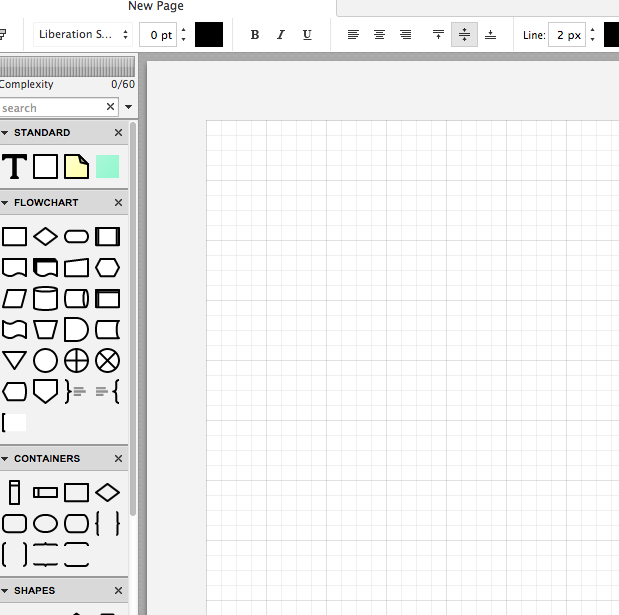
In my research to write this article (Cool Tools for Collaboration) I saw tons of workspace apps for the iPad and Chrome. They all give the students a virtual space to collaborate with similar features. The Apple Apps were more pleasing aesthetically and easier to teach with than the Chrome alternatives with which I was familiar. Chrome apps had a little more functionality than the Apple Store offerings, but those are typically more distracting than helpful in the classroom. I like the versatility of Lucid, but the design space is clunky. The Chrome version of Popplet is attractive, but lacks function and has lost the trust of our teachers because of some connectivity issues.

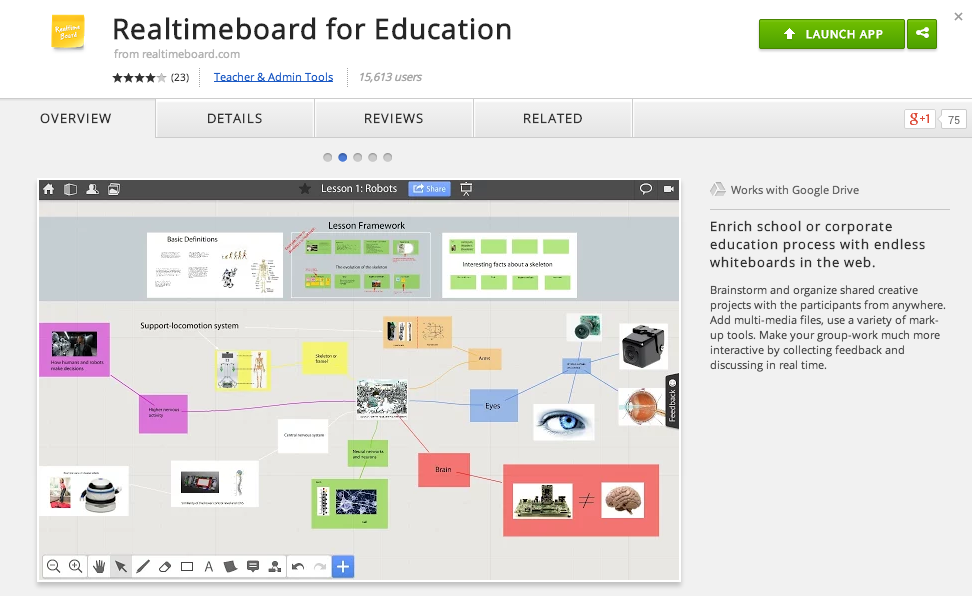
In my search to find something easy to use, powerful, and attractive for my Chromebook users I stumbled upon RealtimeBoard for Education. It is already loaded into the Moore@Schools Webstore and ready to use now.
Screen Shot 2014-11-14 at 6.03.50 AM.png
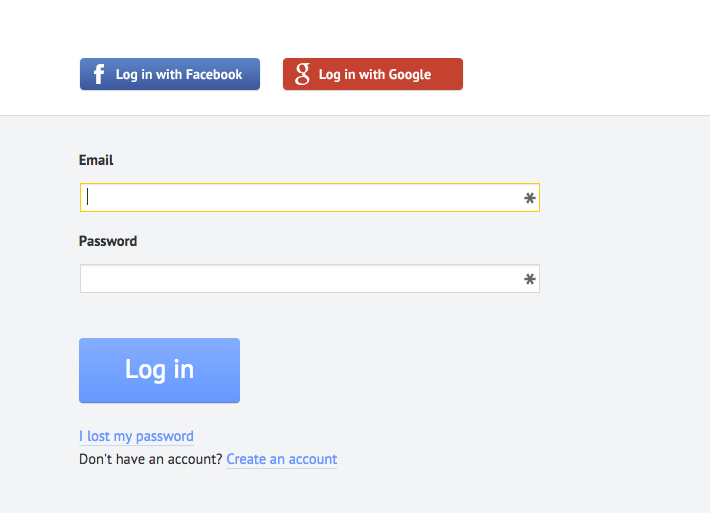
RealtimeBoard EDU supports single signin with edu gmail accounts.
Screen Shot 2014-11-14 at 5.14.39 AM.png
Screen Shot 2014-11-14 at 6.01.33 AM.png
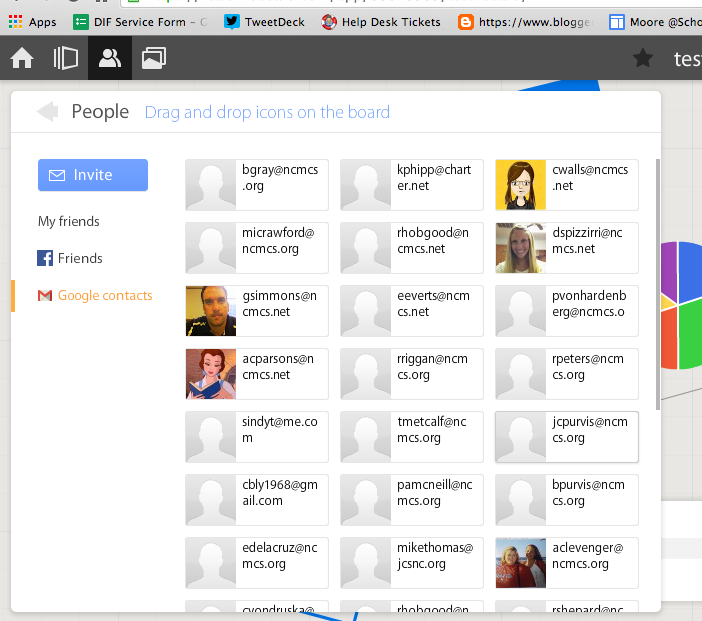
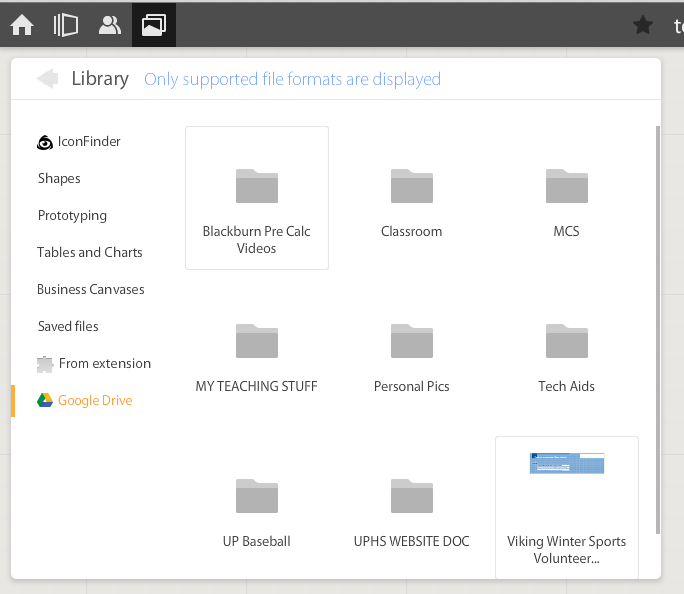
If allowed to do so it will also link to Drive like Lucid (very handy) and collaborators can be located and added through gmail. The user can also add an extension to capture whole or partial screenshots that will be automatically added to the RealtimeBoard Library (handier than I originally thought it would be).
Screen Shot 2014-11-14 at 5.22.29 AM.png
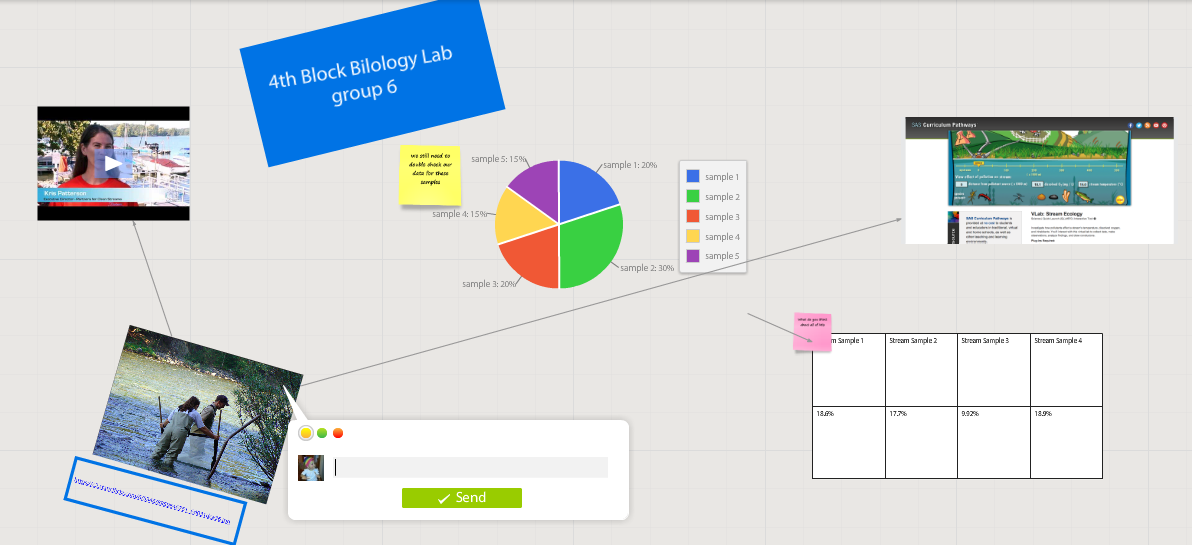
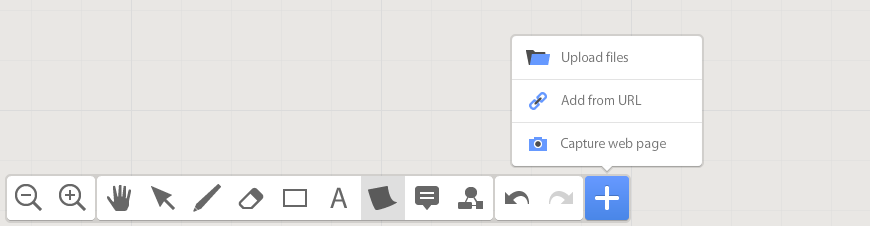
RealtimeBoard EDU has a great, clean space for the students to collaborate synchronously. It utilizes pretty common features for this type of program including drawing tools, shapes, connectors / arrow lines, and text boxes. The types of shapes & text bubbles are far fewer than Lucid but more than adequate for our needs.

RealtimeBoard EDU Lucid
Screen Shot 2014-11-14 at 5.24.20 AM.png Screen Shot 2014-11-14 at 9.15.59 AM.png
Screen Shot 2014-11-14 at 5.32.28 AM.png

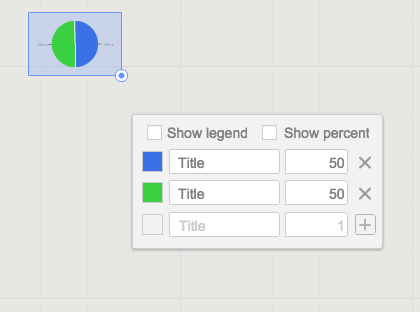
Students can embed video as with Popplet using the URL. Additions to those common tools include very easy to generate tables and charts (pie and various bar graphs).
Screen Shot 2014-11-14 at 5.35.55 AM.png
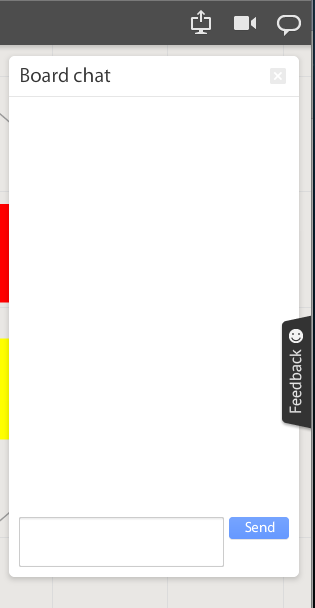
Students communicate in the workspace by generating post-it type notes, screen-share or by the onscreen “board chat” feature.
Screen Shot 2014-11-14 at 9.06.50 AM.png
What is unlike similar applications? RealtimeBoard lets users import entire documents, pictures, screenshots (very easy if you add extension--not currently in the Moore@School WebStore).

As students analyze these pieces and begin to see how they work together they can organize or combine the elements to convey a larger story.
Screen Shot 2014-11-14 at 6.00.19 AM.png
Student/students can save their work to Drive, download as PDF, add the instructor as collaborator, or send them the link. This many ways to submit make it quick and easy.

I really like the application at this point and I am happy to have an attractive alternative for my teachers. I anticipate this will be a big hit. Instructionally it could be modified to fit most assignment types and levels of Bloom’s framework.

__________________________________________
Ideas for Instruction:

Science: Lab & Experiment Reporting, Categorization

Social Studies: Biographies, Primary Doc Analysis, & Complex Cause-Effect

Math:Terminology, Illustrations of Real World Application of Skill

ELA: Character Development, Thematic Strands in Story, Types of Poetry, Mood/Tone/Theme

Foreign Language: Cultural Elements, Dialectic Variations, Topically Related Verb/Nouns
_______________________________________________________________________________
If you have found any other great alternatives or have something to add to the discussion here just post a comment below.

Will Herring, MEd-IT NBPTS
Moore County Schools, IDI DIF

@WilliamHerrin16