Monday, June 30, 2014

Welcome ISTE Friends!

We are a group of dedicated digital learning facilitators from Moore County Schools in Moore County, NC.  We started this blog dedicated to innovative uses of Google Chromebooks a few months ago to help our colleagues across the county in their implementation of our 1:1 Chromebook deployment.

We hope some of the info here is beneficial and let us know how we can help!

(List from tallest to shortest...=) )

Will Herring - wherring@ncmcs.net@WilliamHerrin16
Tyler Callahan - jcallahan@ncmcs.net@STEM_TC
Clint Rogers - crogers@ncmcs.net@clint_rogers21
Steve Johnson - sjohnson@ncmcs.net @edtechsteve
Deanna Spizzirri - dspizzirri@ncmcs.net -
Lee Ann Holmes - lholmes@ncmcs.net@tlvfan

Monday, June 23, 2014

Tips to Start the New School Year

Setting Your Class up for Success

   As another school year quickly approaches, there are some points to consider for organizing your class with technology. With many schools now using Chromebooks, there are many methods teachers can use to stay organized and connected with students.
   Once teachers receive his/her class lists, it is helpful to create student contacts on Google Drive. 

   Within the contacts folder, teachers can create class groups, enter in each student's name, and email address. By creating a class group, the teacher will be able to send emails and share documents with the entire period at one time. 
   After contacts and contact groups have been created, the teacher can now send and receive assignments from students! In addition, instructors can set up class folders on Google Drive, to maintain organization of student work. By creating individual class folders, student submission of work will be housed in a common spot and prevent your shared folder from being overloaded.
  Enjoy staying organized this school year!
~Deanna Spizzirri

Thursday, June 19, 2014

Zaption - Make Educational Videos Interactive


Have you ever had that moment in your classroom when you're showing an educational video with your students and you have a few friends who are tuned out and missing out? As I was browsing my usual online PD spots I stumbled upon a new tool that has a lot of promise. Zaption is a free resource to create and share interactive videos with your students. 


Zaption lends itself perfectly to those teachers who want to flip their classroom or create a more blended learning environment. Using this tool, teachers can use videos from YouTube, Vimeo, PBS, National Geographic or upload your own from your computer or webcam. Zaption then allows its users to add images, text, drawings, open ended and multiple choice questions, as well as check boxes to specific points to your selected video. Once you've made the videos more engaging for your students, you then publish them and retrieve the link to share with your students. 

After your students complete the video "tour" you will be able to retrieve the data from their responses to deliver more individualized instruction based on their results. Zaption is a great tool for differentiating your lessons by creating "tours" that are designed to meet the needs of your learners.  Zaption also offers a paid subscription that opens up more features to its users, such as creating student groups to track progress, more interactive elements, and more tools to manage your content.

Google Helpouts - Need help? Find help.

My friend and colleague, Clint Rogers (@clint_rogers21) and I were working on our district website yesterday and wanted to try out Google Helpouts to see how it worked.  It wasn't long before we realized this could be a great tool for teachers.  Google Helpouts is a service that connects people that need help, with those people that can help them.  Helpouts are video conferences through Google Hangouts that allow you to speak with Subject Matter Experts.  There are people available to help from all walks of life and fields of work.

Our first ever Google Helpout was with HomeAdvisor.  It was a free helpout (I should say that some Helpouts are paid services) that connected us with a gentleman named JD.  JD was very helpful and answered all of our questions thoroughly about some simple home improvement issues we asked.  

 If you would like to give Google Helpouts a try, a good place to start would be with the group at HomeAdvisor.
Check out HomeAdvisor on Google Helpouts

After participating in my first Google Helpout, I decided I would like to create my own Helpout account.  I received an invitation code from Google and setup my Helpout account offering help with high school and college Biology.  Check out my Google Helpout page and feel free to share with those that may need help with Biology.
Check me out on Google Helpouts for help with Biology.

Thanks,

Tyler Callahan
@STEM_TC
jcallahan@ncmcs.org

Monday, June 16, 2014

Maintaining Assessment Integrity in the 1:1 Environment


Maintaining Assessment Integrity in the 1:1 Environment

I continue to hear the notion that web enabled devices and / or 1:1 devices undermine the integrity of our classrooms and assessments. The truth is that it is no more in danger than at any other point. The strategies used by students looking to get over on teachers has changed; but if they can adapt, so can we. I want to show you a couple of quick tips & tricks to tackle some of your usual suspects:


Cheating
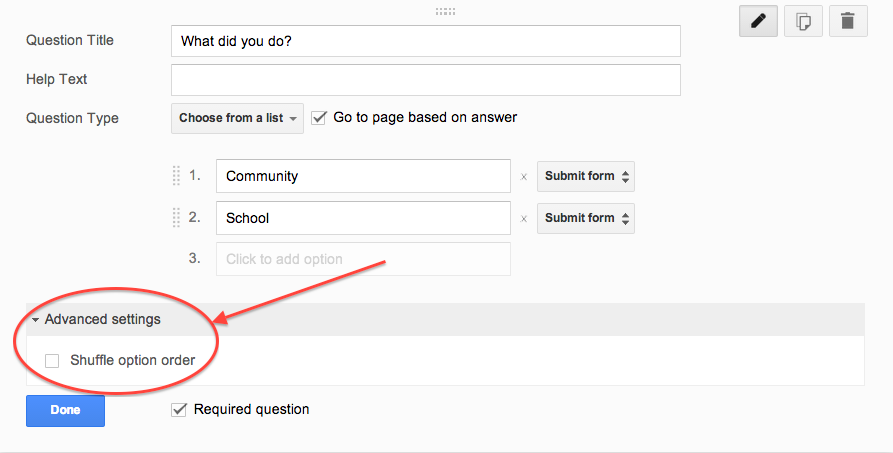
Cheating will be attempted in the standard, Honors, and the Advanced Placement version of any course. It is difficult to catch but easy to vex. If you are using Google Forms (which I recommend) to conduct M/C or T/F quizzing, this has a simple fix. After you write a question click “advanced setting” above the “Done” button. Check the box “Shuffle Option Order” & you’re all set.


Screen Shot 2014-06-16 at 4.35.55 PM.png


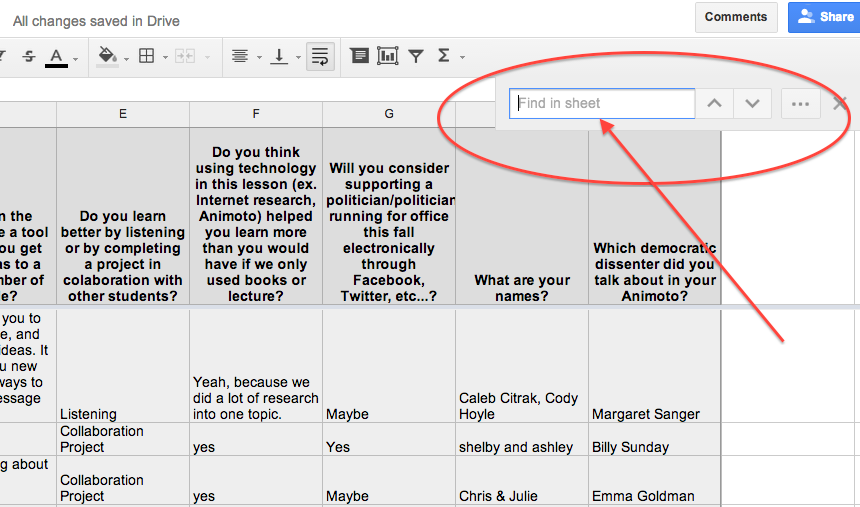
For short answer text questions you can go into your Google Sheet and pull up your suspect’s answers, use the Ctrl F feature to search for similar student responses. Confront them cautiously because your evidence is only circumstantial. It may be enough just to poke them with a little joking comment to make them understand you are on to them. Redirection of behavior is our goal. Getting caught is a teachable moment.


Screen Shot 2014-06-16 at 4.37.53 PM.png


Plagiarism

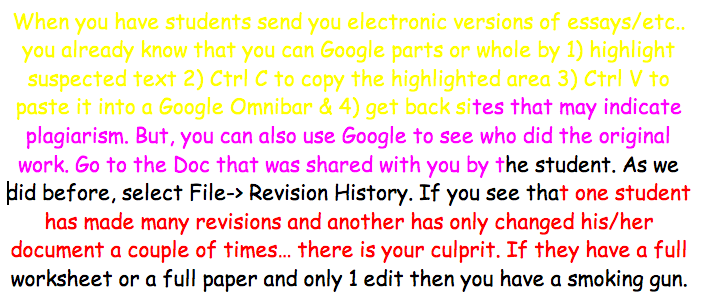
When you have students send you electronic versions of essays/etc.. you already know that you can Google parts or whole by 1) highlight suspected text 2) Ctrl C to copy the highlighted area 3) Ctrl V to paste it into a Google Omnibar & 4) get back sites that may indicate plagiarism.
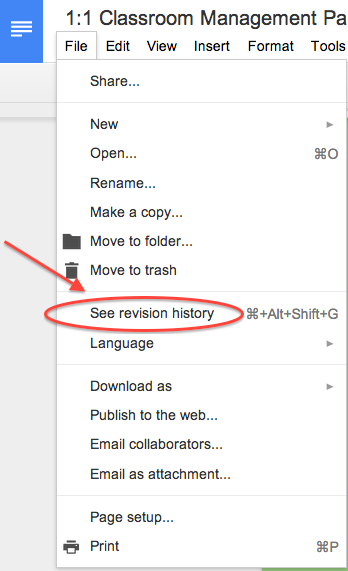
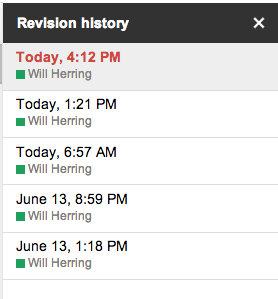
But, you can also use Google Revision History to see who did original work. Go to the Doc that was shared with you by the student. As we did before, select File-> Revision History. If you see that one student has made many revisions and another has only changed his/her document a couple of times… there is your culprit. If you have a really difficult situation between students you can go as far as to see the timestamped revision in which the actual questioned portion is contained. 

It is probably needless to say that if they have a full worksheet or a full paper and only 1 edit then you have a smoking gun.


Screen Shot 2014-06-16 at 4.09.11 PM.png


The Worst Partner EVER; (AKA: UN-collaborator)


We’ve all listened to students complain that they did more work than any other member & it’s UNFAIR! One easy way to check for participation is to have students collaborate in a Google Doc using different color text. You can eyeball the doc to see who is doing what & if a dispute arises use the revision history feature to see if someone has altered another student’s work. To see the “Revision History” of any Doc click on “File” -> “Revision History”


Screen Shot 2014-06-16 at 4.54.54 PM.png


Screen Shot 2014-06-16 at 4.09.11 PM.pngScreen Shot 2014-06-16 at 4.12.19 PM.png

Keep in Mind

The cat and mouse game is centuries old. The Chromebooks are just a new field of play. Don’t spend too much effort building a better mousetrap. Instead spend your time creating challenging and interesting lessons with authentic assessment items that incorporate student product generation and publication. Embrace the notion that students have access to any fact based knowledge in the history of man in their pockets and ask them to DO something with it!


Add a teacher pro-tip in the Comments section below if you have even more ideas

Will Herring
MCS DIF

Thursday, June 12, 2014

More Movenote AwesomeSauce

About a month ago, my friend and colleague Tyler Callahan (@STEM_TC) introduced our team to a great new tool, Movenote.  On this blog space, Tyler wrote about how he helped a high school Bio teacher use this tool to great effect.

When I first saw the student examples sent, I knew Movenote was one of those tools that come along and check a ton of boxes off my own personal digital tool checklist:
  • Can be used in any content area
  • Students have opportunities to express their creativity and imagination
  • Students are able to showcase their content mastery and understanding
  • Easy to personalize and "make it their own"
  • Incorporates student voice- literally and figuratively
  • Allows public publication and easy sharing on the web
In other words, it's one of those great tools that is easy, highly flexible, easy to share out, and works across devices.  I had a pretty good idea that it could also check the box off for "spans a wide age range" but decided to try it out with my own girls at home to make sure.

So, my kindergartener Kenna (who will be in 1st next year) had to do a report on an animal she had seen at the zoo.  So we whipped my Chromebook out and I helped her to put a short slide presentation together on ostriches.  She was then able to flip over to Movenote, load her presentation, and record the following Movenote:


I sent the link to my daughter's amazing kindergarten teacher, Mrs. Demolet, and she was able to easily pull it up and play it for the class.  And what's more, Movenote has a replay/commenting feature so Mrs. Demolet had her students send this Movenote back as a response (they're all doing the BYEEEEEEEE thing at the end- so funny).

So this is a tool that can be used all the way from AP Bio down to kindergarten (with support and help).  I also let my 2nd grader (now 3rd grader) handle it and it's worth noting that I didn't have to help her with anything at all.

What a great and flexible tool for students to be able to take content, make it their own, and personalize an easy creation that shows what they know as well as lets them be creative!  I hope you'll try Movenote in your classroom. :)


Monday, June 9, 2014

Teaching Transformations in Math Using Webcam Toy

We've all caught students taking those funny pictures using the Chrome App, Webcam Toy. Now you can use that App in the math classroom. I helped a teacher use Photo Booth on the Macbook Air to teach reflections, rotations and translations in her math class. The students used this program and added special effects to their pictures to demonstrate each transformation concept. I wanted to find something similar to this on the Chromebook. The special effects that are available in Webcam Toy will allow the student to demonstrate each concept.

Effects that can be used in Webcam Toy:
  • Reflection - left mirror, right mirror, bottom mirror, quad mirror
  • Rotation - kaleidoscope
  • Translation - quad cam, split screen (ok...this may be a little harder to see)